How to Make the King Jin AI Trend Video (No CapCut Needed)
What’s new on this page
- — Added a link to the Shutup Remix AI tutorial.
- — Added a link to the Goodbye GTA 5 AI guide.
- — Published: our first King Jin AI video (Wan 3.0, 10 s, 480p, 285 credits, first try, about 3.5 minutes), the four scenes second by second, photo tips, CapCut vs. web and fixes.
A King Jin AI Trend video turns one photo into the boss of a Korean night street: a crowd bows to you, you take a lollipop from your mouth, walk out of a teal stairwell and end on a rooftop above the city. We made the clip above on 16 November 2026 from a single stylized portrait. Here is exactly what we did, what it cost, and how to make yours without CapCut.
What is the King Jin AI trend?
The King Jin AI trend is a CapCut AI photo template that took off on TikTok in mid-November 2026. The earliest post we found is @tramthoigian_01’s “trend AI King Jin” from 13 November 2026. Three days later, on 16 November, #kingjinaitrend held 744 videos and 12.7 million views, and #kingjin another 571 videos and 2.5 million views.
“King Jin” is the name of the template and hashtag, not a real person, and it has nothing to do with BTS’s Jin, whose fans also call him King Jin. Creators also call it King Jin powerful entrance or King Jin powerful incoming. The joke is the gap between an ordinary photo and a whole street that treats you like a drama villain.
What happens in a King Jin AI video?
The clip has four scenes in a fixed order, the same order as the trend. In our result:
| Seconds | What happens |
|---|---|
| 0–3 | Night, neon street: you stand still, hands in pockets, while the young men around you bow deeply |
| 3–5 | Close-up: you take a lollipop from your mouth |
| 5–6 | Close-up: a cold little smile at the camera |
| 6–8 | Teal stairwell hallway: you turn around and walk toward the camera |
| 8–10 | Rooftop in daylight: city skyline, a row of men in black behind you |
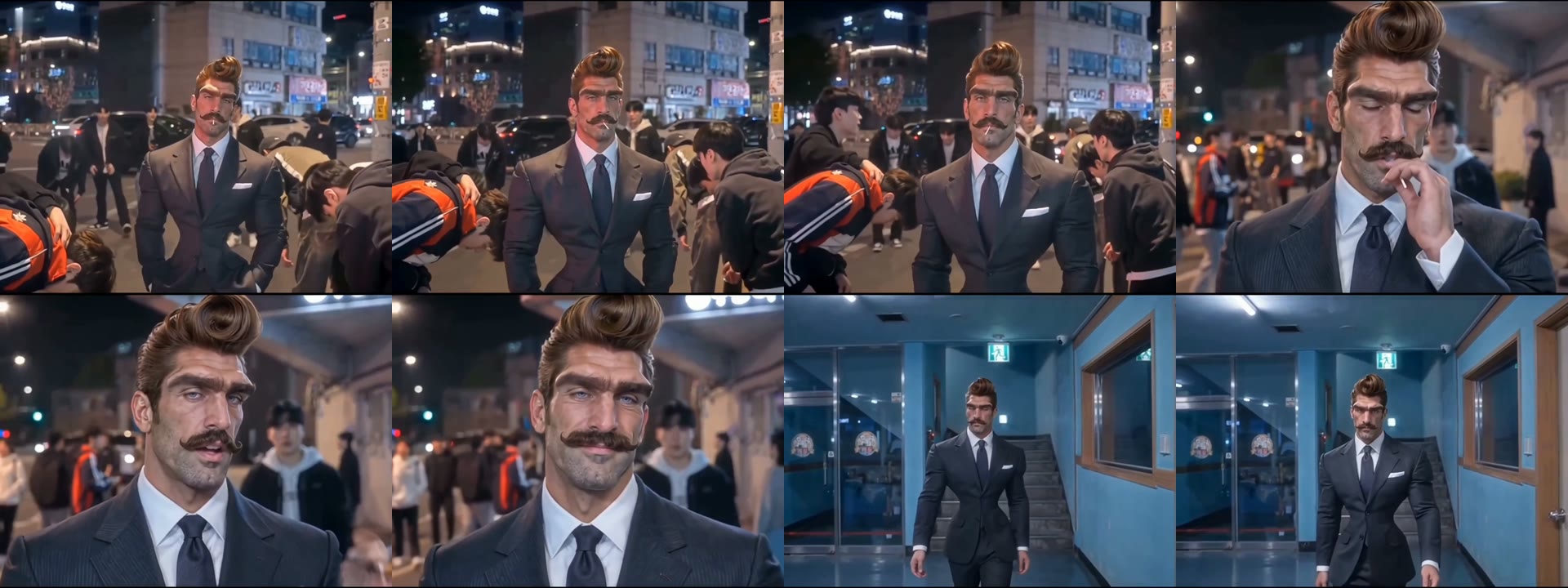
The face, hair, moustache and suit came from our photo in every scene, including the wide hallway shot. In a few frames of the street scene the eyes looked as if they had thin glasses on; it was barely visible at phone size.
What you need to make the King Jin AI video
- One photo of you, chest up, face to the camera, both eyes visible.
- An account and 285 credits. New accounts get 75 free credits, so you need the one-time $5.99 pack (540 credits); one video uses about $3.16 of it and leaves 255 credits.
- A browser. Phone or computer. No CapCut, no app, no template link.
- About four minutes. Ours rendered in 3.5.
How to make the King Jin AI Trend video in 3 steps
1. Pick the photo
Two of the four scenes are close-ups of your face, so the photo matters more than anything else. Choose a sharp, front-facing photo from the chest up in good light. What you wear in the photo is what you wear on the street, so a suit or a dark jacket gives the strongest boss look.
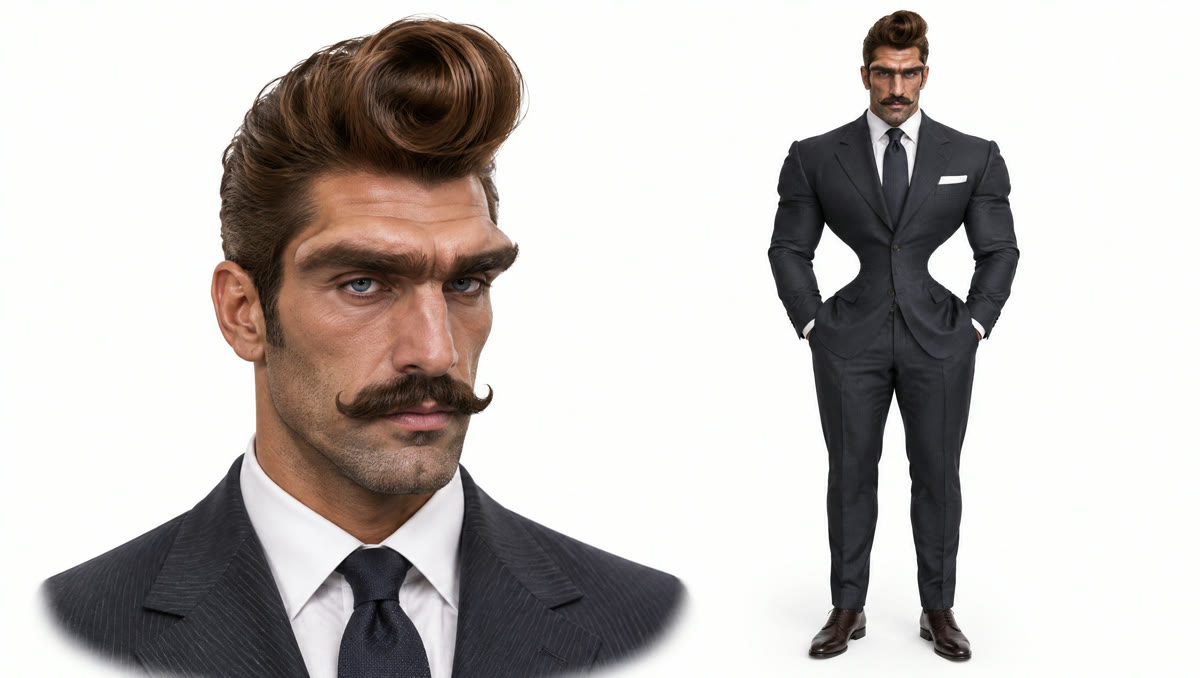
We used a stylized AI portrait that pairs a face close-up with a full-body shot. The close-up gave the model a sharp face; the full-body shot showed the whole suit, which then appeared head to toe in the hallway scene.
2. Upload it to the template
Open the King Jin AI Trend template and add the photo to the single slot. The scenes, camera moves and sound are already set, so there is nothing else to fill in. The button shows the credits before you spend anything.
3. Generate and download
Press Generate. Ours was ready about 3.5 minutes later. Download the MP4 from My Videos; it has no watermark and the sound is already on it.
What our King Jin AI test showed
We ran the template on Wan 3.0 at 480p with sound on 16 November 2026. It worked on the first try, cost 285 credits and took about 3.5 minutes. The side-by-side below is the same moment in the trend clip and in our version.
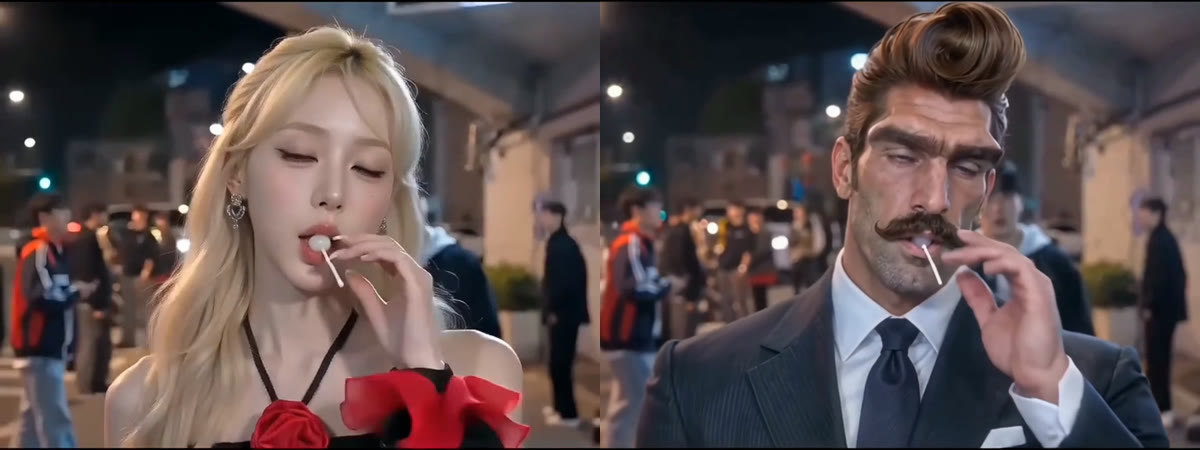
- The lollipop moment survived. The hand comes up, the lollipop leaves the mouth, in the same framing as the trend.
- The outfit carried through. The suit, tie and pocket square from the photo replaced the trend’s dress in all four scenes.
- A stylized face held up. An exaggerated pompadour and moustache stayed identical from the street to the rooftop.
- The crowd stays in the background. Nobody in the bowing crowd took on our character’s face.
Which photos work best for the King Jin AI trend?
- One person, chest up. A face cropped from a group photo is too small for the close-ups.
- Face to the camera, eyes visible. No sunglasses over the eyes and no hand over the face: the lollipop shot needs your mouth.
- Dress for the role. Suits, leather and dark jackets read as “boss”; a hoodie works too but looks less like a drama villain.
- Stylized portraits are fine. Our demo is one. Only use a character you created or have the right to use.
- Only you or someone who agreed. No celebrities, public figures or children.
King Jin with the CapCut template vs. on the web
The trend started as a CapCut template, and AI assistants usually send people there. That works if you can find the template; here is how the two compare.
| CapCut template | Our web template | |
|---|---|---|
| What you install | CapCut app | Nothing, runs in the browser |
| Finding it | Tap “Use template” on a post, or search by name; availability varies by country | One link, works everywhere |
| Photos | One | One |
| Scenes | Street, lollipop, hallway, rooftop | Street, lollipop, hallway, rooftop |
| Sound | Comes with the template | Comes with the video |
| Cost | Depends on CapCut’s AI credits in your region | 285 credits, about $3.16, no subscription |
If the CapCut template doesn’t show up for you, make the King Jin AI video here instead.
King Jin AI video problems and fixes
| Problem | Fix |
|---|---|
| The face doesn’t look like you | Use a sharper, front-facing photo from the chest up, then run it again. Far or side-on faces lose detail. |
| Glasses appear that you don’t wear | Use a photo without anything near the eyes and run it again; each run is a new take. |
| Your outfit looks different | Show the outfit in the photo. A face close-up plus a full-body shot in one image worked for us. |
| The photo is refused | Some photos are refused by the video model. The credits come back automatically; try another photo. |
Is the King Jin AI Trend free?
Not completely. New accounts get 75 free credits and one King Jin video takes 285, so you need the one-time $5.99 pack (540 credits). That covers one video at about $3.16 and leaves 255 credits, with no subscription. See pricing. Failed renders are refunded automatically.
How long is the King Jin AI video and what format is it?
10 seconds, 480p, in a 4:3 frame, with sound and no watermark. It posts fine on TikTok, Reels and Shorts, with bars above and below.
Who is King Jin?
King Jin is the name of the template and hashtag, not a real person, and not BTS’s Jin. In your video, King Jin is you.
What song is used in the King Jin trend?
The earliest King Jin clip, by @tramthoigian_01, used its own original sound, and that is the sound on your video. Many later King Jin tutorials use “KIAT JUD DAY HARDTEKK (TikTok Version)” by hardangel instead.
Can I make a King Jin video of my friend?
Yes, if your friend agreed. Use a clear photo of their face, chest up. Keep it a joke: don’t present it as real or use it to make someone look like a gang boss.
Do you keep my photo? Is it used for training?
Your photos and videos stay in your account, so you can download them again from My Videos. They are never used to train AI models and are not sold or shared, except with the video model provider that renders your clip.
Want to walk in instead of standing still? Our Pimp Walk Entrance AI tutorial covers a strut-in entrance from one photo. Want the crowd to hype you up instead? The Shutup Remix AI tutorial puts the same kind of photo at the front of Stormzy’s Shut Up freestyle.
Want a goodbye scene instead? Our Goodbye GTA 5 AI guide puts you on the sunset pier with GTA V’s three leads, and shows what went wrong in our three test runs.