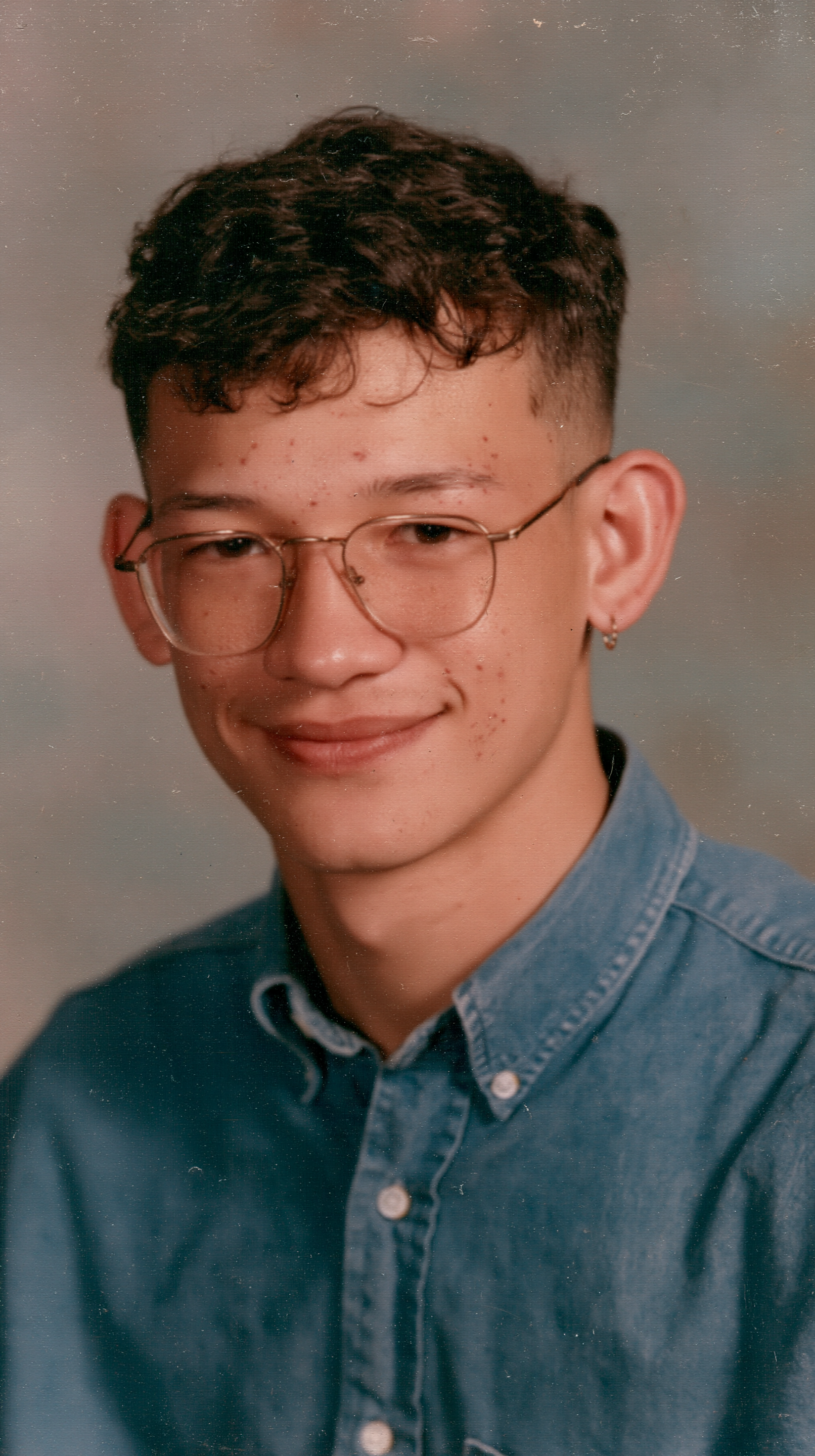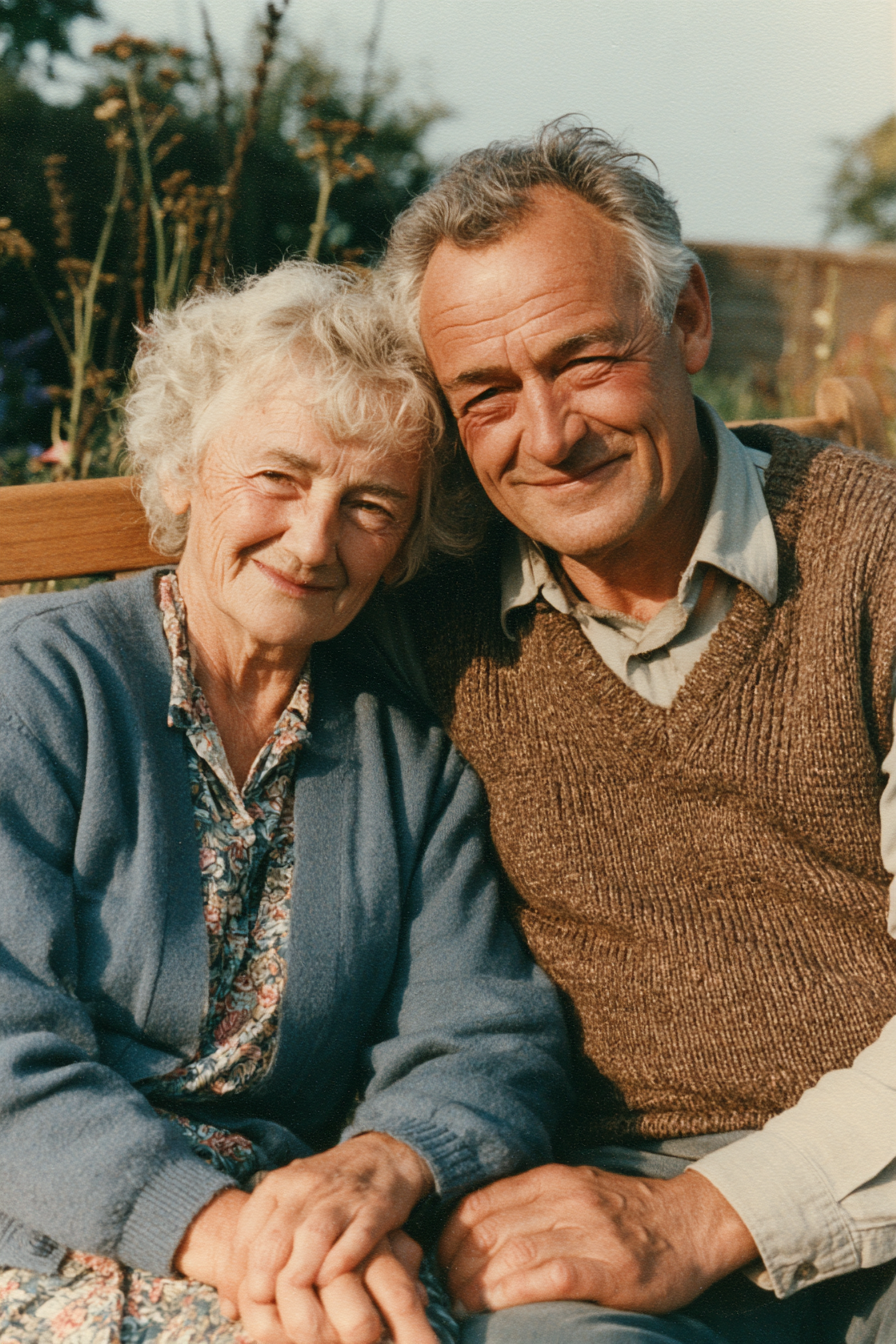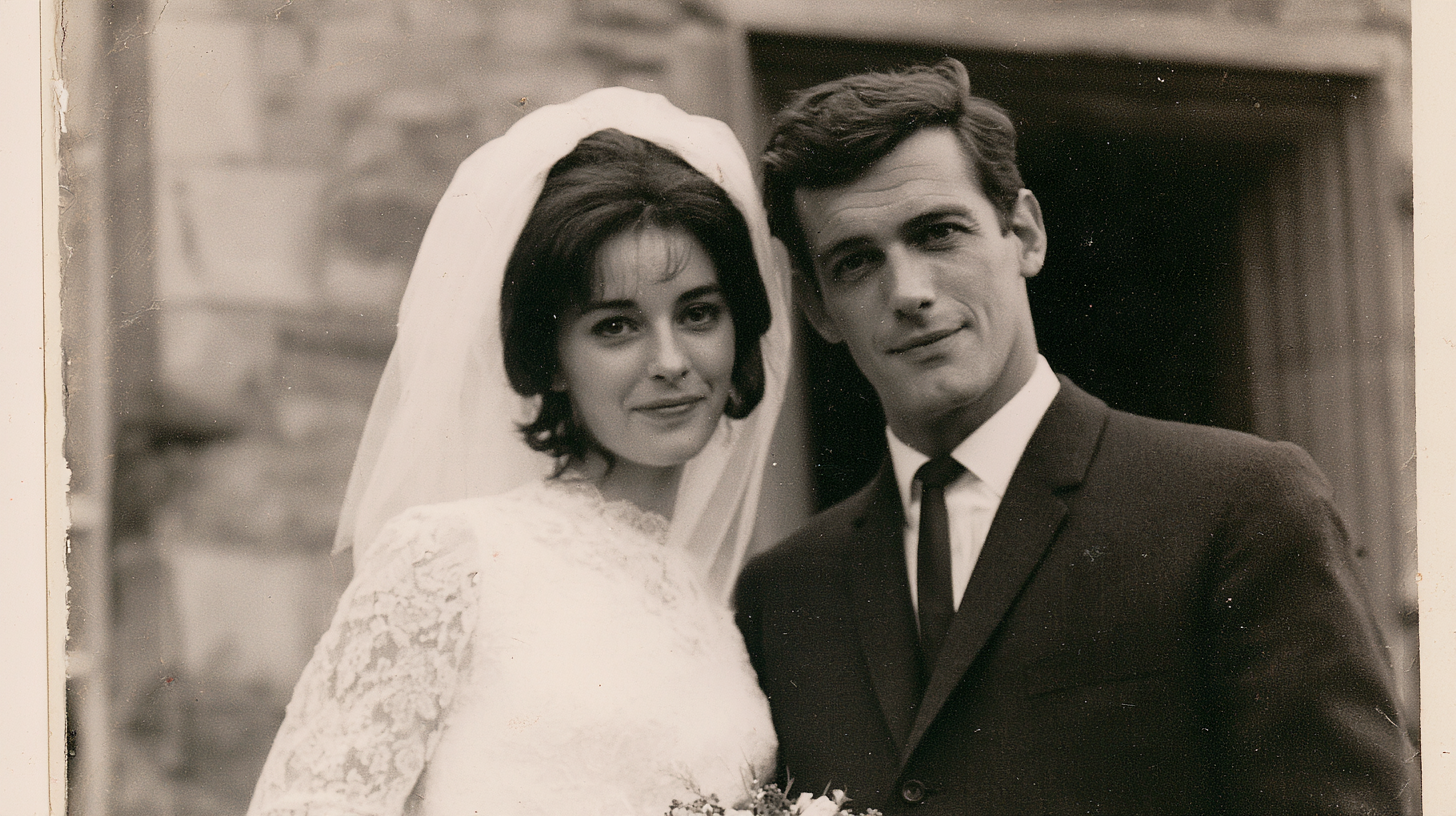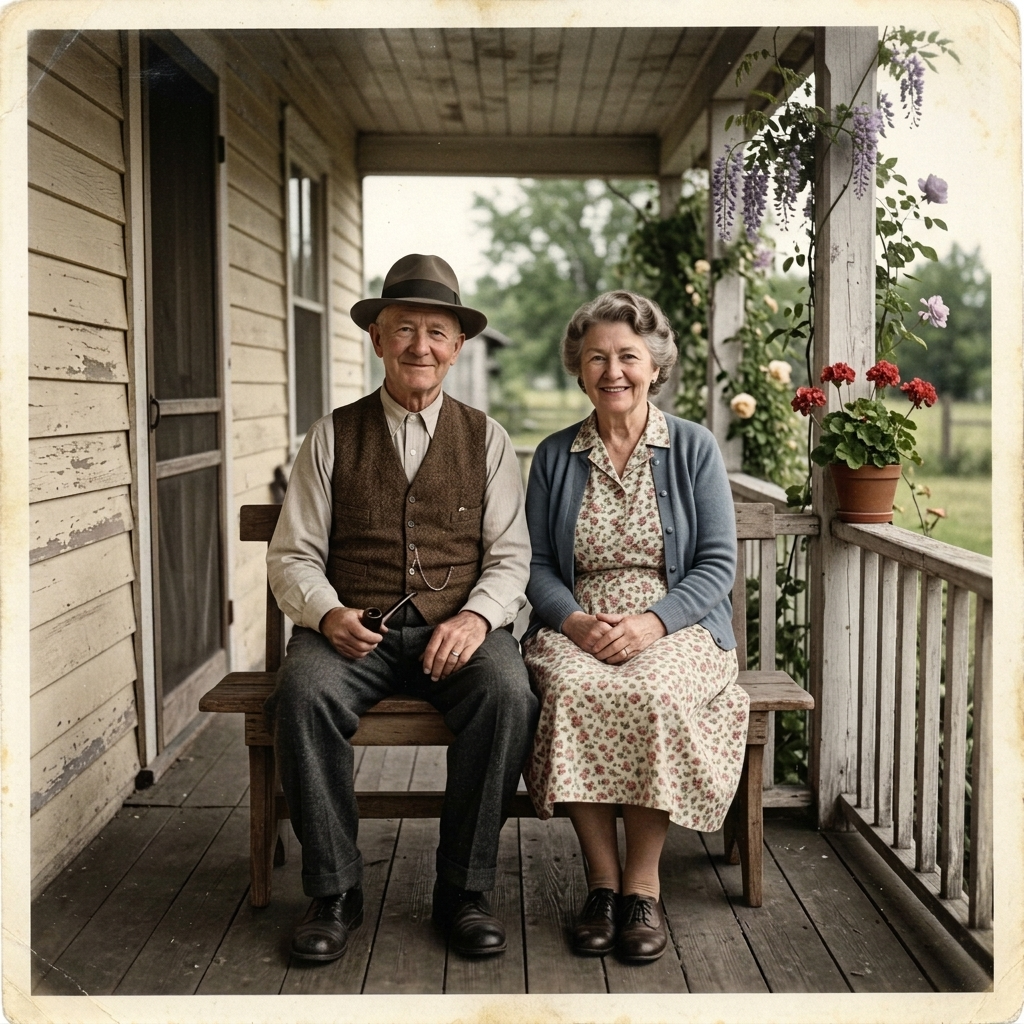
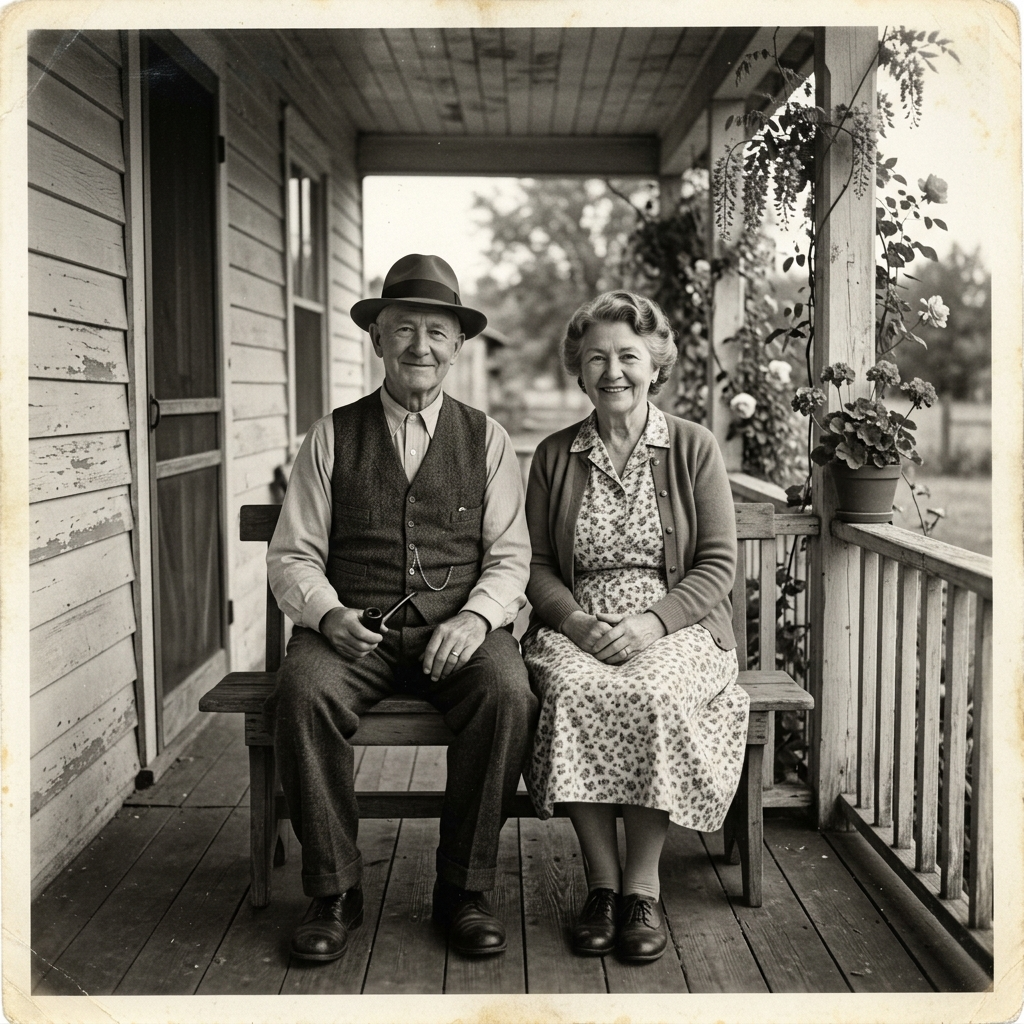
 BeforeAfter
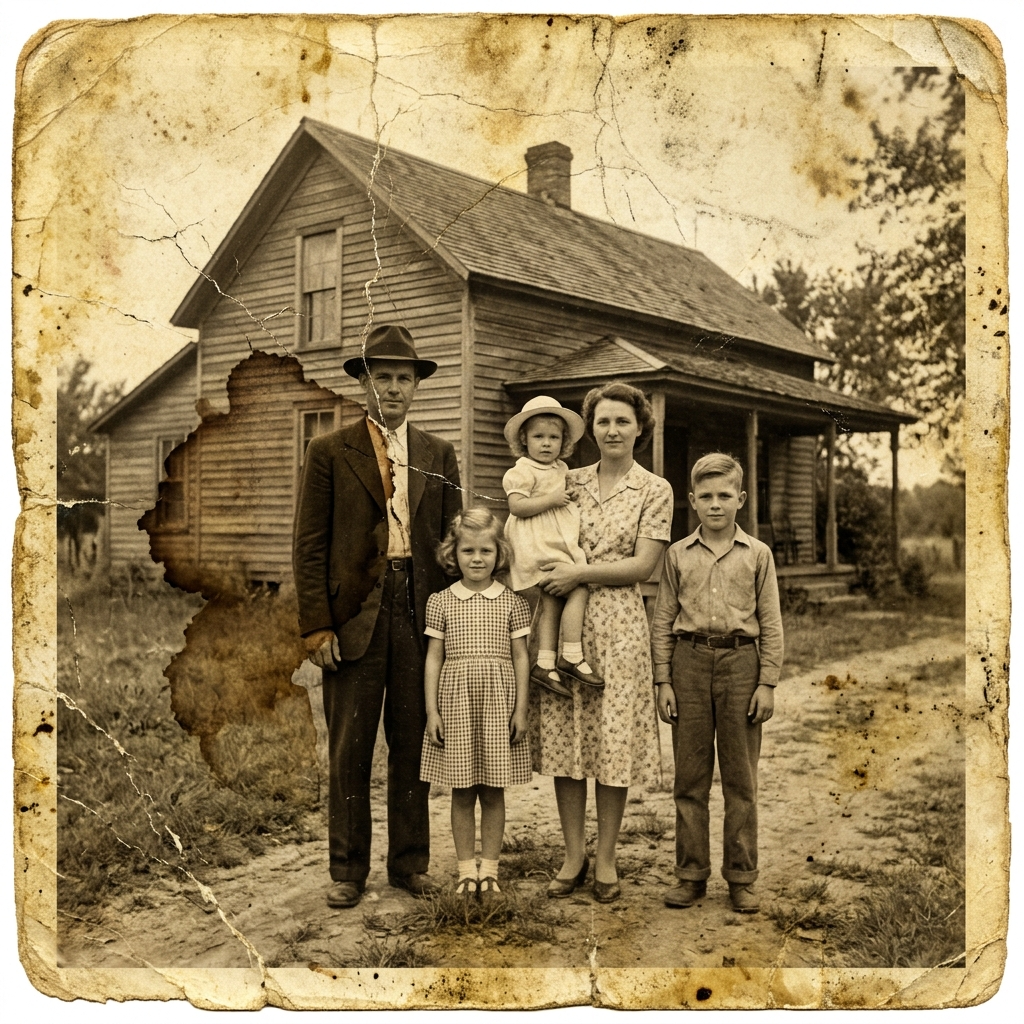
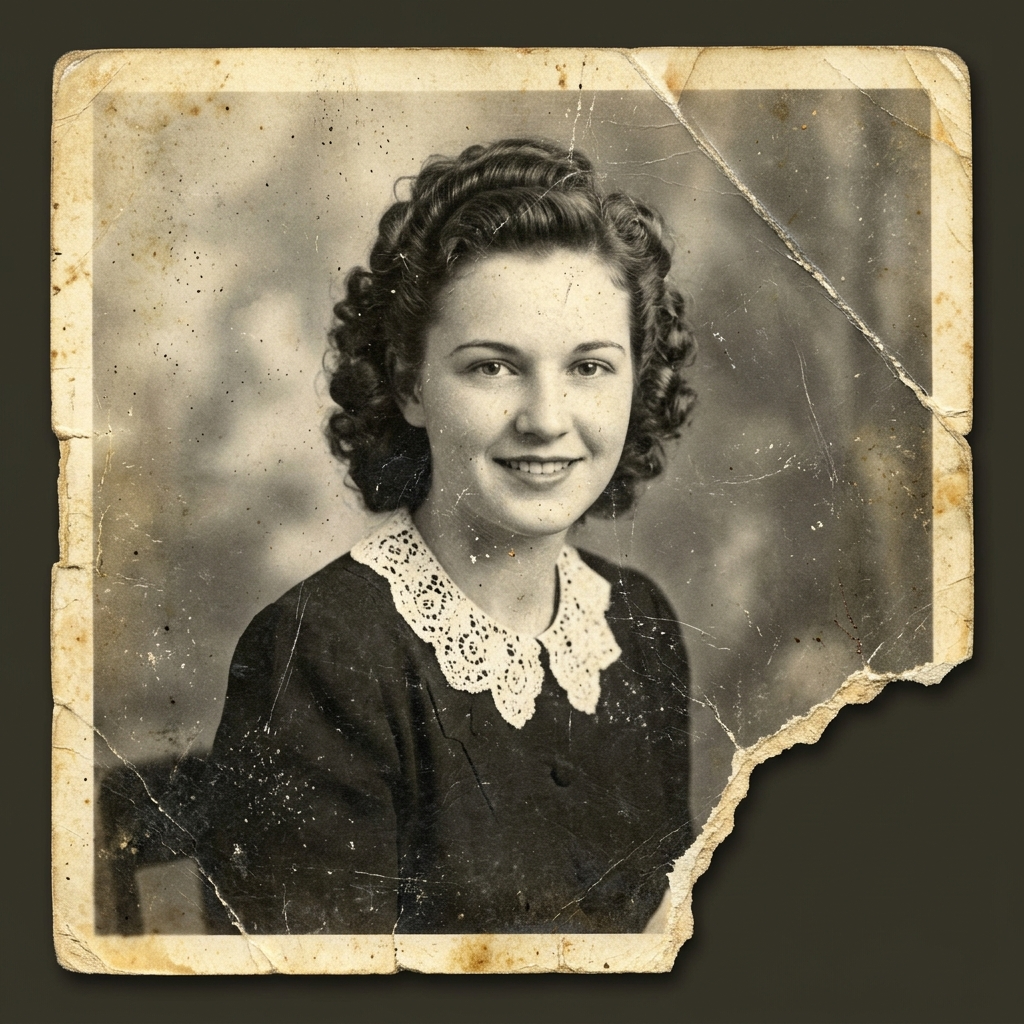
Upload a faded, scratched or torn photo. AI repairs the damage, sharpens faces and can add natural color, while keeping every face looking like the same person.
Engine
Images0/10
Prompt539/20000
BeforeAfter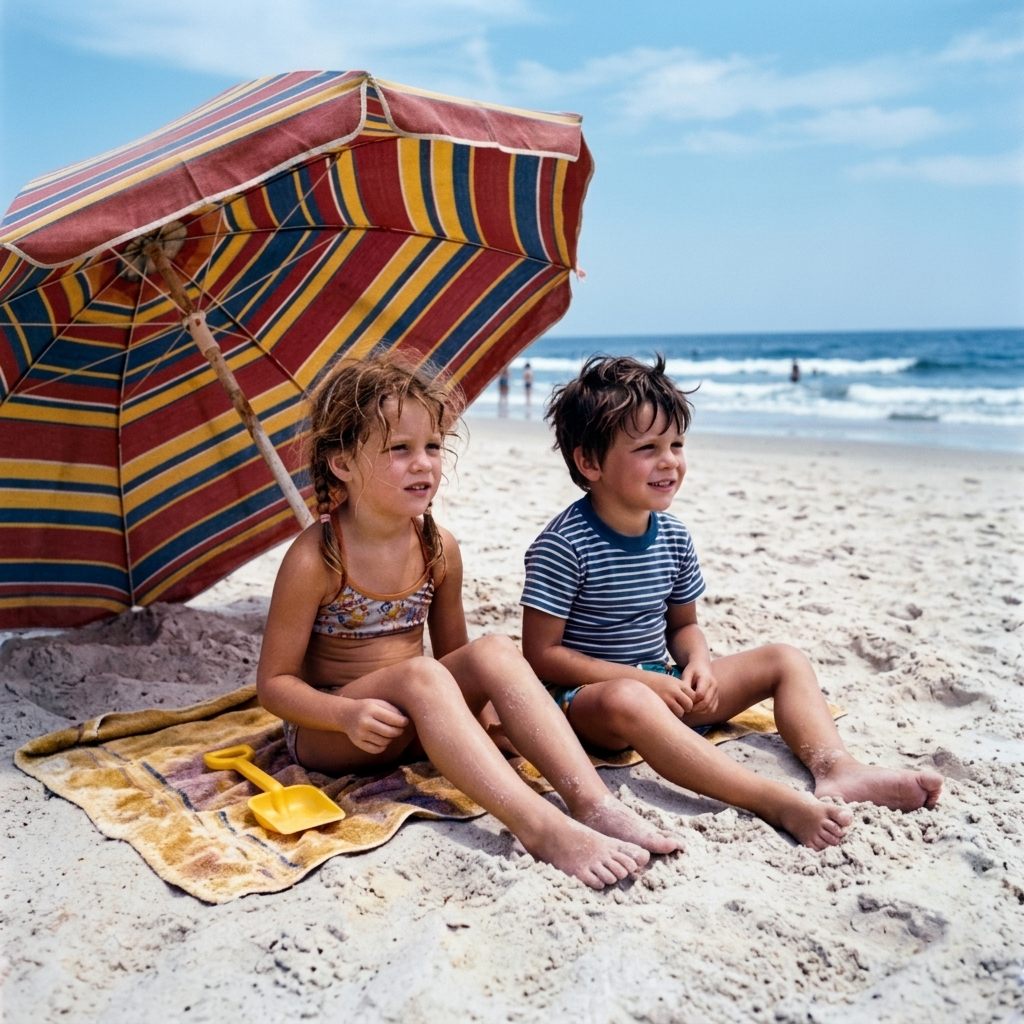
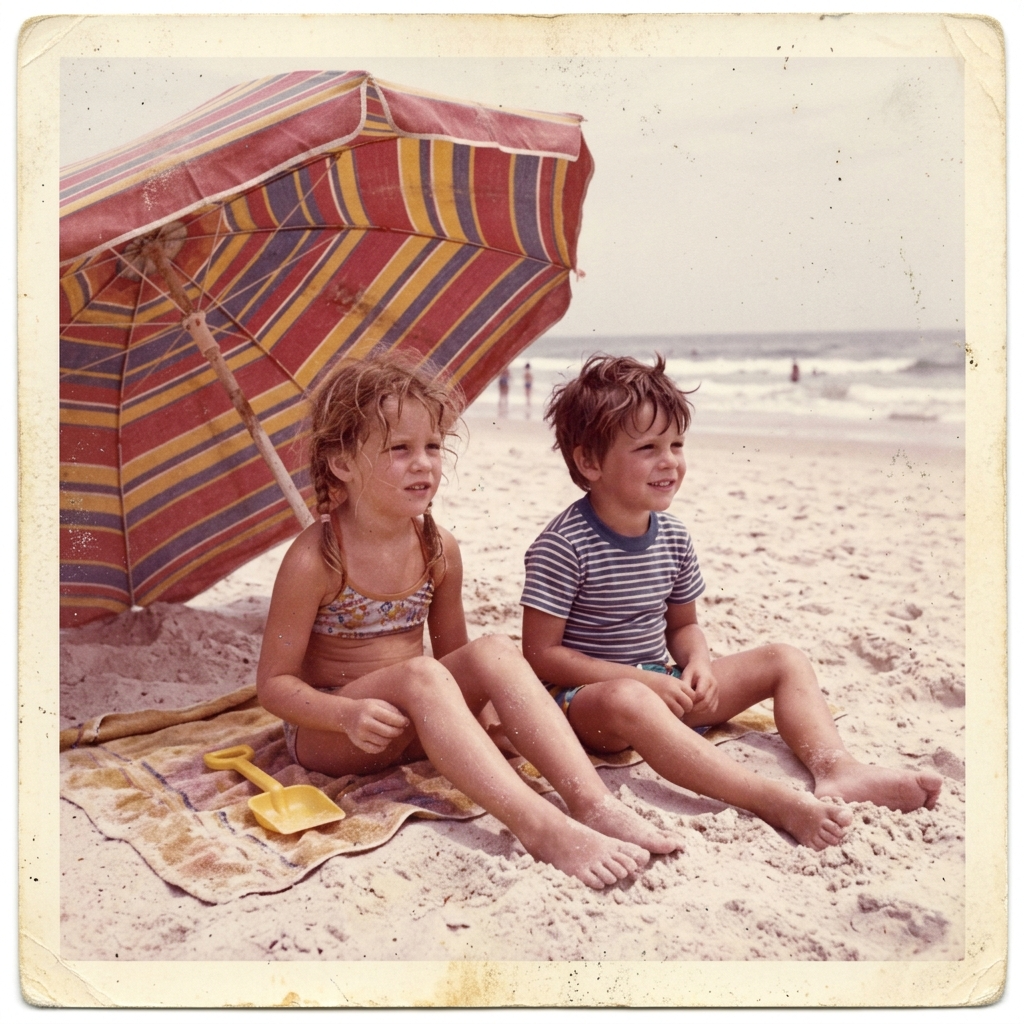 BeforeAfter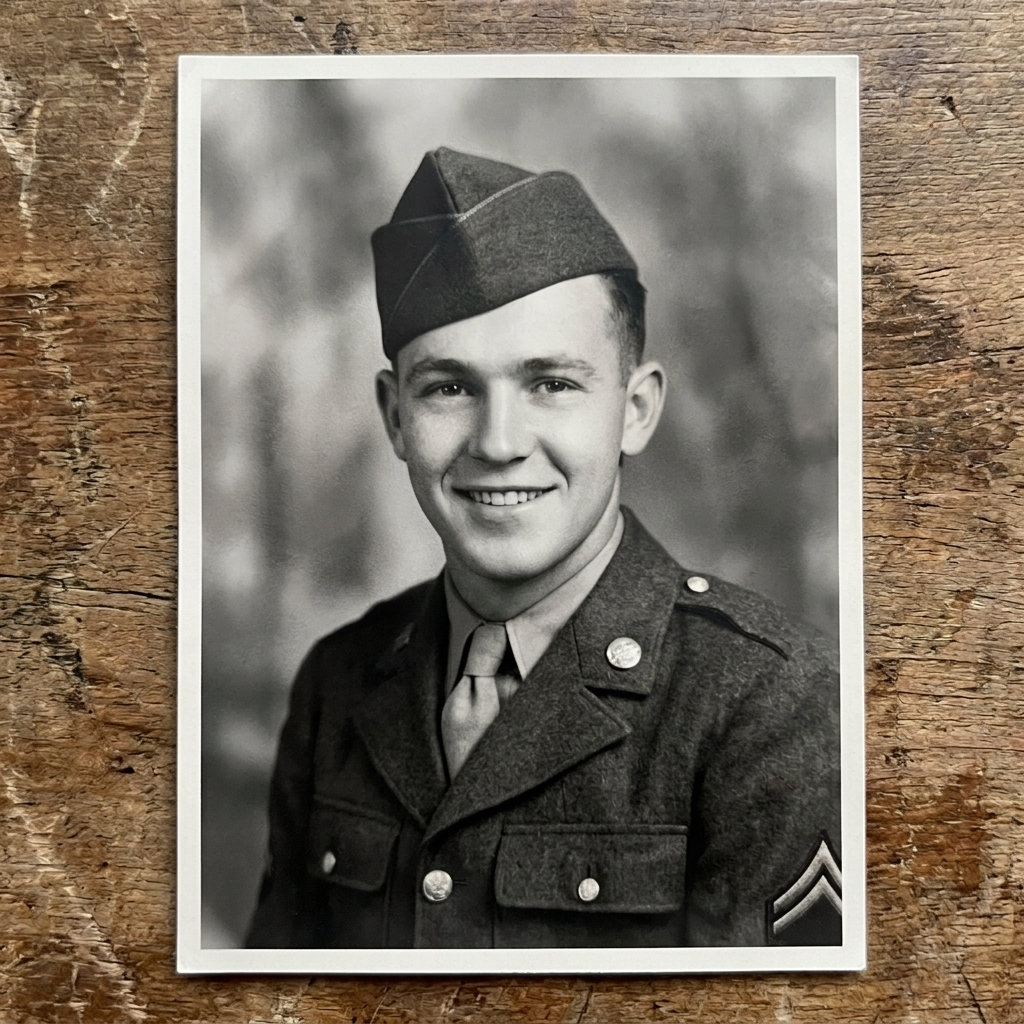
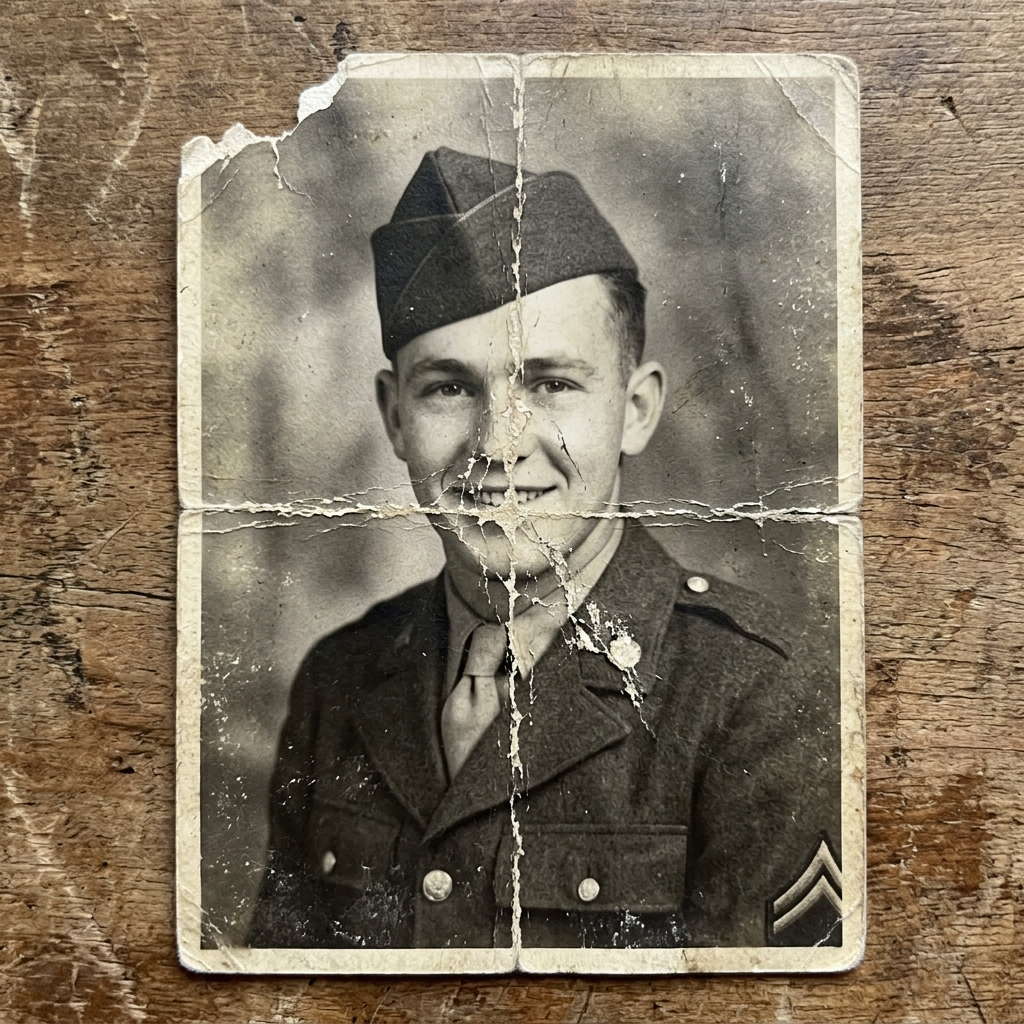 BeforeAfter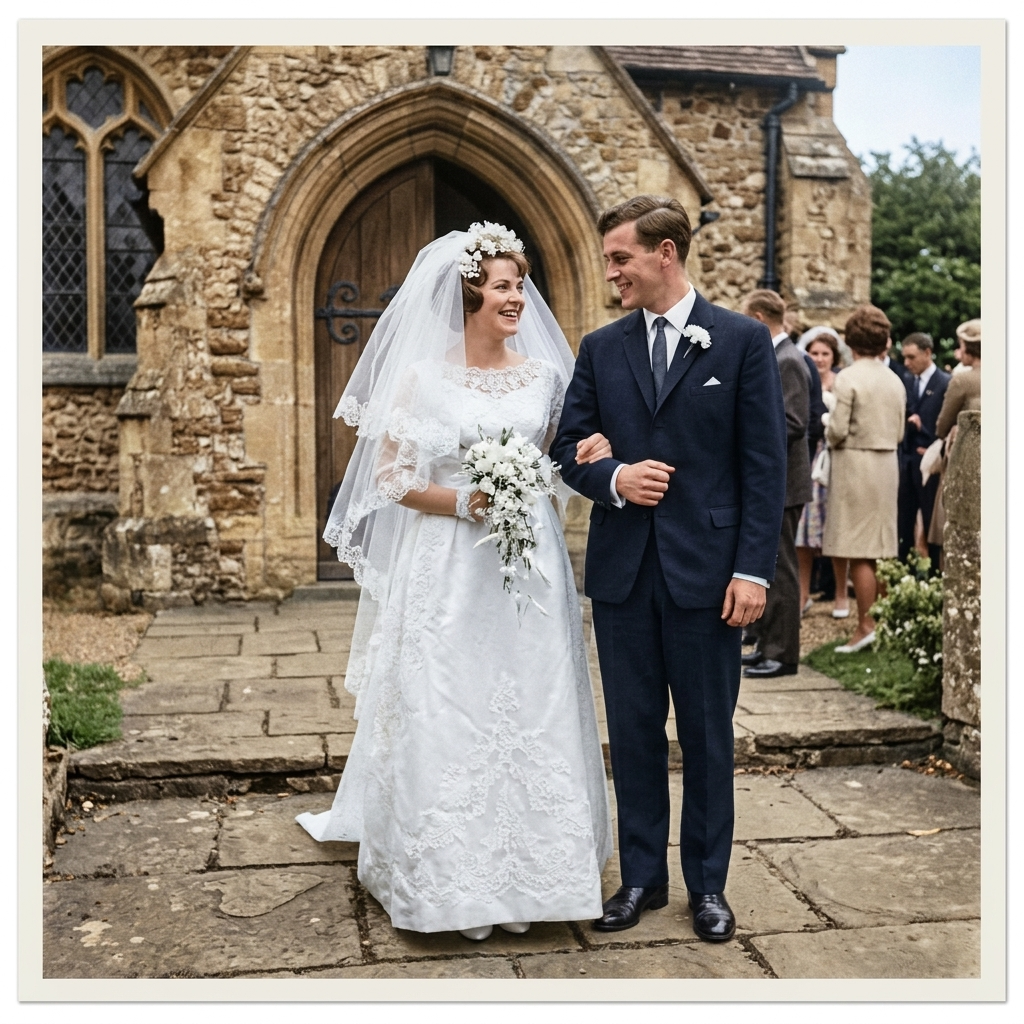
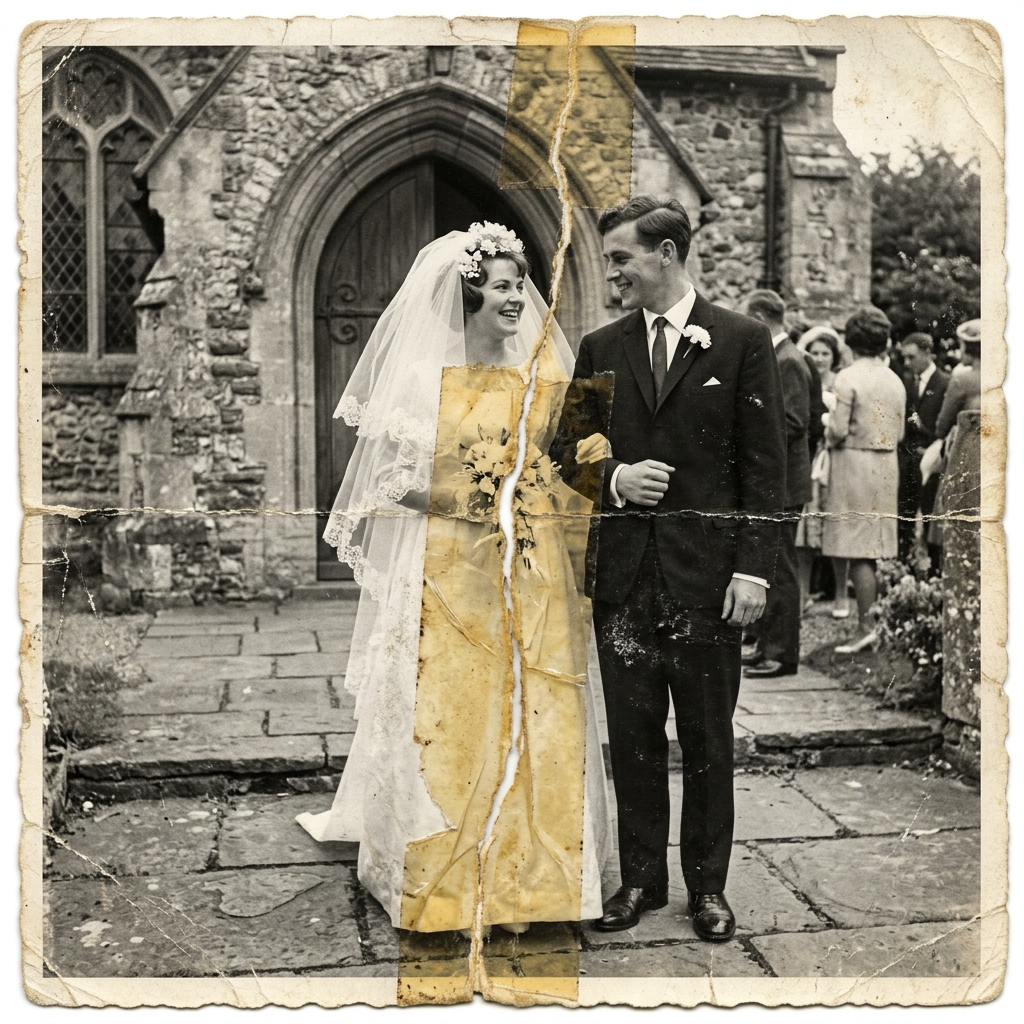 BeforeAfter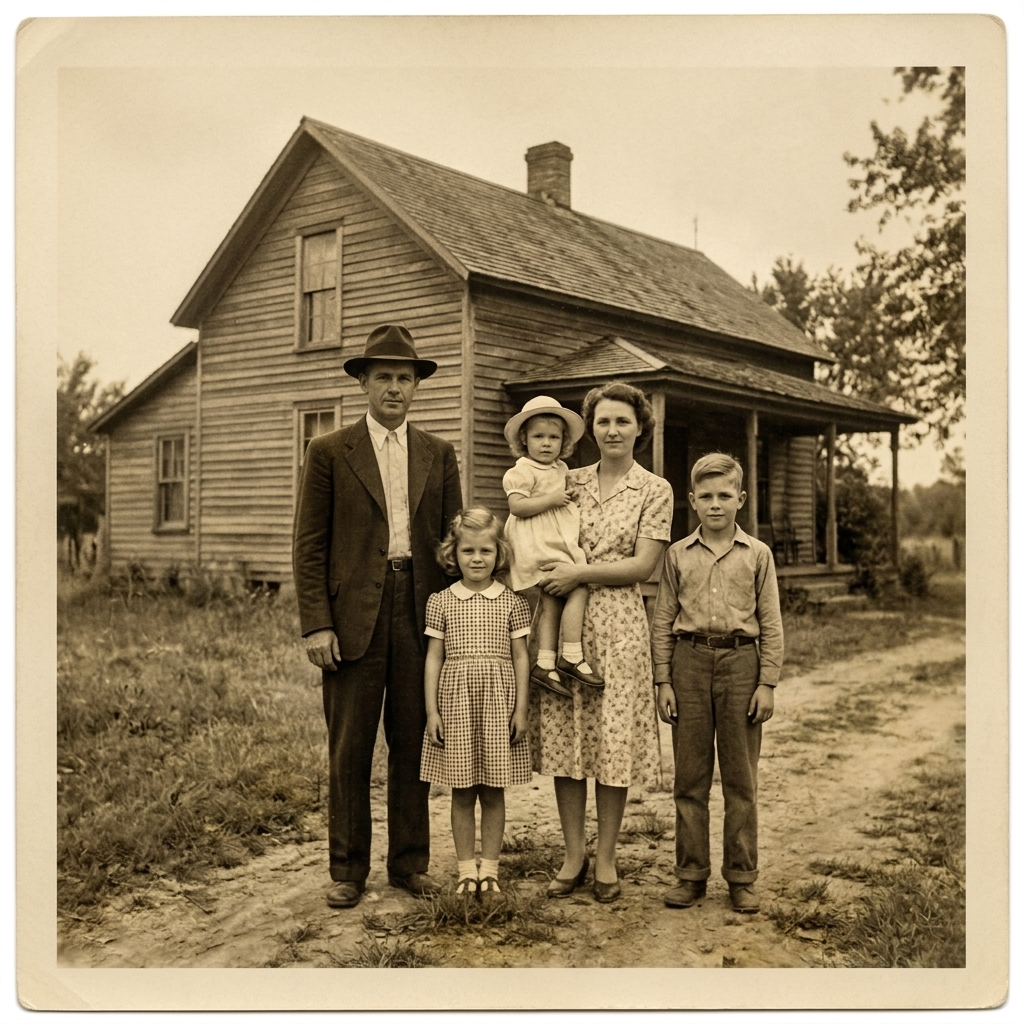
 BeforeAfter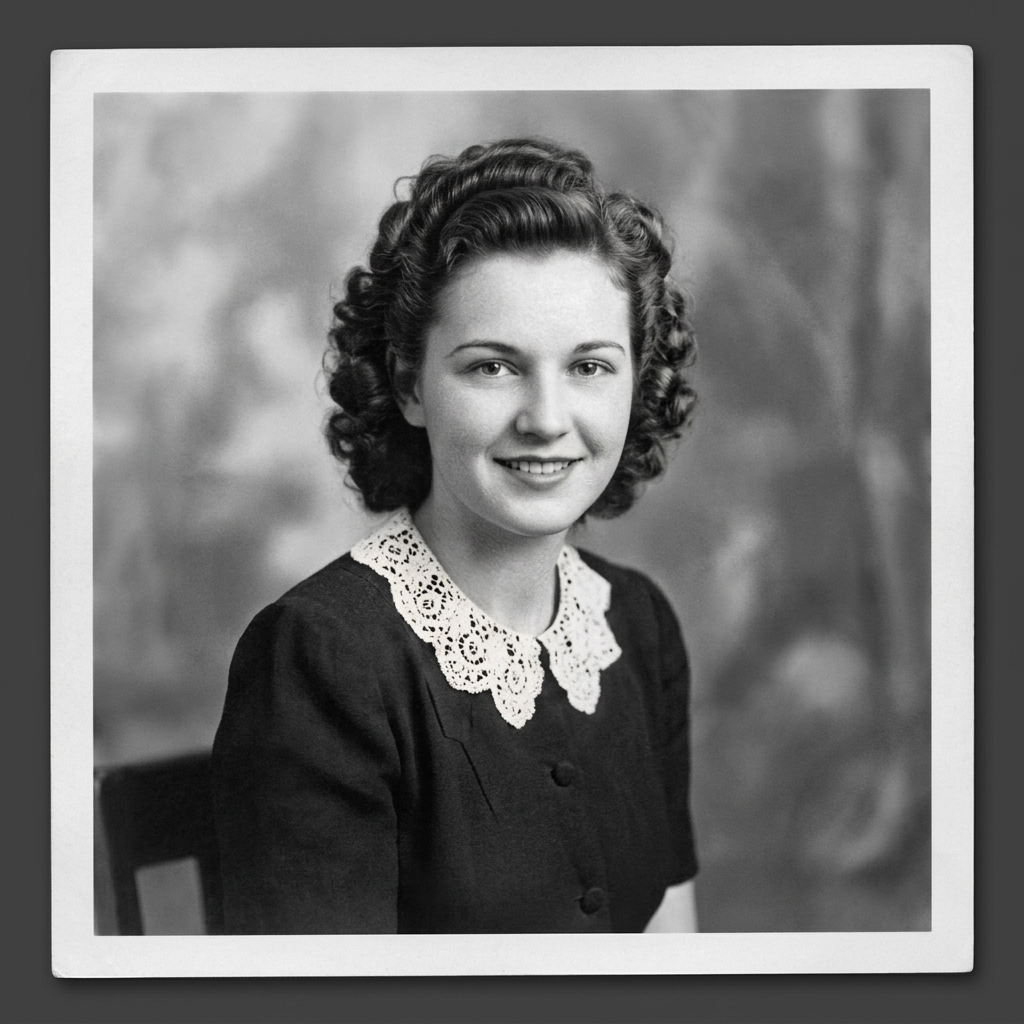
 BeforeAfter
Scan or take a straight, well-lit phone photo of the print, then upload it. Higher resolution keeps more detail.
The prompt is pre-filled to repair damage and keep the original tone. Add "colorize it" for color, then pick an image model.
AI removes scratches, dust and tears, fixes fading and sharpens faces. Drag the slider to compare, then download.
The better the copy you upload, the more detail AI can recover.
Remove glass, frames and plastic sleeves. They add glare and reflections that AI may mistake for damage.
Hold your phone parallel to the photo, about 90°, near a window or under soft light. Avoid flash and shadows from your hand.
Get close so the photo fills the screen, then crop away the table and borders before uploading.
A flatbed scan at 600 dpi or higher keeps the most detail, especially for small wallet-size prints.
BeforeAfterRemoves surface damage, creases and film grain without smearing the image.
BeforeAfterRecovers contrast and evens out yellowed, water-stained or sun-faded areas.
BeforeAfterBrings back sharp, natural eyes, hair and facial detail while keeping the person recognizable.
BeforeAfterFills small tears and missing corners so they blend with the rest of the photo.
BeforeAfterAdds realistic skin tones and period-plausible colors.
BeforeAfterFaces, pose, clothing and framing stay the same — nothing is added or removed.
| AI restoration (here) | Pro retoucher | Photoshop yourself | |
|---|---|---|---|
| Cost per photo | A few credits | $35+ | Software subscription |
| Turnaround | Under a minute | Several days | Hours per photo |
| Skills needed | None | None | Advanced retouching |
| Your original print | Stays with you | Usually mailed or handed over | Stays with you |
| Try again with changes | Unlimited, instantly | Extra rounds of revision | Redo by hand |
Pick the model that suits your photo: Nano Banana for faithful repairs, GPT Image for detailed instructions. Export up to 4K, sharp enough to print and frame.


The prompt box is pre-filled with a full restoration. Swap in one of these to get exactly the result you want.
Remove scratches, dust and creases from this photo. Do not change colors, faces, lighting or composition.
Colorize this black and white photo with natural, historically plausible colors and realistic skin tones. Keep everything else exactly the same.
Restore this photo: repair damage and sharpen faces, but keep the warm sepia tone and the soft vintage look.
Correct the faded color cast to natural colors, bring back deep blacks and contrast, and keep the people and composition exactly the same.
Once your photo is clean, turn it into a short video where the people blink, smile and move.
Start with a good digital copy: scan the print, or photograph it straight on in even light with no glare. Then upload it, run an AI restoration, and drag the before/after slider to check faces and details against the original. Keep the original file too, so you can try another model or prompt later.
New accounts get free credits, which cover your first restorations. After that, each restoration costs credits depending on the model you pick, and credits are refunded automatically if it fails.
A professional retoucher usually charges around $35 or more per photo and can take several days. Here an AI restoration costs a few credits per photo (from 5 credits, depending on the model and resolution) and finishes in under a minute. New accounts get free credits to try it.
Many photo counters and studios offer restoration, but you usually hand over the print, wait days, and pay per photo. Online AI restoration works from a scan or phone photo of the print, so your original never leaves home and you see the result right away. For very valuable prints, you can still use a local studio for the physical copy.
Upload the photo here and click Restore. The AI does the retouching that would take hours in Photoshop — removing scratches, fixing fading and sharpening faces — in under a minute.
It is instructed to keep identity, expression, pose and clothing the same. Very small or badly damaged faces may still come out slightly different, so compare with the slider before you download.
Yes. AI can repair heavy scratches, stains, cracks and torn corners. When parts of the photo are missing, the AI fills them in so they blend in, which means those areas are a best guess rather than the original. Compare with the slider, and try Nano Banana Pro for the toughest photos.
Yes. Add "colorize it with natural colors" to the prompt. Without it, the original black-and-white or sepia look is kept.
Yes. You can export at 1K, 2K or 4K depending on the model. 2K works well for prints up to about 8×10 in, and 4K for larger prints and framing.
A flat, evenly lit scan or phone photo of the print, without glare or a visible frame. Crop away borders and table edges before uploading.
You do. If you own the original photo, you also own the restored version. We don't claim any rights to your images and don't publish them.
Your uploads and results are only visible in your own account. We don't publish them.
Restore one photo now, then animate it.