How to Animate Photos with AI (2026): Step-by-Step Guide + Prompts
What’s new on this page
- — Published with real screenshots of every step, 6 copy-paste prompts and a troubleshooting table.
This guide walks through the full process on AI Photo Animator with real screenshots, then covers the parts other guides skip: how to choose a photo that animates well, which creation mode fits your goal, a prompt formula you can reuse, and how to fix the most common failures.
Before you start: pick a photo that will animate well
The photo decides more of the result than the model or the prompt. AI video models have to invent everything that isn’t in the frame (the back of a head, hidden hands, the rest of a body), so the more the photo shows clearly, the less they have to guess.
| Animates well | Causes problems | Why |
|---|---|---|
| Face clearly visible, eyes open | Face tiny, blurred or half in shadow | The model needs facial detail to keep the person recognizable while they move. |
| At least 1000 px on the short side | Small thumbnails or heavily compressed screenshots | Low resolution turns into smeared skin and flickering edges. |
| Hands visible and unobstructed, or out of frame | Hands partly hidden or overlapping other objects | Hidden fingers are the #1 source of extra or fused fingers. |
| Simple, readable background | Busy crowds, mirrors, reflective glass | Background people start moving on their own; reflections rarely stay consistent. |
| One to two subjects | Large group photos | Every extra face is another chance for identity drift. |
Old or damaged photos? Scan at 600 dpi or higher, or photograph the print in daylight without glare. If it’s torn or very faded, repair it first; motion amplifies scratches and dust. Our animate old photos page has templates tuned for vintage portraits.
Step 1. Open AI Photo Animator
Go to aiphotoanimator.ai. The generator is right on the homepage, no app to install. The left panel is where you set up your video; the right panel shows viral templates and, after you generate, your videos.
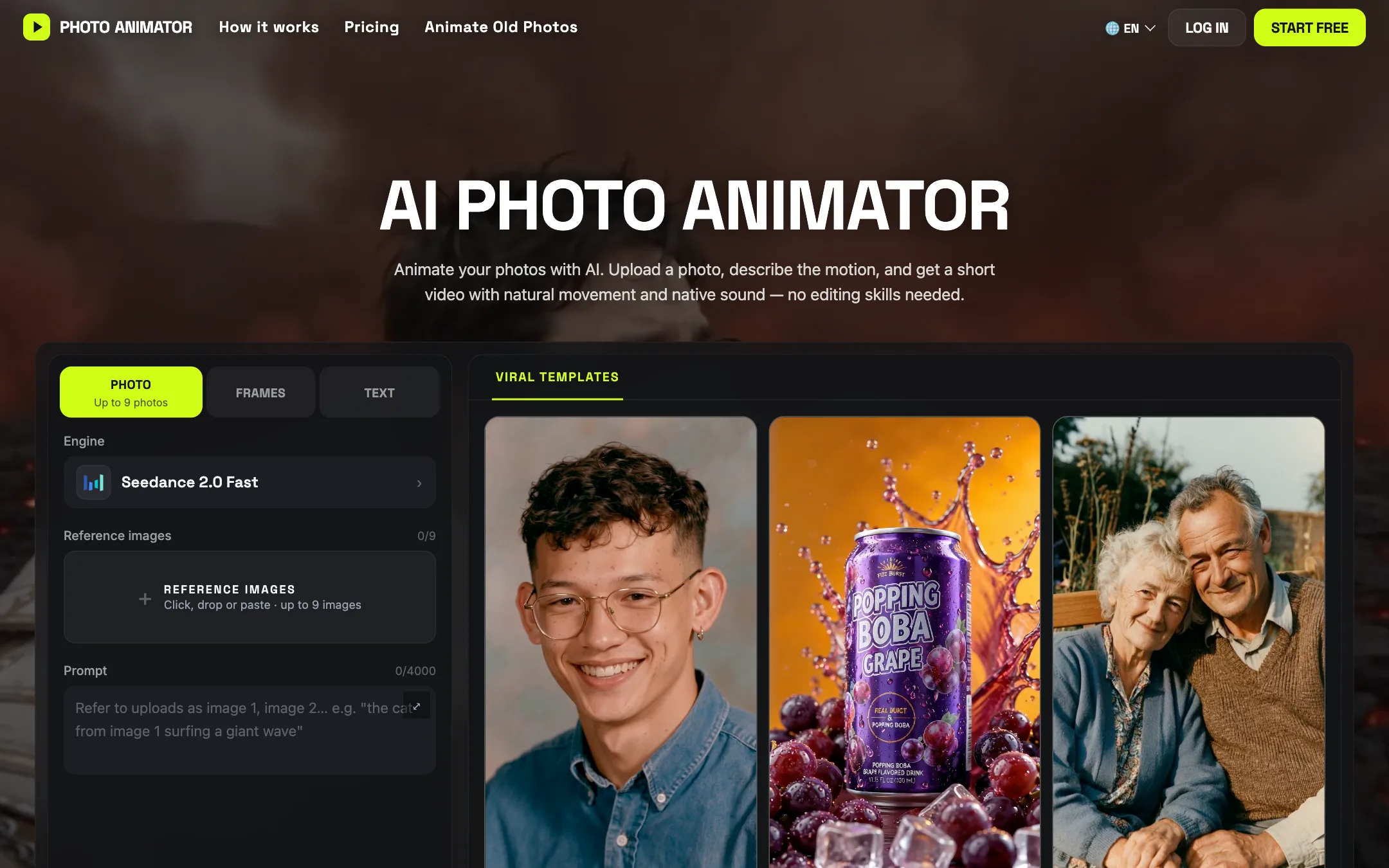
New accounts get free credits on sign-up, enough to animate a photo with the most affordable model. You can set everything up before logging in; you’ll be asked to sign in when you click Generate.
Step 2. Choose the right creation mode
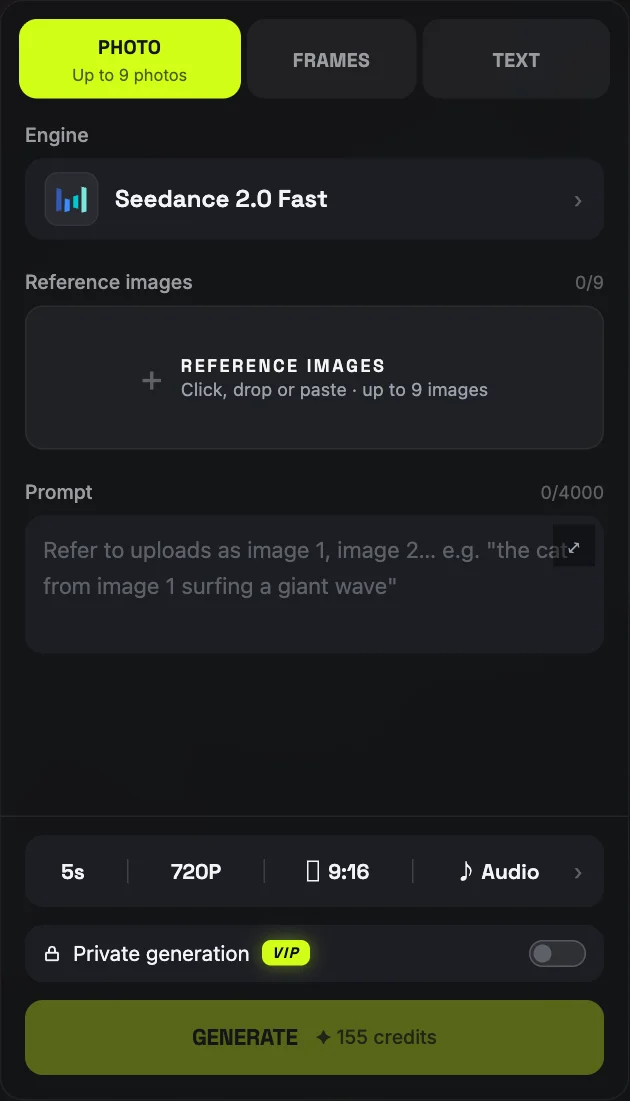
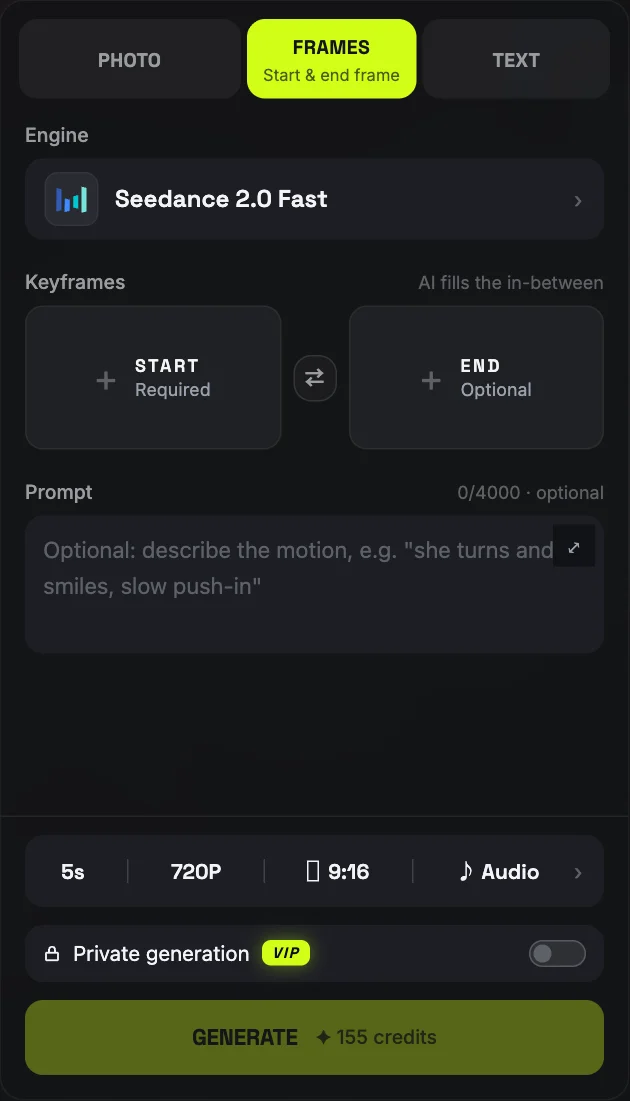
There are three tabs at the top of the panel. Picking the right one matters more than most people think:
| Mode | What you give it | Use it when |
|---|---|---|
| Photo | 1 to 9 photos + a prompt | You want to bring a photo to life, or put the same person/pet/product into a new scene. Best default for most people. |
| Frames | A start frame (and optional end frame) | You want the video to begin exactly on your photo, or to move from one picture to another, like a child photo morphing into an adult one. |
| Text | A prompt only | You don’t have a photo and want to generate a scene from scratch. |
Step 3. Pick an engine (model)
Click the Engine selector. AI Photo Animator puts several leading video models in one place, grouped by family. Each row shows its resolutions, duration range and whether it generates audio.
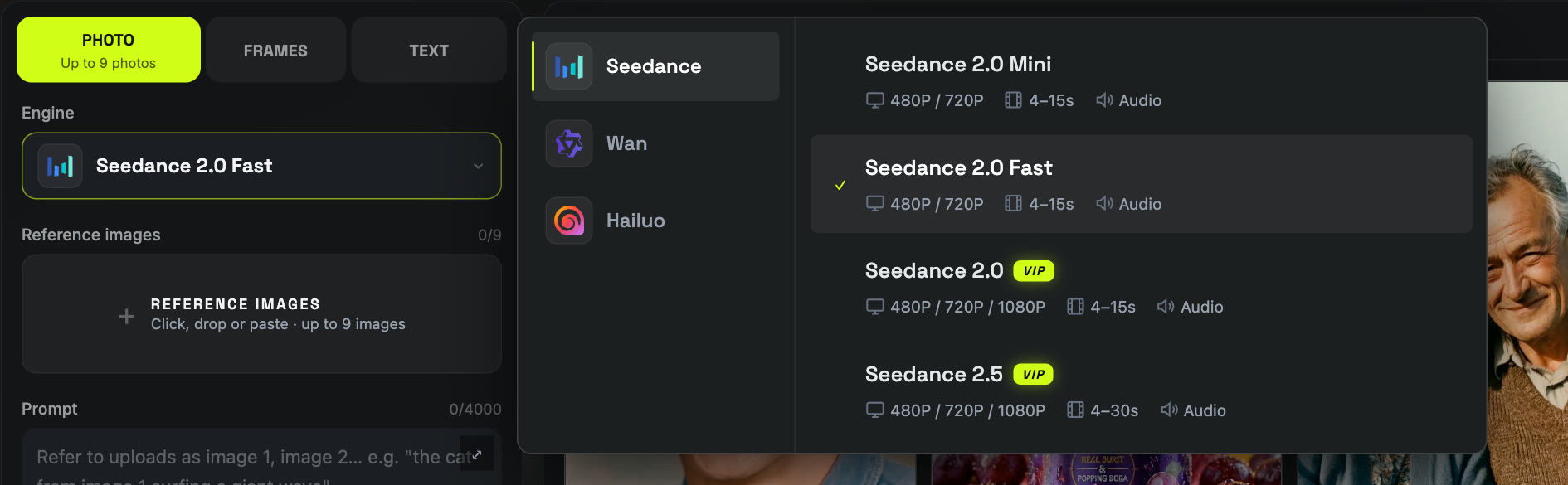
- Trying it out or iterating on a prompt: Seedance 2.0 Mini or Seedance 2.0 Fast. Cheap and quick, so you can run several variations.
- Final, sharper result: Seedance 2.0 for true-to-life physics up to 1080p, or Seedance 2.5 for clips up to 30 seconds.
- Want a different look: Wan and Hailuo handle motion and style differently. If one model struggles with your photo, the same prompt on another often just works.
- Need sound: pick a model with the Audio label for native sound effects and ambience.
A practical workflow: dial in your prompt on a fast model at 480p or 720p, then re-run the winning prompt on a higher-end model.
Wondering how this compares with Runway, Firefly, Kling or Deep Nostalgia? See our AI photo animator apps comparison.
Step 4. Upload your photo and write a motion prompt
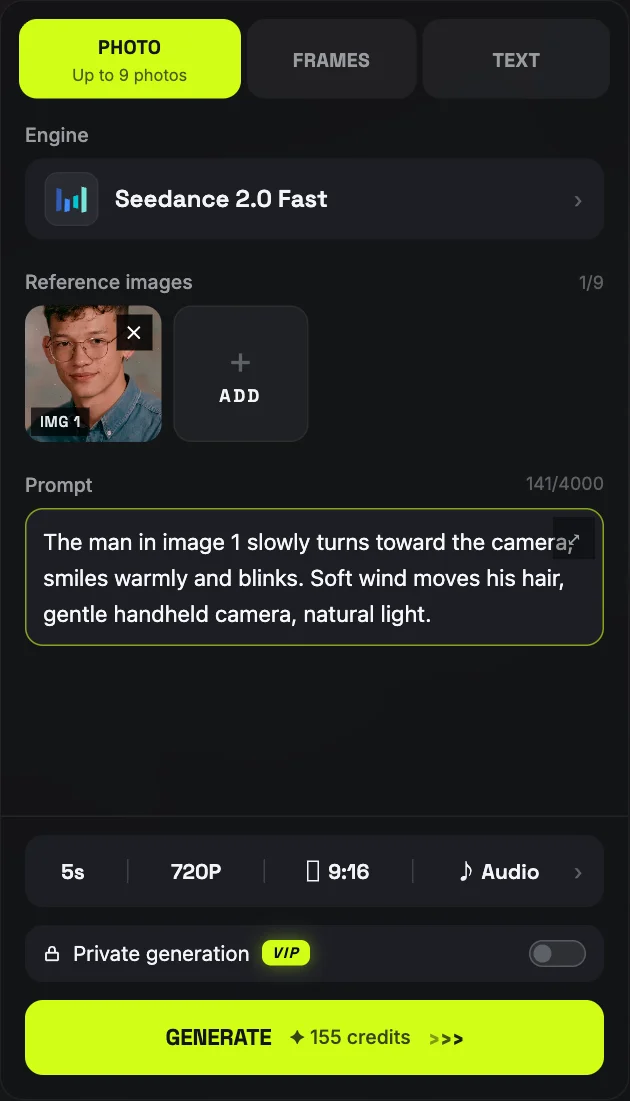
Click the upload area, drag a file onto it, or paste an image with Ctrl/⌘ + V. Each upload is labeled IMG 1, IMG 2 and so on, and you can refer to them by number in your prompt.
The prompt formula
Describe motion, not the picture. The model can already see the photo; repeating “a man with glasses in a denim shirt” wastes words. Use this order:
Subject + 1–2 specific actions + secondary motion + camera + mood/light
The person in image 1 slowly turns toward the camera, smiles warmly and blinks. A light breeze moves their hair. Gentle handheld camera, soft natural light.
The couple in image 1 look at each other and laugh softly, then turn back to the camera. Subtle film grain, slow push-in, warm nostalgic light. Keep their faces and clothing unchanged.
The dog in image 1 tilts its head, perks up its ears and wags its tail, then licks its nose. Camera stays still at eye level, afternoon sunlight.
Clouds drift slowly across the sky, the water ripples and reflects the light, tree branches sway in the wind. Slow cinematic drone pull-back, golden hour.
The woman in the painting in image 1 breathes, blinks and glances to the side. Brushstroke texture stays visible, candlelight flickers. Static camera, painterly style preserved.
The can in image 1 rotates slowly while juice splashes around it and droplets slide down the surface. Macro lens, studio lighting, slow motion.
Step 5. Set length, resolution and aspect ratio, then generate
Under the prompt you’ll find the output settings: duration, resolution, aspect ratio and audio. The Generate button always shows the exact credit cost before you click, so there are no surprises.
| Where you’ll post it | Aspect ratio | Suggested length |
|---|---|---|
| TikTok, Reels, Shorts, Stories | 9:16 | 5–10 s |
| YouTube, website hero, slideshow | 16:9 | 5–10 s |
| Instagram feed, profile, messaging | 1:1 or 3:4 | 5 s |
| Memorial or family video | Match the original photo | 5 s per photo, then edit together |
Click Generate. Most videos are ready in one to two minutes and appear in the right panel and in My Videos, where you can download, re-use the settings or try another model. If a generation fails, the credits are refunded automatically.
Shortcut: start from a viral template
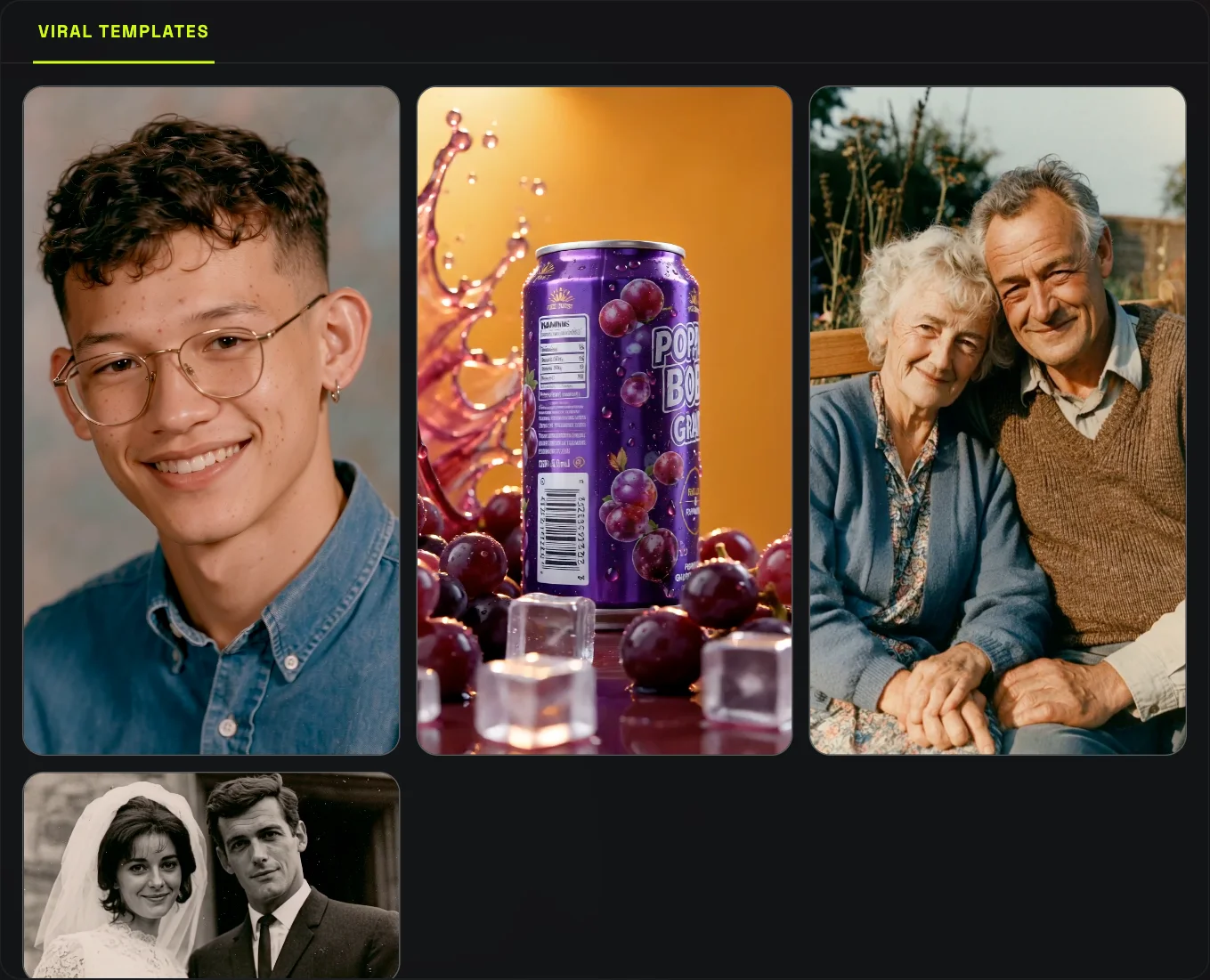
Not sure what to write? The Viral templates tab on the right has ready-made effects. Click Recreate, swap in your own photo, and the prompt and settings are filled in for you. It’s also a good way to learn: open a template and read its prompt to see how a working one is structured.
Troubleshooting: why your animation looks wrong and how to fix it
This is the part almost no tool page covers. Here are the failures we see most often and what actually fixes them:
| Problem | Likely cause | Fix |
|---|---|---|
| Face warps or the person stops looking like themselves | Small or blurry face; too much movement; big head turns | Use a sharper, closer photo. Ask for smaller motions (“slight smile”, “gentle head tilt”). Add “keep the face unchanged”. Use Frames mode to lock the first frame. |
| Barely anything moves | Prompt describes the scene instead of the action | Name concrete verbs: turns, blinks, laughs, waves, sways. Add secondary motion like hair, clothes, clouds or water. |
| Extra or melted fingers | Hands partly hidden in the photo, or the prompt asks for hand gestures | Crop hands out, or avoid hand actions. Pick a photo where hands are fully visible. |
| Background people or objects move strangely | Busy background | Crop tighter, or add “background stays still” to the prompt. |
| Flicker or crawling texture | Low-resolution or heavily compressed source | Use the original file, not a screenshot. Try 720p or 1080p on a higher-end model. |
| Video doesn’t end where you want | Model chooses its own ending | Use Frames mode and add an end frame. |
| Colors shift on black-and-white photos | Model “helps” by colorizing | Add “keep it black and white” to the prompt. |
Still not right after two tries? Switch engines before rewriting everything. Models have different strengths, and the same photo and prompt can look very different on Seedance, Wan or Hailuo.
Animating photos of real people, responsibly
- Animate photos you own or have permission to use. For living people, ask them first.
- For family members who have passed away, consider how relatives will feel before sharing publicly. Many people find these videos moving; some find them unsettling.
- Don’t use animated photos to impersonate someone or make it look like they did or said something they didn’t.
- Need it private? Paid plans include Private generation, so your videos never appear in public galleries.
FAQ
Can I animate a picture using AI for free?
Yes. AI Photo Animator gives new accounts free credits on sign-up, enough to animate a photo with the most affordable model. After that you can buy credits or subscribe; the exact cost is shown on the Generate button before you click.
Can ChatGPT animate a photo?
ChatGPT can edit and generate still images and help you write a prompt, but to turn a photo into a moving video you need an image-to-video model such as Seedance, Kling, Wan or Hailuo. A practical combo: use ChatGPT to draft the motion prompt, then paste it into an image-to-video tool.
How long does it take to animate a photo?
Usually one to two minutes for a 5-second clip. Higher resolutions, longer durations and premium models take a bit longer.
Can I use AI to animate old photos?
Yes, and old portraits are one of the most popular uses. Scan at 600 dpi or higher, repair heavy damage first, keep the motion subtle, and add “keep it black and white” if you don’t want colorization. See our animate old photos templates.
Will the animated video have sound?
On models with the Audio label, yes: they generate native sound such as ambience, footsteps or laughter that matches the scene. You can turn audio off if you prefer silence or plan to add music.
What is the best photo to animate?
A sharp, well-lit photo with the subject’s face clearly visible, at least 1000 px on the short side, with a simple background and either fully visible hands or no hands in frame.
Can I animate several photos together?
Yes. In Photo mode you can upload up to 9 images (10 on Wan 3.0) and refer to them as image 1, image 2 and so on, for example “the woman from image 1 hugs the dog from image 2”.