How to Make the NYC Rats AI Video With Your Two Pets
What’s new on this page
- — Published: our first NYC Rats AI video with two pets (Wan 3.0, 11 s, 480p, 310 credits, first try, about 5 minutes), second by second, photo tips, the full prompt, the line for different body shapes, and fixes.
A NYC Rats AI video puts animals on their back legs in a dark New York alley, filmed like a shaky phone clip, until one of them comes at the camera. We made the version above on 17 November 2026 with two pets at once: a golden retriever and a Siamese cat. Here is how to make yours in one click, the exact prompt we used if you want to build it yourself, and the one line to add when your pets are shaped differently from the animals in the clip.
What is the NYC Rats AI video?
The NYC Rats AI video is a meme captioned “Never Take The Shortcut in NYC”. It started with @aliaboutine's Instagram reel, posted on 10 November 2026 and labeled AI content: a handheld phone light moves down a filthy New York alley and a crew of rats stands up on two legs and comes at the camera. On 17 November 2026 the reel showed 5 million likes and 94,400 comments.
It is not real footage. Pet owners quickly made their own versions with dogs and cats in the same alley, which turns the jump scare into something people want to send to friends. Our template is that pet version: two of your pets, no rats.
What happens in a NYC Rats AI video?
| Seconds | What happens |
|---|---|
| 0–2 | Night alley under a phone light: both pets stand on their back legs and look at the camera |
| 2–4 | The dog steps closer to the camera; the cat stands to the side |
| 4–8 | They take turns walking toward the camera; the cat gets a solo moment |
| 8–10 | The dog drops back down the alley past a green trash can; the cat stays in front |
| 10–11 | The dog rushes up to the lens with a front paw raised |
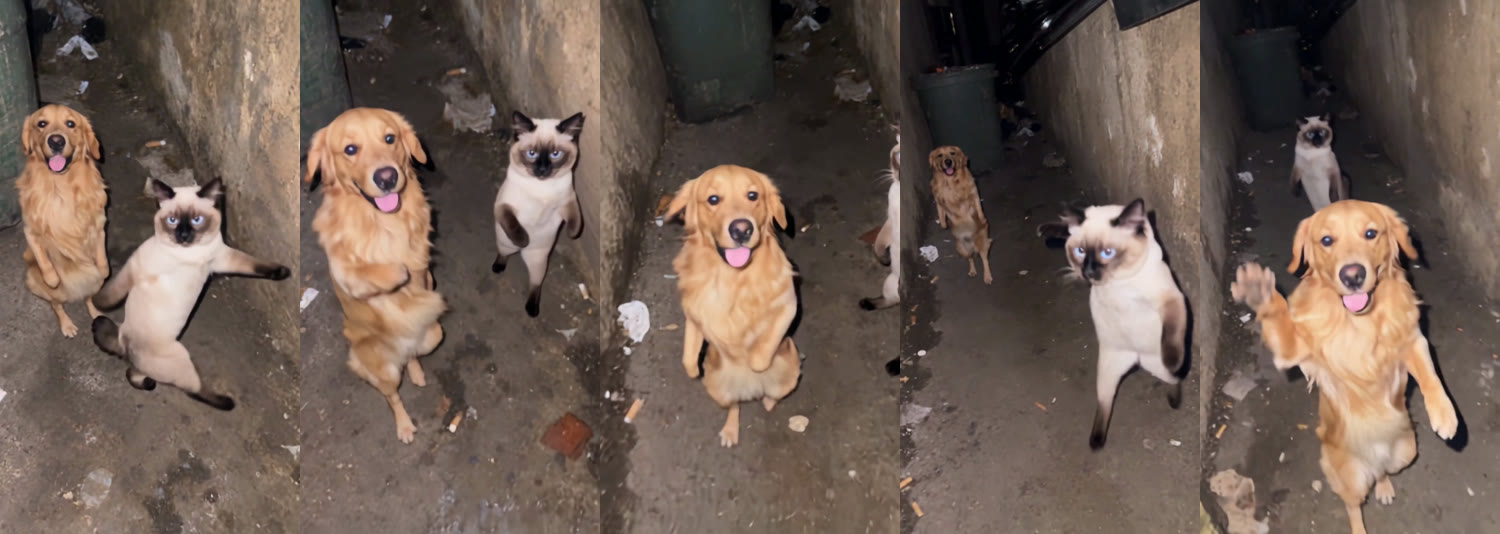
The golden retriever kept its fur and the Siamese cat kept its dark points and blue eyes in every second. In the far shot around 8–9 seconds, the dog at the back of the alley is small and a little soft; at phone size it reads fine.
How to make the NYC Rats AI video in one click
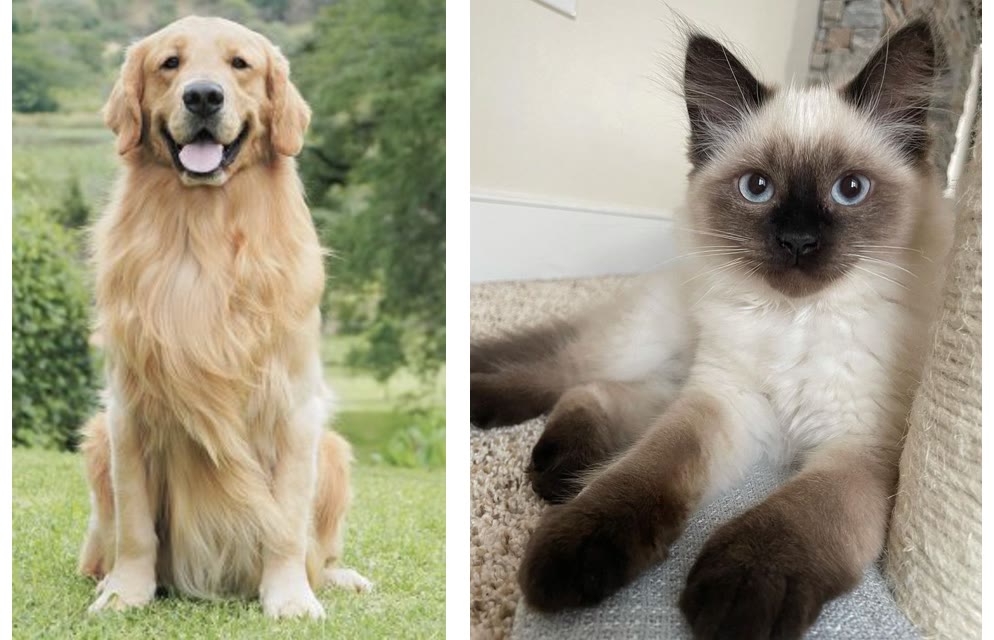
1. Pick one photo of each pet
Both pets stand and walk on their back legs, so the model needs to see their bodies, not just their faces. Choose photos with the whole animal in frame, face visible, in good light. One animal per photo.
2. Add them to the template
Open the NYC Rats AI template. Pet 1 stands on the left and is the one that rushes the camera at the end; pet 2 stands on the right. Swap the photos if you want the other pet to finish the clip. The alley, camera and sound are already set, and the button shows the credits before you spend anything.
3. Generate and download
Press Generate. Ours was ready about 5 minutes later. Download the MP4 from My Videos; it has no watermark and the alley sound is already on it.
Which pet photos work best for NYC Rats AI?
- Whole body, face clear. Head, legs and tail in frame give the most natural standing pose.
- One animal per photo. Each slot takes one pet; a photo of both together confuses who goes where.
- Light and sharp. The alley is dark already, so a dim or blurry pet photo loses its markings.
- Different species are fine. Our demo mixes a large dog and a cat, and each kept its own shape and coat.
- Only your own pets, or pets whose owners agreed. No people in the photo.
Make the NYC Rats AI video yourself: the prompt we used
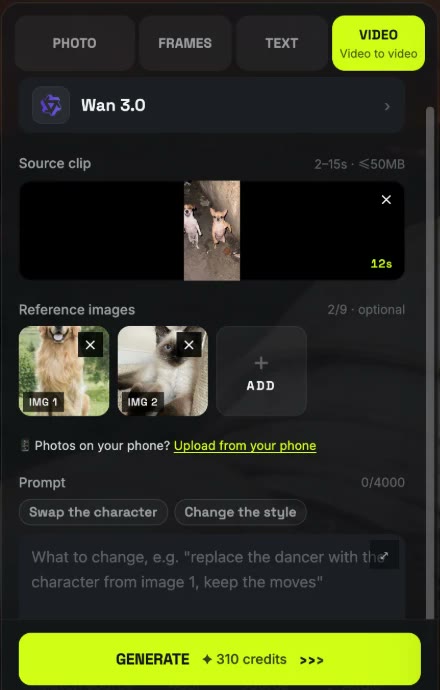
If you want full control, or want to put different subjects into a clip of your own, you can do what the template does by hand. We used the generator on our homepage with the Video tab (video to video) and Wan 3.0: a 12-second source clip of two small dogs standing up in an alley, plus our two pet photos as image 1 and image 2.
| Setting | What we used |
|---|---|
| Mode | Video to video |
| Model | Wan 3.0 |
| Source clip | 12 seconds, two small dogs standing up in an alley |
| Reference images | Image 1: golden retriever. Image 2: Siamese cat |
| Resolution | 480p, aspect ratio auto (came out 9:16) |
| Sound | On |
| Cost and time | 310 credits, about 5 minutes, first try |
Replace the two dogs in the source video with the subjects from the reference images: the dog on the left becomes the subject from image 1, and the dog on the right becomes the subject from image 2. Each subject's face, appearance, colors, body shape, outfit and accessories follow its reference image exactly. Keep everything else from the source video unchanged: the movements, poses and timing of each dog, their positions in the frame, the camera angle and camera movement, the background, the lighting and the rhythm. Natural anatomy, realistic detail, consistent identity across all frames, no flickering, no extra characters.
The prompt never describes the pets. It only says “the subject from image 1” and “image 2”, so the same text works for any two photos, and the model takes each animal's look from its picture instead of from words. Our test run used the first three sentences of this prompt; the last sentence is the cleanup line we now add by default.
When your subjects' bodies don't match the clip
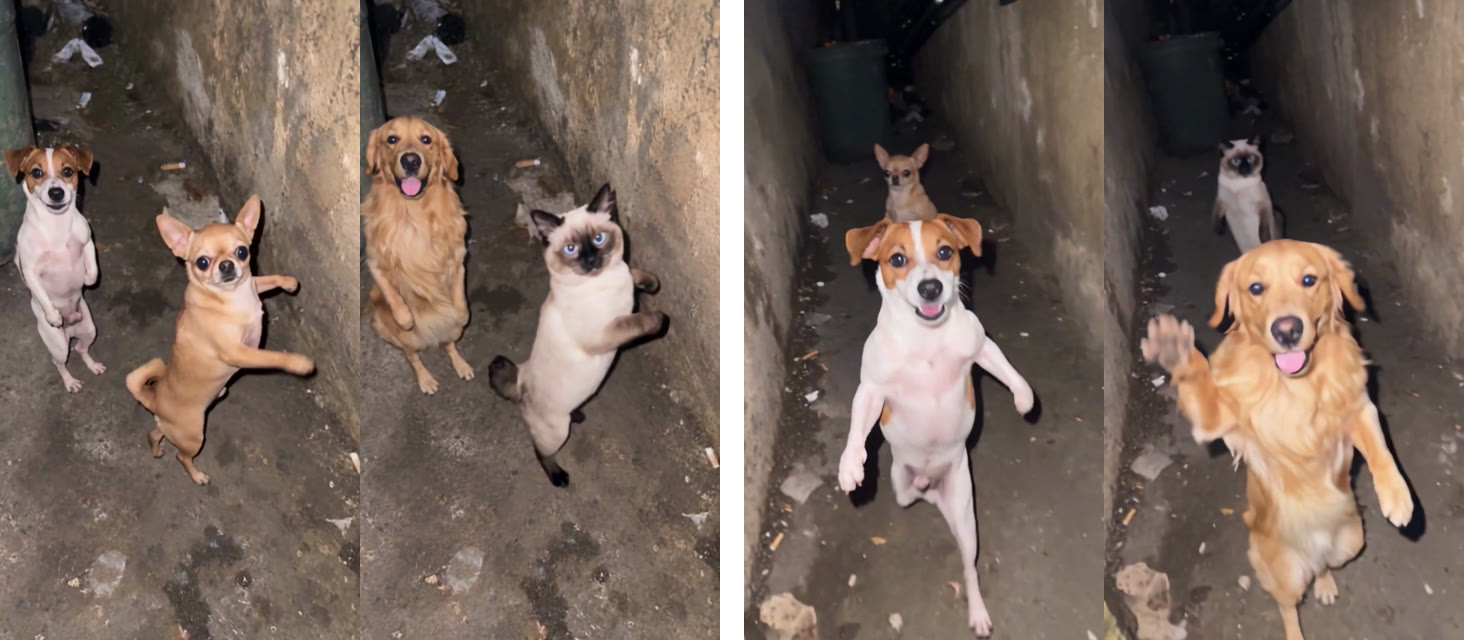
Our source clip had two small dogs; we put in a big golden retriever and a cat. When the new subject is built differently from the one in the clip, add this line to the end of the prompt:
Adapt the movements naturally to each subject's body.
It tells the model to keep the timing and path of each movement but let every subject move the way its own body can, instead of copying a body shape it doesn't have. Add it when:
- A cat goes where a dog was, or the other way round: different legs, tail and how they balance standing up.
- A big animal replaces a small one, like our golden retriever in a chihuahua's spot.
- A person goes where an animal was: four legs to two. The pose still follows the clip, but the person moves like a person.
- A pet goes where a person was: the model keeps the beats without forcing human arms onto a dog.
When the subjects are close to the originals (a dog for a similar dog), you can leave it out.
Replace the two dogs in the source video with the subjects from the reference images: the dog on the left becomes the subject from image 1, and the dog on the right becomes the subject from image 2. Each subject's face, appearance, colors, body shape, outfit and accessories follow its reference image exactly. Keep everything else from the source video unchanged: the movements, poses and timing of each dog, their positions in the frame, the camera angle and camera movement, the background, the lighting and the rhythm. Natural anatomy, realistic detail, consistent identity across all frames, no flickering, no extra characters. Adapt the movements naturally to each subject's body.
NYC Rats AI video problems and fixes
| Problem | Fix |
|---|---|
| A pet doesn't look like yours | Use a sharper, brighter photo with the whole body and face visible, then run it again. |
| The pets ended up on the wrong sides | Swap the two photos, or swap “left” and “right” in the prompt. |
| An extra animal appears | Keep “no extra characters” at the end of the prompt and run it again. |
| A pet moves stiffly or with the wrong body | Add “Adapt the movements naturally to each subject's body.” to the end of the prompt. |
| The pet in the far shot is small and soft | That is the wide part of the clip; 720p helps, or accept it at phone size. |
Is NYC Rats AI free?
Not completely. New accounts get 75 free credits and one NYC Rats video takes 310, so you need the one-time $5.99 pack (540 credits). That covers one video at about $3.44 and leaves 230 credits, with no subscription. See pricing. Failed renders are refunded automatically.
How long does the NYC Rats AI video take to make?
Ours took about 5 minutes on Wan 3.0 at 480p.
Is the “Never Take The Shortcut in NYC” video real?
No. The original reel by @aliaboutine is labeled AI content, and every NYC Rats AI video made with our template is AI-generated too.
Can I make it with only one pet?
This template is built for two pets, and we only tested it with two different animals. For a one-pet scene, try Cat Taxi AI or the dog elevator prank.
Can I put a person in the NYC Rats video?
Not with the one-click template, which is set up for pets. Building it yourself, you can use a person's photo as image 1 or 2 and add “Adapt the movements naturally to each subject's body.” so they move like a person; we haven't tested that yet.
Do you keep my photos? Are they used for training?
Your photos and videos stay in your account, so you can download them again from My Videos. They are never used to train AI models and are not sold or shared, except with the video model provider that renders your clip.