How to Make the Save Yourself Trend AI Video From Two Photos
What’s new on this page
- — Published: our first Save Yourself Trend AI video (Kling 4.0, video to video, 720p, 10 s, 9:16, 425 credits, first try, 2 min 41 s) from two photos, with the full prompt, frames, photo tips and fixes.
A Save Yourself Trend AI video shows someone clinging to a stormy sea cliff until a hand reaches down, pulls them up and hugs them. In the original trend the rescuer is another version of you; with two photos it can also be your best friend. We made the clip above on 8 November 2026 from two different people's photos. Here is how to make a Save Yourself Trend AI video yourself: the template, what it cost, the exact prompt, which photo goes where and how to fix faces that drift.
What is the Save Yourself trend?
The Save Yourself trend is an AI video in which a person slipping off a wet cliff above a stormy sea is rescued by a second version of themselves. It grew out of a reel captioned "Only you can save yourself" in September 2026; VeonGen wrote about it on 4 September and Picsart added a one-photo preset on 9 September. It's also called "Only You Can Save Yourself" and the AI Cliff Rescue trend. By mid-October, two-photo versions let people cast a friend as the rescuer, which changes the message from self-reliance to "you didn't let me fall."
What happens in a Save Yourself Trend AI video?
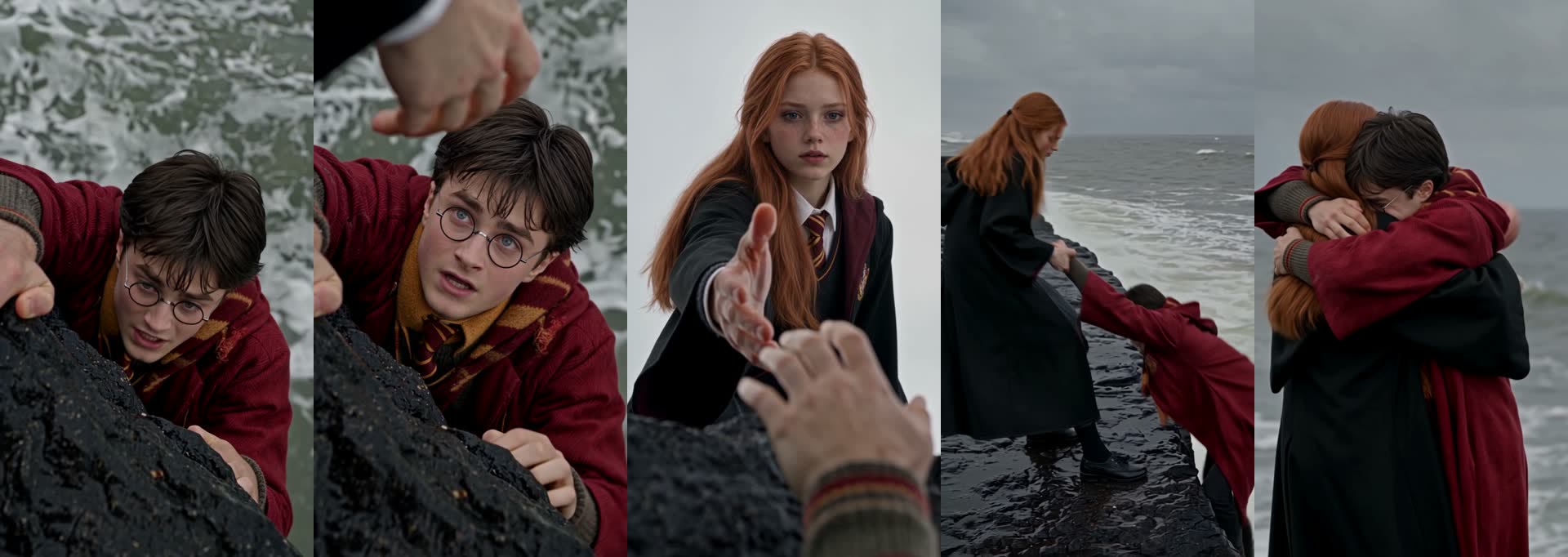
A Save Yourself Trend AI video runs in four shots. In our 10-second result:
| Seconds | What happens |
|---|---|
| 0–4 | Close-up from above: person 1 clings to black wet rock over crashing waves and looks up, scared |
| 4–6 | Low angle: person 2 reaches a hand down toward the camera as person 1 reaches back |
| 6–8 | Wide shot on the ledge: person 2 grips person 1's arms and hauls them up |
| 8–10 | Medium shot by the sea: the two hug |
How to make the Save Yourself Trend AI video in 3 steps
- Open the template. Go to the Save Yourself Trend AI generator. Kling 4.0, 10 seconds, 720p, 9:16 and the sound are already set, and the Generate button shows the cost (425 credits) before you spend anything.
- Upload two photos. Photo 1 is the person hanging on the cliff. Photo 2 is the one who pulls them up. For the classic solo version, put your own photo in both spots; for a friend version, put your friend in spot 2. One person per photo, facing the camera.
- Generate and download. Press Generate. The video lands in My Videos, so you can close the tab; ours took 2 minutes 41 seconds. Download the MP4 without a watermark and post it.
Can the Save Yourself trend use two different people?
Yes, the Save Yourself trend works with two different people as long as the tool takes two separate photos. Many presets, including Picsart's, only take one photo and duplicate you; our template has two spots, so you choose:
| Version | Spot 1 (hanging on) | Spot 2 (pulls you up) | Caption people use |
|---|---|---|---|
| Solo, the original | Your photo | The same photo again | "Only you can save yourself" |
| Best friend | Your photo | Your friend's photo | "You didn't let me fall" |
| Couple or sibling | Your photo | Their photo | "Thanks for always being there" |
We tested the two-person version: two people with very different hair and clothes, and neither one picked up the other's look in any shot.
How we made our first Save Yourself Trend AI video
1. Two character photos with very different looks
We used a dark-haired young man in round glasses and a red robe, and a red-haired young woman in a black school robe with a striped tie. Different hair, clothes and colours make it easy to see whether anything leaks from one person to the other.
2. Video to video with Kling 4.0
In the generator we chose Video, added a 10-second cliff-rescue clip, set image 1 and image 2, kept the sound on and picked 720p, 9:16. This is the prompt we used. It names each person by what they do rather than how they look, so it works for any two photos:
Replace the two people in the video with the people from the reference photos, keeping the original scene, camera moves, timing and actions exactly the same. - Person 1 (the one climbing up the wet black rock above crashing waves, looking up and reaching for help, then pulled up and hugging at the end) becomes the person in Image 1. - Person 2 (the one standing on the rocky shore, reaching a hand down toward the camera, pulling Person 1 up and embracing them) becomes the person in Image 2. Keep each person's face, hairstyle, skin tone, body shape and clothing faithful to their own reference photo throughout every shot, including close-ups, the low-angle reaching shot and the wide pull-up shot. Do not swap or blend the two identities. Clothing and hair can look wet and wind-blown to match the stormy sea. Preserve the overcast grey sky, stormy ocean spray, dark volcanic rocks, cinematic natural lighting and emotional expressions: strained and desperate while climbing, relieved and tearful during the hug. Realistic, photographic, consistent identities, no extra people.
Two lines do most of the work. Describing each person by their action ("the one climbing", "the one reaching down") keeps the prompt working for any gender, age or outfit. "Do not swap or blend the two identities" stops the model from merging faces in the wide shot, where both people are small. The two-photo template uses exactly this setup, so you don't need the clip or the prompt.
3. The result: first try, 2 minutes 41 seconds, 425 credits
| Setting | Our test |
|---|---|
| Model | Kling 4.0 |
| Input | 2 photos (template) / cliff clip + 2 photos (manual) |
| Length and quality | 10 seconds, 720p, vertical 9:16 |
| Sound | On (waves and wind) |
| Cost | 425 credits, about $4.71 with the trial pack, about $4.25 on Lite |
| Time | 2 minutes 41 seconds (09:56 to 09:58 UTC) |
| Attempts | 1, no retries |
Both people kept their own look in every shot: the round glasses, red robe and mustard scarf on one side, the long red hair and striped tie on the other. Even the striped sleeve of the climber's jumper shows in the close-up of the hands. For comparison, the only competitor we found with listed 720p prices charges about $7.50–$17.14 for a 15-second version (TalkPix, from its page on 8 November 2026; we did not generate there).
Which photos work best for a Save Yourself Trend AI video?
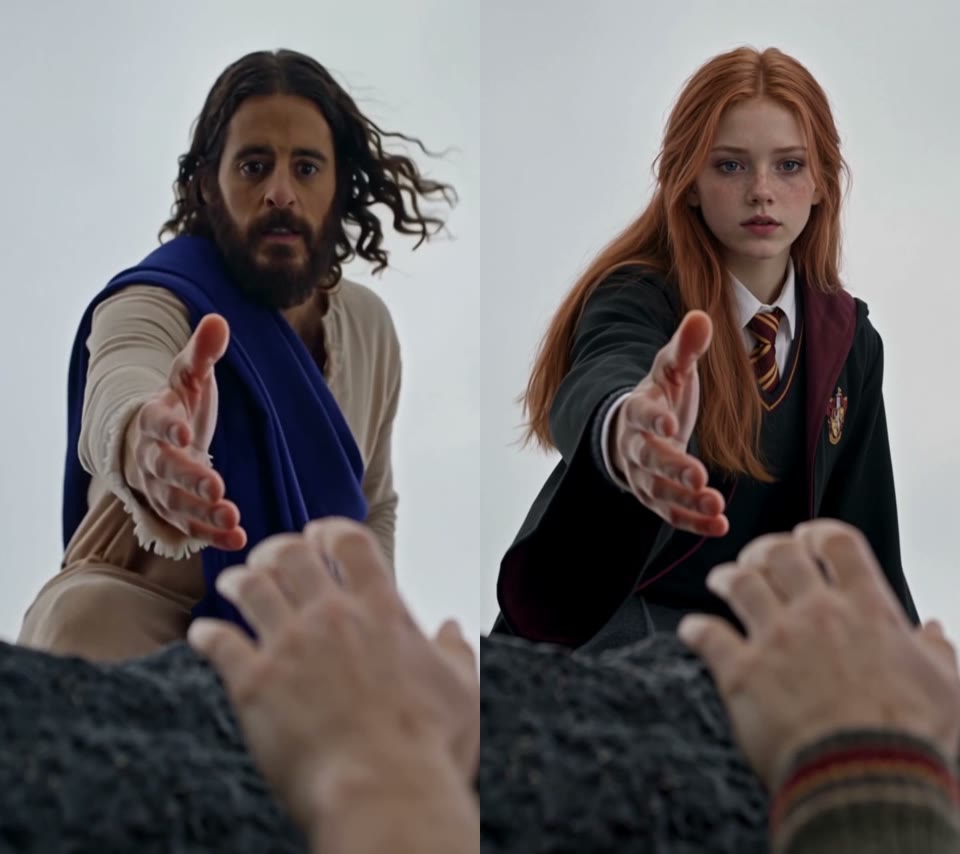
The best photos for a Save Yourself Trend AI video show one person each, facing the camera from the chest up, because the climb and the reaching hand are both close-ups.
- One person per photo. Crop a group selfie into separate photos so faces don't mix.
- Face toward the camera. The climber looks straight up into the lens in the first shot.
- Wear what you want on screen. Clothes come from your photo; the scene only makes them wet and wind-blown.
- No sunglasses or heavy filters. The close-ups are all about the eyes.
- Same photo twice is fine. That is how you get the solo "only you can save yourself" version. For another two-person scene, try I Love the Smiths AI next.
Why doesn't my Save Yourself Trend AI video look like me?
Most Save Yourself Trend AI videos that don't look like the person come from the photos, not the template. Check these first:
- Two faces in one photo: features can blend. Use single-person photos.
- Small or blurry face: the opening close-up magnifies it. Use a sharp photo where the face fills much of the frame.
- Photos in the wrong spots: the climber goes first, the rescuer second. Swap them if the wrong person ends up hanging.
- Faces merge in the wide shot: usually two very similar photos of different people. Pick photos with clearly different clothes or hair.
If a render fails, the credits come back automatically, so trying better photos costs nothing extra. Plans and packs are on the pricing page.
Save Yourself Trend AI FAQ
Is there a free Save Yourself Trend AI generator?
Not fully. New accounts get 75 free credits and one Save Yourself Trend AI video takes 425. The one-time $5.99 trial pack (540 credits) covers one video at about $4.71 and leaves 115 credits; there's no subscription, and failed renders are refunded.
Can both people be me?
Yes. Upload your own photo in both spots and the climber and the rescuer are both you, which is the original "only you can save yourself" version.
What song is used in the Save Yourself trend?
There isn't one official song. VeonGen's write-up names "Pogruzhenie" by Horus featuring Oxxxymiron, but posts use different audio. Our video comes with waves and wind; add a licensed track in TikTok or Reels if you want music.
Is the video vertical?
Yes. Our Save Yourself Trend AI video came out 9:16 at 720p, ready for TikTok, Reels and Shorts.
Do I need an app?
No. Our Save Yourself Trend AI page runs in the browser on phone or desktop.
Is this official?
No. It's a fan-made template, not affiliated with any creator or app behind the trend. Only use photos of yourself or people who agreed.