How to Keep Characters Consistent in AI Video (Our Tests)
What’s new on this page
- — Published: three kinds of drift, face blurring (Tiny Desk), depth video (Pick It Up, three runs), photo and multi-person rules.
- — Tiny Desk credit corrected (pixelation plus the clothing line in the prompt); how to make a depth video; video posters; NVIDIA research link; fixed character description for multiple clips.
Here is a video that went wrong. One photo of a woman in a dress, one dance clip, Seedance 2 Mini (one of the video models on our site). At the start it's her. She spins, comes back around, and it's a different woman in the same dress. The moves were perfect. The video was useless, because the whole point was "that's me dancing".
We build photo-to-video templates every week, and "it doesn't look like me" is the complaint we see most. Most guides on keeping characters consistent in AI video give the same list: use a reference image, repeat your description, keep motion small. That list is fine for generating from scratch. It doesn't help much once a reference clip is involved, and that is where most of our failures happened. This is what we changed, with the runs that failed.
What does "character consistency" in AI video actually cover?
Character consistency in AI video covers four different failures, and each one has a different fix. Mixing them up is why generic advice so often doesn't work. Each row below has its own section further down.
| Problem | What you see | Main cause |
|---|---|---|
| Drift inside one clip | The face changes after a turn, a fast arm move, or something covering it | The model redraws the face and loses track |
| Pulled by the reference clip | The face ends up halfway between yours and the original performer's; outfits jump between people | The original face is still in the clip |
| Not enough in the photo | It never looks like you, from the first frame | Side profile, sunglasses, tiny or blurry face, group photo |
| Different across clips | Each new video looks like a slightly different person | Different photos, models or settings each time |
Why does the face change halfway through an AI video?
The face changes halfway through an AI video because big motion forces the model to redraw the face many times, and every redraw is a chance to lose it. The more the person turns, spins or covers their face, the more identity the model has to rebuild from memory. NVIDIA researchers describe the same trade-off from the inside: in video models, the features that carry motion also carry identity, so pushing motion harder tends to cost identity.
The video at the top is the clearest case we have. Pick It Up is a dance full of turns. With Seedance 2 Mini, the face held while she faced the camera and broke the first time she came back around. Fast arms do the same thing: in the Cheba Man dance, the arms keep crossing in front of the face, and that is exactly the moment many models blur or warp it.
- Pick the model for the motion. On the same photo and clip, Wan 3.0 held her face through every spin, earrings and necklace included. Seedance 2 Mini did not. For dances with lots of turning, we use Wan (another model on our site; Wan 3.0 Prime is its higher-quality tier).
- Ask for it in the prompt. For fast moves, add a line asking for a stable, clear face during fast motion, with no blur.
- Don't fight the motion with a weak photo. A face that is small or soft in the photo gives the model less to rebuild from after each turn.
Why does a reference clip pull the face away from your photo?
A reference clip pulls the face away from your photo because the original performer's face is still in it, and the model blends the two. You get a face that is a bit yours and a bit theirs, which reads as "almost me" and is worse than a clear miss.
With several people it gets messier. In our Tiny Desk test, four reference photos went into a band clip. The hairstyle from photo 2 showed up on the person from photo 3, and the first four runs failed or mixed the looks up.
We use two ways to take the original identity out of the clip: blur the faces, or replace the clip with a depth video.
Fix 1: Blur the original faces in the reference clip
Blurring or pixelating every face in the reference clip forces the model to take the face from your photo, because there is no other face left to copy. Bodies, gestures, camera moves and the room stay readable, so motion and timing still come through.
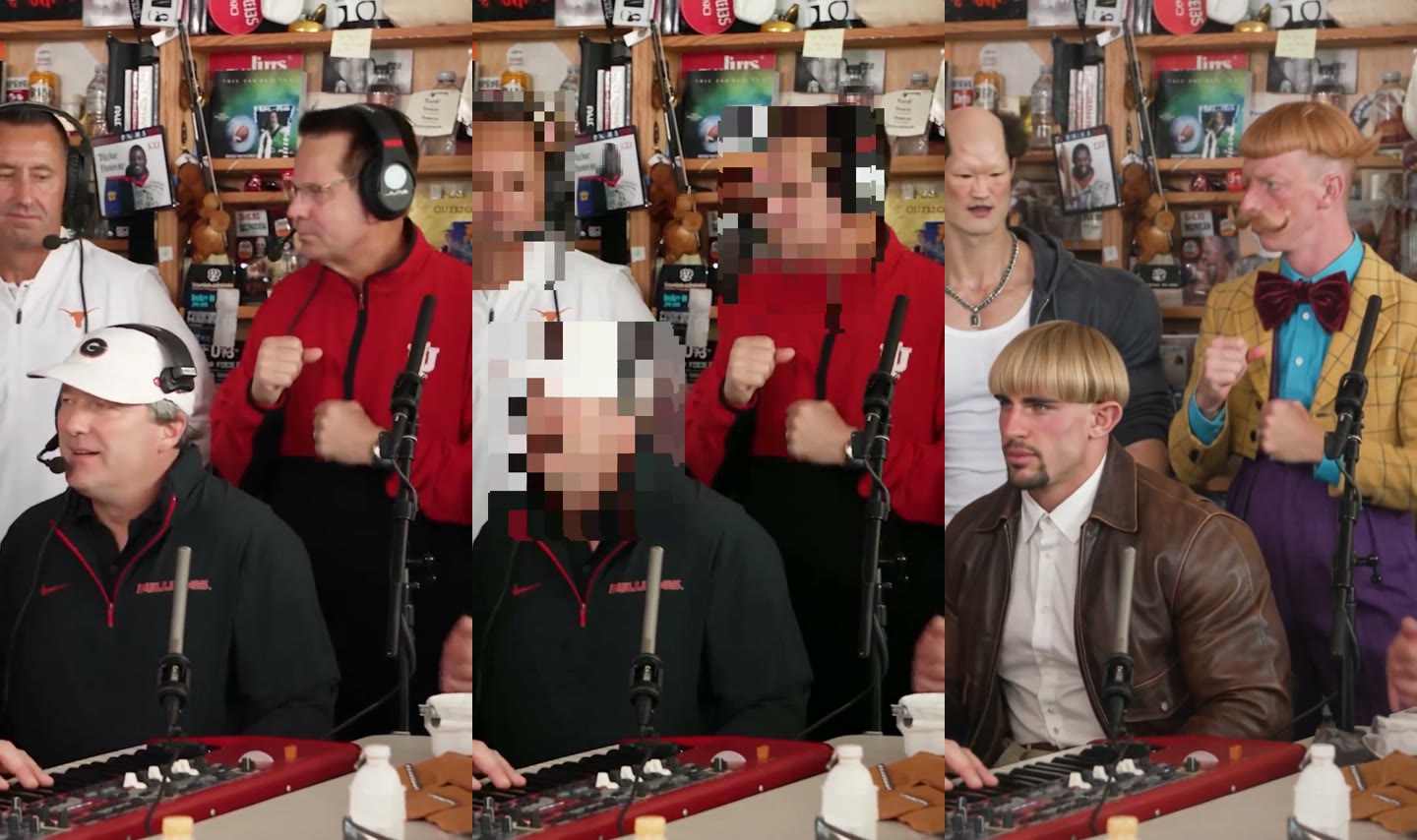
- Trim the clip to the part you need (video-to-video models take up to about 15 seconds).
- In any video editor, put a mosaic or blur over each face for the whole clip. It doesn't need to be neat; it only needs to hide the features.
- Add one reference photo per person, and in the prompt map each person by position.
- Say that the original clothes are only for identifying who is who, and that hair and outfit come from the photos.
| Tiny Desk run | Value |
|---|---|
| Model | Wan 3.0 Prime |
| Inputs | 4 photos + 12 s clip with faces pixelated |
| Attempts | 5: the 4 before both changes failed or mixed looks (refunded); the 5th, with pixelated faces and the clothing line in the prompt, worked |
| Credits | 370 |
| Time | About 2 minutes |
Pixelating was one of two changes. The other was the prompt below: it describes the original people by their clothes only so the model knows who is who, then says outright that those clothes must not carry over. One coach's cap kept coming back until we added "No one wears a hat." We now pixelate the source clip for every template where a real face is visible. The Bonito Bonito baby dance is one: the trend clip has a real baby's face, and without the mosaic the model can drift toward that baby instead of yours.
The clothing described above is only for identifying who is who. Each new character must fully use the hairstyle, outfit, and look from their reference image. Do not keep any hats, clothes, or accessories from the original people. Clear, natural faces matching the reference images. Same background and props. Realistic, consistent identity, no extra people.
Fix 2: Use a depth video to keep the motion and drop the identity
A depth video keeps the motion and drops the identity: it turns each frame into a grey map of how near or far things are, so the body shape, pose and timing survive, while the face, clothes, colors and room are gone. The model has nothing to copy except movement.
To make a depth video yourself, run the clip through a depth-estimation model such as Depth Anything (available as a node in ComfyUI), which outputs a grey depth frame for every frame of the video, then use that as the motion reference in a model that accepts one. On our templates this step is already done; you only add a photo.
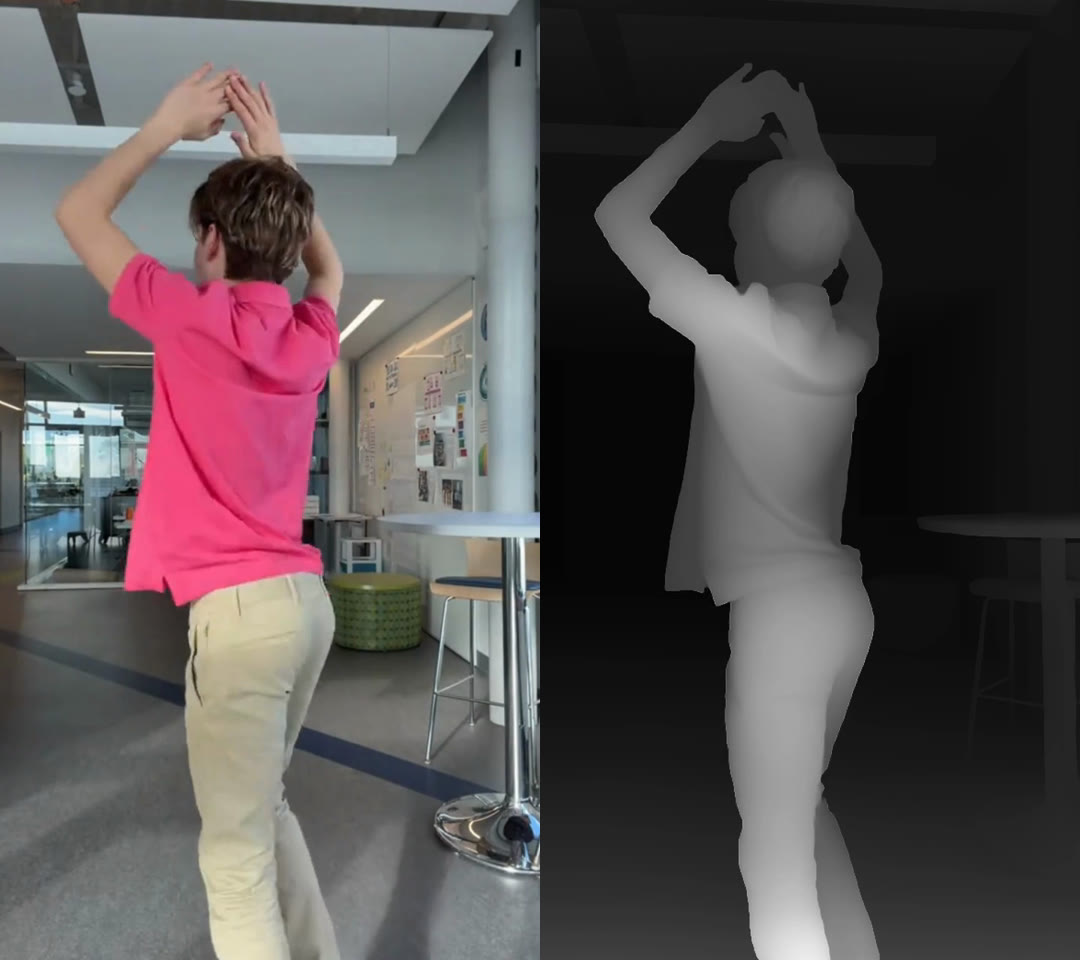
That doesn't mean it works on the first try. Removing the original identity creates a new gap, and we found it the hard way on the Pick It Up Dance template. Same photo, same depth clip, three runs:
Run 1 · Seedance 2 Mini: face drifted
Run 2 · Wan 3.0: face held, background lost
Run 3 · Wan 3.0 + split-role prompt: worked
Run 1: Seedance 2 Mini, the face drifted
The opening video of this article. Choreography right, face lost after the first spin, and a bright lobby that was never in her photo. A depth clip removes the competing face, but it can't stop a model from losing the face during fast turns.
Run 2: Wan 3.0, the face held but the place didn't
Wan 3.0 kept her face, earrings and gold necklace through every turn. But the event wall behind her in the photo was gone from the first frame, replaced by a dark empty studio. The depth clip has no usable background, the short prompt only talked about the dance, so the model filled the gap with the most generic dance setting it knows.
Run 3: Wan 3.0 with a prompt that gives each input one job
The person in the reference photo performs the dance from the reference video, matching every movement, rhythm and body orientation frame by frame. Use the reference video only for motion and timing. Take the person, the background, the scene and the lighting from the reference photo. Do not create a new stage, studio or dark backdrop. Keep the location from the photo as the background for the whole video, with the same architecture, colors, signs, text and logos, and the same lighting. When the person turns or moves, fill in any newly revealed background so it matches the same place. Any other people in the background stay in place or keep moving naturally; they do not dance. Keep the person's face, hairstyle, body shape and outfit from the photo. If the photo does not show the full body, complete the legs and shoes naturally in the same style as the visible outfit. Locked, stable camera. No flicker, no warping of the background, no added text or watermark.
The wall, logos included, stayed for all 12 seconds. The run cost 240 credits (about $2.22) and took about 4 minutes. Three rules came out of it, and we now write every template prompt this way:
- Give each input one job. The clip is for motion and timing. The photo is for the person, the place and the light. Say it in those words.
- Name the failure you expect. "Do not create a new stage, studio or dark backdrop" did more than any amount of describing the background.
- Say how to fill what the photo never showed. The background revealed when she turns, legs cut off by the crop. If you don't say, the model invents.
Blur or depth video: which one should you use?
We haven't run the same template both ways, so this is what our templates suggest rather than a measured result. Use a depth video when there is one main person and the scene should come from your photo; it removes the clip's room as well as the face. Pixelate faces when the clip's own scene, lighting and props should stay, or when several people need to stay in their places, because a depth map makes people at the same distance hard to tell apart.
| Blurred faces | Depth video | |
|---|---|---|
| What the model still sees from the clip | Bodies, clothes, room, light, camera | Pose, depth and timing only |
| Scene comes from | The clip | Your photo (say so in the prompt) |
| Good for | Group shots, iconic sets (Tiny Desk) | One dancer in your own place (Pick It Up) |
| Watch out for | Original outfits leaking onto your people | Generic studio backgrounds if the prompt is silent |
Which photos make AI video stop looking like you?
Photos with a small, blurry, turned-away or covered face make AI video stop looking like you, because the model has to guess most of the features. Everything above only works if the photo gives the model enough to work from.
| Works | Doesn't |
|---|---|
| Face toward the camera, eyes visible | Side profile, looking down |
| Sharp, natural light | Blur, heavy filters, night shots |
| One person in the photo | Group photos (which one is you?) |
| Face clearly visible | Sunglasses, a hat over the eyes, a hand on the face |
| Waist-up or full body for dances | A tight face crop when the video needs a whole body |
Outfit and hair follow the photo too. We write every template so that what you wear in the photo is what you wear in the video; the original performer's clothes are only used to tell the model which person to replace. If you want a jersey or a wedding dress in the video, wear it in the photo.
How do you keep several people from swapping faces in one AI video?
To keep several people from swapping faces in one AI video, tell the model who is who with something that stays visible in every frame, such as position or a prop, not clothing. Clothes are what we notice first, but in fast or blurry footage they are a weak signal.
In our middle finger dunk test, both players wore black pants, the clip was mostly motion blur, and the hoodie was in the air half the time. Two runs described them by clothes and swapped them both times. The run that worked described them by the ball: who dribbles and dunks, who defends. The ball is in every frame.
- Map people by position (left, middle, right) or by what they're doing.
- Use one photo per person, with clearly different outfits if you can.
- Pixelate the original faces so there is nothing to blend.
How do you keep the same face across multiple AI video clips?
To keep the same face across multiple AI video clips, reuse the exact same photo, model and settings for every clip, and change only the action. Most of the inconsistency between clips comes from changing two or three things at once.
- Keep one master photo per character and use it for every clip.
- Start every prompt with the same short character description (age, hair, outfit), word for word.
- Stay on one model for the whole project; a different model draws faces differently.
- When one shot has to continue another, use the last frame of clip A as the first frame of clip B. Our photo to video tool takes a first and an optional end frame for this.
- Keep each clip short. A shorter clip has fewer turns, and so fewer chances to lose the face.
A checklist before you press Generate
- ☐ One person per photo, face toward the camera, sharp, no sunglasses
- ☐ The photo shows the outfit you want in the video
- ☐ If you use a reference clip: original faces pixelated, or the clip turned into a depth video
- ☐ Prompt says the clip is for motion and timing, the photo for person, place and light
- ☐ Prompt names the failure you're worried about (new studio, swapped people, blur on fast moves)
- ☐ Lots of turning? Pick a model that holds faces through motion (Wan 3.0 in our runs)
FAQ
Is perfect character consistency possible in AI video?
Perfect character consistency is not something any AI video model guarantees today. With a good photo, a clip without a competing face, and a clear prompt, our templates get faces that hold through the whole clip most of the time, but fast spins and covered faces can still break it.
Why does the AI video stop looking like me when I turn around?
When you turn around, the model has to redraw your face from scratch when you come back, and some models lose it. In our Pick It Up test, Seedance 2 Mini lost the face after the first spin and Wan 3.0 kept it. A sharp, front-facing photo also gives the model more to rebuild from.
Should I blur the faces or use a depth video?
Blur the faces when you want to keep the reference clip's scene or there are several people; use a depth video when there is one person and the background should come from your photo. This is based on our templates, not a side-by-side test of the same clip.
Can I use a photo with sunglasses or a group photo?
A photo with sunglasses or a group photo usually gives a face that doesn't look like you. Sunglasses hide the eyes, and in a group photo the model doesn't know which person to use. Crop to one person and use a photo where the eyes are visible.
Which AI model keeps faces most consistent?
In our runs with a lot of turning, Wan 3.0 kept faces more consistent than Seedance 2 Mini, which was cheaper but lost the face after a spin. We only compare models we have actually run on the same inputs.
Do failed generations cost credits?
Failed generations on AI Photo Animator do not cost credits; they are refunded automatically. If a finished video doesn't look like you, try a sharper front-facing photo first.