How to Make the End of Watch Locker Scene AI Video (1 Photo)
What’s new on this page
- — Published: our first End of Watch Locker Scene AI video (Wan 3.0, billed 12 s, 11 s delivered, 480p, 240 credits, first try, about 4 minutes), the full prompt, the task screenshot, the manual CapCut / Kling / Runway route and photo tips.
An End of Watch Locker Scene AI video puts you into the opening of the 2012 police film End of Watch: you film yourself in a station locker room and hold each piece of gear up to the camera, the way Jake Gyllenhaal's Officer Taylor does. We made the clip above on 3 November 2026 from one photo of a grinning grandpa with a grey afro and a white suit. Here's exactly what we did, what it cost and how to make your own.
What is the End of Watch locker scene trend?
The End of Watch locker scene trend restages the first minutes of End of Watch, David Ayer's found-footage police film released in the US on 21 September 2012. Officer Brian Taylor (Jake Gyllenhaal) points a small camera at himself in the locker room and presents his gear one item at a time. On TikTok people remake it with their own stuff, and the newest wave uses AI so anyone can star in it from a photo. TikTok's search pages call it the End of Watch locker scene template, the Jake Gyllenhaal locker scene and the Jake Gyllenhaal police meme.
What happens in an End of Watch Locker Scene AI video?
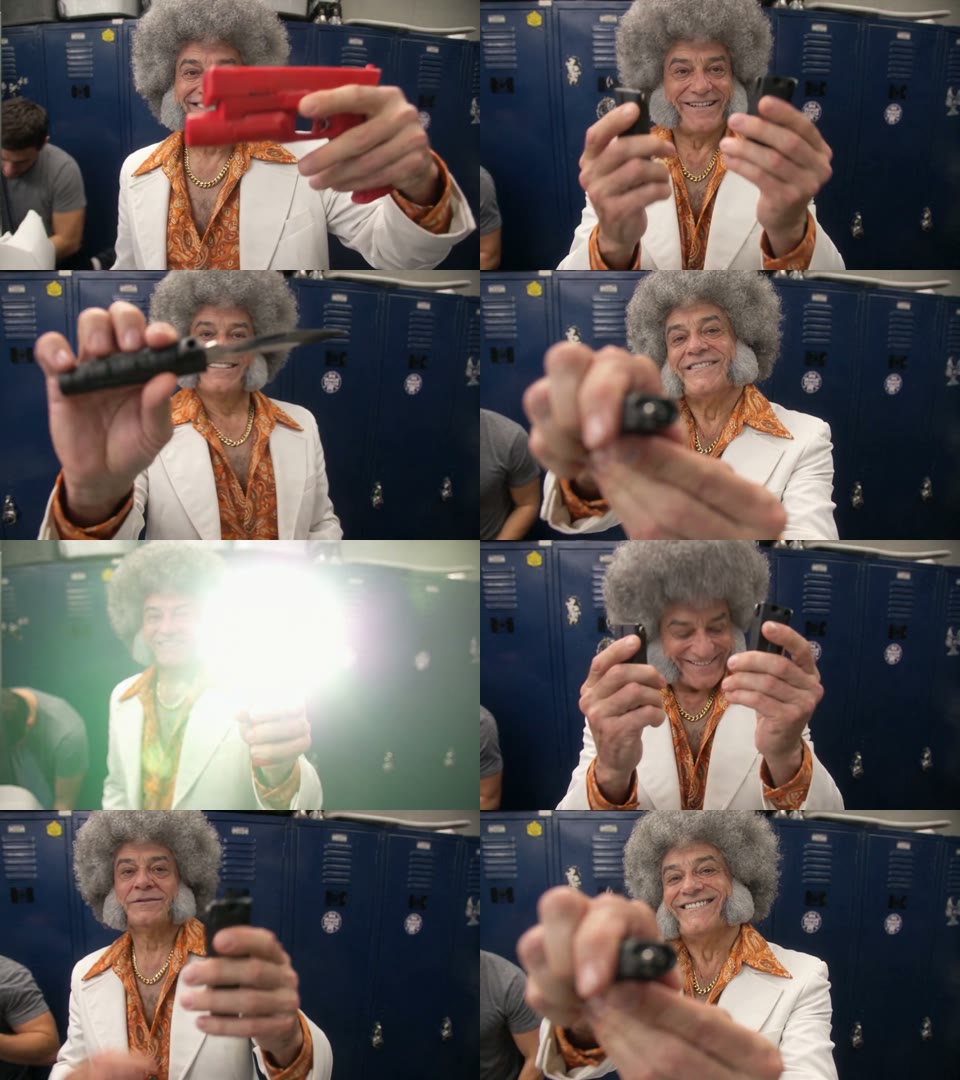
| Seconds | What happens |
|---|---|
| 0–1.5 | You hold a red training pistol up to the camera |
| 1.5–3 | A radio in each hand, held out to the lens |
| 3–4.5 | A folding knife pushed toward the camera |
| 4.5–6 | A small item held right up to the lens |
| 6–7.5 | A flashlight shone into the camera until the frame turns white |
| 7.5–9 | Both radios again |
| 9–11 | Hands down, a grin at the camera |
How we made our first End of Watch Locker Scene AI video
1. We started from a 12-second remake of the locker scene
We used a 12-second live-action remake of the gear check as the reference video, so the shaky handheld camera, the order of the gear and the blue lockers were already there. A man in a grey T-shirt does the reveal; a second man packs a bag in the background.
2. We used one photo with a look nobody expects in a locker room
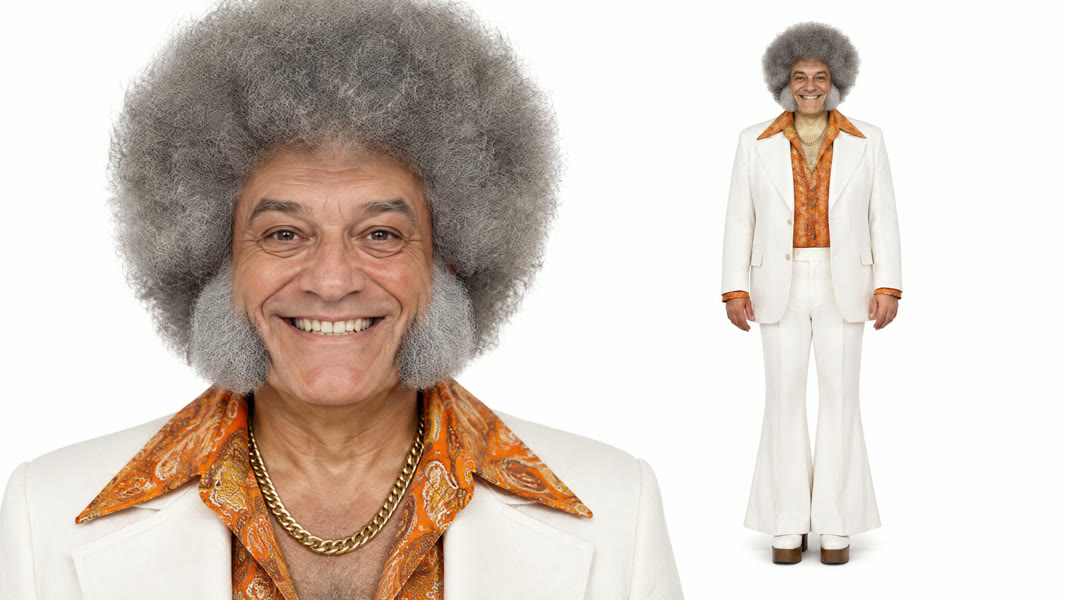
Our photo was an older man with a big grey afro, a white flared suit, an orange paisley shirt and a gold chain. The image paired a face close-up with a full-body shot, so the model saw both the face and the whole outfit.
3. We told the model to keep the photo's outfit, not the T-shirt
The prompt names what comes from the photo (face, skin tone, hair, age and outfit) and what stays from the clip (movements, camera, lighting, background). We ran Wan 3.0 in video-to-video mode, 480p, sound on:
Replace the man in the video with the person from image 1. Keep image 1's face, skin tone, gray afro hairstyle, age and outfit exactly. Keep the original body movements, hand gestures, facial expressions, lip movement, camera motion, framing, lighting and locker-room background unchanged. Natural skin texture, consistent identity in every frame, no flicker.
4. It rendered in about 4 minutes
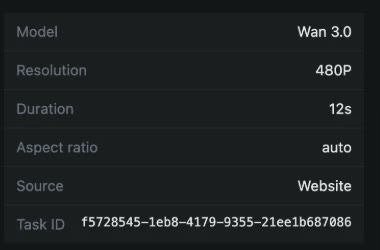
We submitted at 15:25 UTC and the video was ready at 15:29, first try, 240 credits. The afro, white suit, paisley shirt and gold chain held in every frame, including the flashlight flare, and no uniform was swapped in. The billed length was 12 seconds; the file we got back runs 11.0 seconds. The man in the background stayed as he was. That run is what the template now uses.
How to make an End of Watch Locker Scene AI video in 3 steps
Step 1: Open the template
Go to the End of Watch Locker Scene AI page. The template is already loaded at the top, with the model, the locker room clip and the prompt set up.
Step 2: Upload one photo
One person, face sharp and toward the camera, wearing what you want to wear in the video. Your clothes carry over, so dress for the joke: a suit, a costume, a team jersey or an actual uniform.
Step 3: Generate and download
Press Generate. The button shows 240 credits before anything is charged. The video lands in My Videos, so you can close the tab. Download the MP4, which has no watermark, and post it.
Can you make the End of Watch locker scene with CapCut, Kling or Runway?
Yes, but it takes more steps. With a general tool you have to find a short clip of the scene yourself, upload it with your photo, write a prompt that keeps the camera and the gear order, and usually rerun it when the face drifts or the clothes stay as the original's. CapCut and Kling templates for the trend exist on TikTok, but they depend on the app and the template still being available in your region. The one-click End of Watch Locker Scene AI generator skips all of that: the clip and the tested prompt are already set, and you only add the photo.
| Our template | General AI video tool | |
|---|---|---|
| Find the clip | Already set | You find and trim it |
| Write the prompt | Already tested | You write and tune it |
| Photos | 1 | 1 or more |
| Your outfit | Kept from the photo | Depends on your prompt |
| Cost of our test | 240 credits, about $2.66 | Varies by tool |
Which photo works best for the End of Watch Locker Scene AI video?
- One person. A face cropped from a group shot can't hold up when the camera is an arm's length away.
- Face to the camera. Every shot is a close-up, so a front-facing photo keeps you recognisable.
- No sunglasses. They hide the eyes and the grin the whole clip is built around.
- Dress the part. The outfit comes from your photo. The less it looks like a police locker room, the funnier the gear check.
- Adults only. You, or adults who agreed. No children, celebrities or public figures.
Why doesn't my End of Watch Locker Scene AI video look like me?
Usually the photo is the cause: sunglasses, a side profile or a small face from a group picture, made worse by how close the handheld camera is. Use a sharp, single-person photo facing the camera and run the locker scene template again. For why AI video drifts from your face and how to stop it, see our guide to keeping a character consistent in AI video.
What caption and hashtags go with the End of Watch locker scene?
Say it's AI, tag anyone who appears in it and use #lockerscenetrend, #endofwatch and #jakegyllenhaal. The video comes with sound; if you want the trend's audio, pick the locker scene sound that's trending in TikTok's library when you post. Widescreen plays fine on Reels and Shorts; on TikTok it shows with bars above and below.
End of Watch Locker Scene AI FAQ
Is End of Watch Locker Scene AI free?
Not completely. New accounts get 75 free credits and one video takes 240, so you need the one-time $5.99 pack (540 credits). That covers two videos at about $2.66 each, with no subscription. See pricing. Failed renders are refunded automatically.
How long is the video and how much does it cost?
About $2.66 for one video: 240 credits for an 11-second, 480p widescreen clip with sound. Ours rendered in about 4 minutes.
Is there a gun in the video?
A red training pistol, the inert prop police use for drills, appears for about a second at the start. The rest is two radios, a folding knife and a flashlight.
Will I wear a police uniform?
No. You wear what you're wearing in your photo. Our white suit stayed in every frame, so the photo decides the look.
Does the video show Jake Gyllenhaal or the real film?
No. The video stars you, made by AI from your photo, with no footage from End of Watch. It's a fan-made template, not affiliated with the film, its studios, Jake Gyllenhaal or TikTok.
Are my photos kept or used for training?
Your photos and videos stay in your account under My Videos. They are never used to train AI models and are not sold or shared, except with the video model provider that renders your clip.