How to Make the Charlie Brown Christmas Trend Video From 1 Photo (4 Steps)
What’s new on this page
- — Published: image-to-video tests that failed, the GPT Image 2 + scan-line compositing method we switched to, 1- and 2-person tests (about 1.5 minutes per video), 4 steps and photo tips.
- — Added a three-column photo → cartoon → video example and why the process is packed into a one-click template; live test on the site took 67 seconds.
A Charlie Brown Christmas Trend video is a Christmas-is-coming post where you turn yourself into a Charlie Brown character and stand next to Snoopy: it starts on a real photo and then, top to bottom, redraws the same person as a flat Peanuts-style cartoon on Snoopy's red doghouse under the title "A Charlie Brown Christmas". It took off on TikTok in late October 2026 as a CapCut template, also tagged as the Snoopy Christmas filter. The clip above came from one photo of two friends: the beard, the green sweater, the red jacket, the blonde bob and the round glasses all made it into the cartoon.
What is the Charlie Brown Christmas Trend video?
The Charlie Brown Christmas Trend is a selfie-to-cartoon video in the style of the 1965 TV special A Charlie Brown Christmas: round heads, dot eyes, flat colors and Snoopy's decorated doghouse in the snow. Tutorials such as @sm5bhbjno8's (29 October 2026; 3,190 likes and 2,000 saves two days later) call it the "snoopy christmas filter" and "snoopy ai photo". It is not the Charlie Brown dance that went around in December 2025.
What happens in a 12-second Charlie Brown Christmas Trend video?
The whole clip is one scene with a single transition. In our result:
| Seconds | What happens |
|---|---|
| 0–0.5 | Your real photo, with the "A Charlie Brown Christmas" title already at the top |
| 0.5–4 | A soft scan line glides from top to bottom and the cartoon fills in behind it |
| 4–12 | The cartoon you stands on the red doghouse next to Snoopy, snow on the ground and in the air |
Why we don't make the Charlie Brown Christmas Trend with an AI video model
Short version: we tried, and it didn't work well enough to charge for. Our first plan was the usual one for a trend template: draw the cartoon, then let an image-to-video model animate it with falling snow, a blink and a little sway.
| What we tried | Result |
|---|---|
| Image-to-video on the cartoon poster, detailed motion prompt | Failed after about 8 minutes, no video |
| Same image, short simple prompt | Failed again after about 6 minutes |
| What the trend actually needs | A real photo first, then a top-down scan into the cartoon, which a video model doesn't do reliably anyway |
Both runs failed on the same cartoon, and the credits came back automatically. Even when a video model does render, it tends to redraw the cartoon from frame to frame, so faces and lettering wobble, and it can't promise the exact photo-to-cartoon scan that makes people rewatch the TikTok version. In the trend clip, the cartoon barely moves after the transition anyway.
The method we use instead: cartoon image plus a composited scan
So we split the job in two and built our own editing step:
| Step | What runs | Time in our tests |
|---|---|---|
| 1. Draw the cartoon | GPT Image 2 draws everyone in your photo into our Charlie Brown Christmas poster: same people, same order, same hair, glasses and clothes | About 60 seconds |
| 2. Edit the video | Our server composites your photo and the cartoon: 0.5 s of photo, a 3.5 s eased scan line, 8 s of cartoon, the trend's sound | About 9 seconds |
Because the video is edited rather than generated, the cartoon stays exactly as drawn, the title is always spelled right and every clip is 12 seconds. Our two test orders on 31 October 2026 each finished in about 1.5 minutes from upload to MP4. We also compared image models on the same photo: Nano Banana 2 tended to copy the reference character's cup, bag and jeans, while GPT Image 2 matched the person's own outfit more closely, so the template uses GPT Image 2.
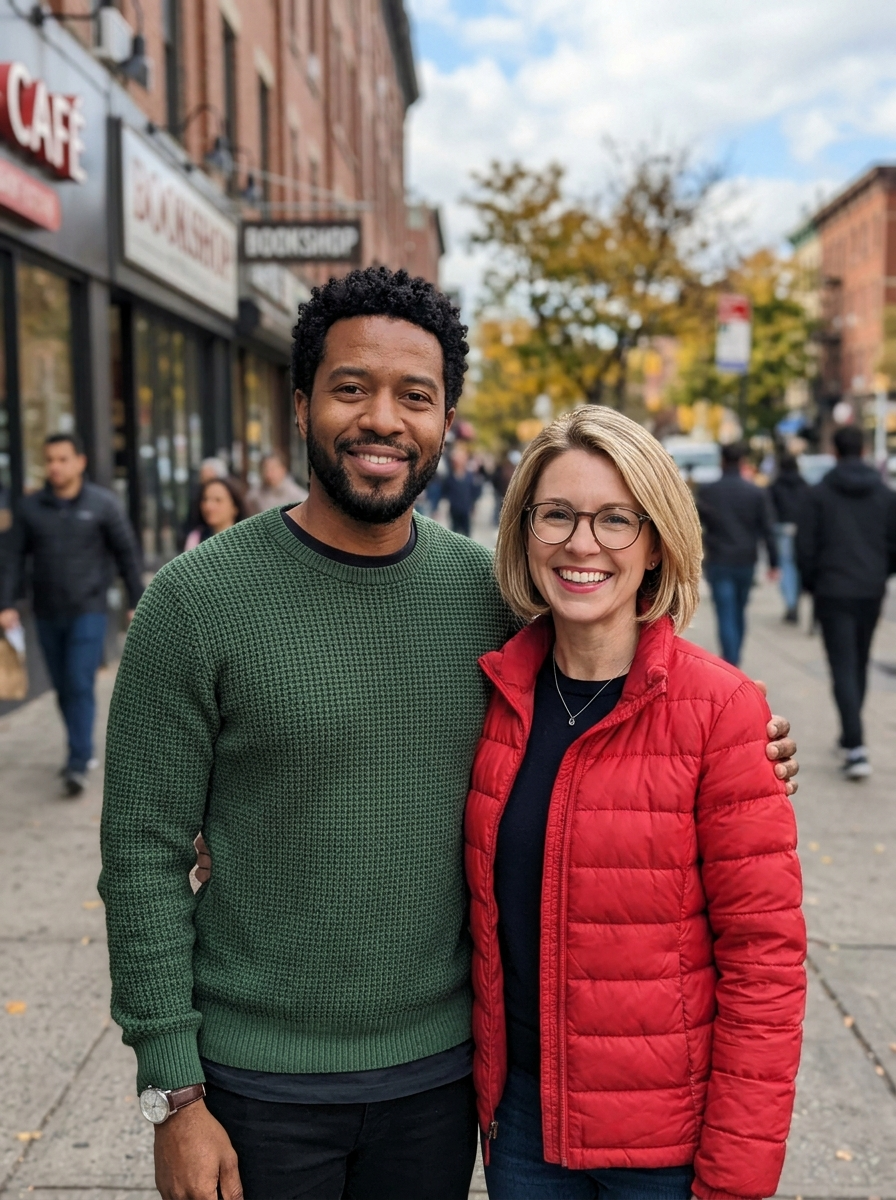
Uploaded photo
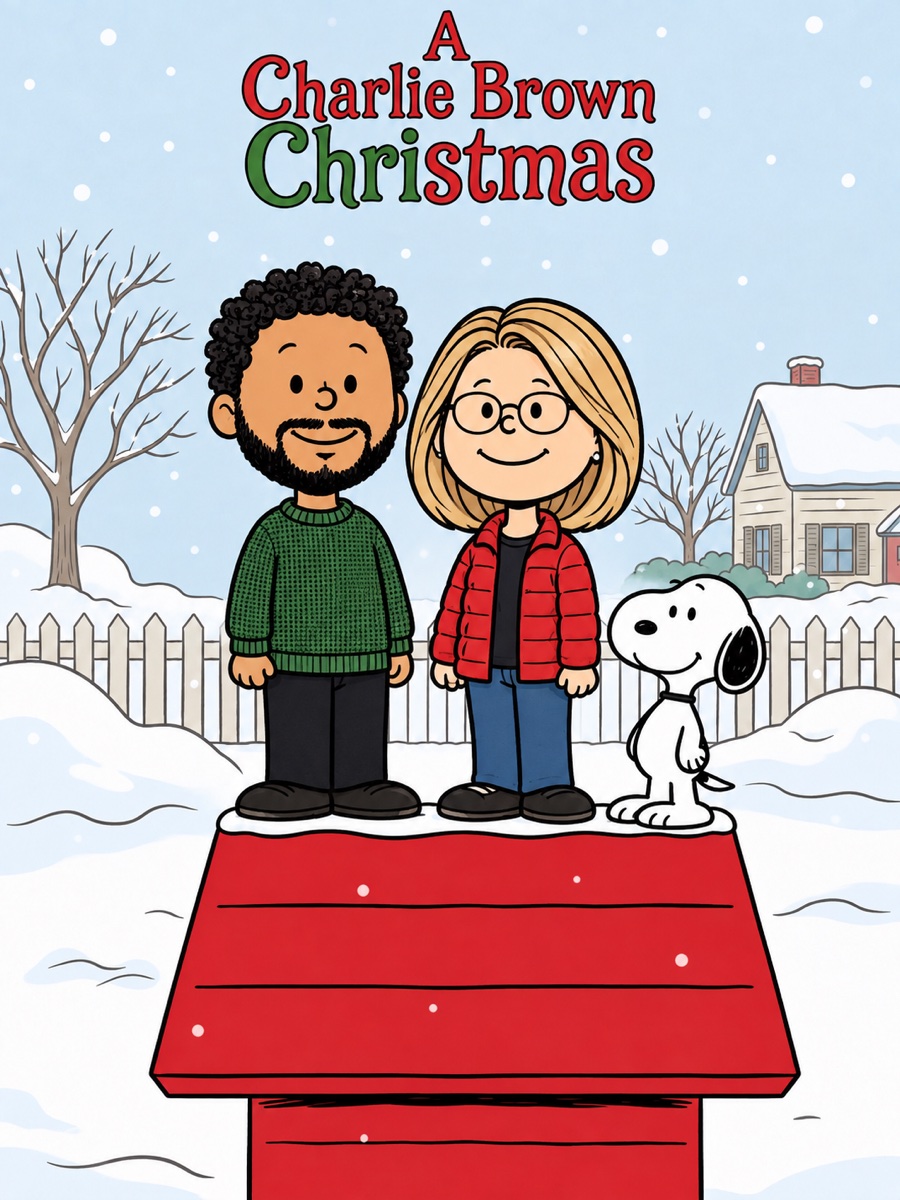
Step 1: the cartoon
Step 2: the final video
We tuned the scan too. The first version jumped down in 14 hard steps; it looked choppy, so the line now moves continuously with an ease-in and ease-out and a 28-pixel soft edge.
Why we turned the Charlie Brown Christmas Trend into a one-click template
Doing this by hand is a lot of work: you'd need an image model that keeps every person's look, a poster that still says "A Charlie Brown Christmas" correctly, then a video editor to line up the photo, the scan line, the timing and the sound, and the image step alone took us several prompt rounds and model comparisons to get right.
So we packed the whole process into the Charlie Brown Christmas Trend template. The tuned prompt, the poster, the scan settings and the sound are all set up; you upload one photo and press Generate, and about a minute or two later you have the finished video. There is nothing to edit yourself.
How to make a Charlie Brown Christmas Trend video in 4 steps
Step 1: Open the Charlie Brown Christmas Trend template
Go to the Charlie Brown Christmas Trend page. The template is already loaded at the top; there is no prompt to write and no CapCut template link to copy.
Step 2: Upload one photo
One to four people, waist up or full body, faces toward the camera. Waist-up photos get simple trousers and shoes added, so you don't need a full-length shot.
Step 3: Press Generate
The button shows the cost (400 credits) before anything is charged. It takes about 1.5 minutes and lands in My Videos, so you can close the tab. If drawing the cartoon or editing the video fails, all 400 credits come back automatically.
Step 4: Download and post
Download the MP4. It has no watermark, it's vertical and it already has the trend's sound, so it goes straight to TikTok, Reels or Shorts with tags like #charliebrownchristmas and #snoopyfilter.
Which photo works best for the Charlie Brown Christmas Trend?
| Works well | Avoid |
|---|---|
| One to four people, faces visible | Five or more people (they get merged or dropped) |
| Hair, glasses and outfit clearly in the shot | Sunglasses, masks or hands over the face |
| Sharp photo in good light | Dark, blurry or heavily filtered photos |
| Yourself, or people who agreed | Celebrities, public figures, or other people's children without consent |
The cartoon keeps what makes each person recognizable (hairstyle, hair color, glasses, beards, earrings, hats and clothes) but draws a simple dot-eyed face, as in the trend.
Why doesn't my Charlie Brown Christmas cartoon look like me?
Usually the photo hides what the cartoon keeps: sunglasses, a hat pulled low, a cropped head or a dark, blurry shot. Use a sharp photo with your hair, glasses and outfit visible and run the template again. Very small accessories can drop out; in one test a nose ring didn't make it, because the face is drawn as a simple cartoon.
Is the Charlie Brown Christmas Trend video free?
Not completely. New accounts get 75 free credits and one video takes 400, so you need the one-time $4.99 pack (540 credits). That covers one video at about $3.70 and leaves 140 credits, with no subscription. See pricing.
Why not just use an AI video model?
We tried image-to-video on the cartoon twice and both runs failed. Video models also redraw the cartoon frame by frame, so we draw the cartoon once with GPT Image 2 and edit the video ourselves, which keeps the cartoon and title steady and takes about 1.5 minutes.
Can I make it with friends or family in one photo?
Yes, up to four people in one photo. We tested a two-person photo: each person kept their own hair, glasses and clothes in the same order as the photo.
Do I need CapCut?
No. The TikTok trend came from a CapCut template, but our Charlie Brown Christmas Trend generator runs in the browser and gives you a finished MP4.
What is the Snoopy Christmas filter?
It's another name for the Charlie Brown Christmas Trend: a photo that turns into a Peanuts-style cartoon of you next to Snoopy on his red doghouse.
Is this official Peanuts?
No. It's a fan-made template, not affiliated with Peanuts Worldwide, Charles M. Schulz Creative Associates, CapCut or TikTok.