How to Make the Nightwing AI Trend Video From a Photo: 3 Test Runs, 1 Prompt That Worked
What’s new on this page
- — Published: three test runs (Wan 3.0 twice, Seedance 2.5 once) and the one-photo template built from the run that worked.
The Nightwing trend that took off on TikTok in October 2026 is a two-part clip: someone holds Nightwing's blue domino mask to their face, flings it off camera, and on the beat the video cuts to a purple-lit room where they spin two glowing sticks. By October 22, #nightwingtrend had more than 186 million views and 16,000 videos.
The Nightwing AI trend keeps those moves and puts a different person in them: you, a friend or a character, from one photo. We ran it three times on two models before it worked. This guide shows the setup, the prompt we ended up with, what went wrong on the way, and the template we built from the good run.
Method 1: Make it yourself with video-to-video AI
Step 1: Save the trend clip
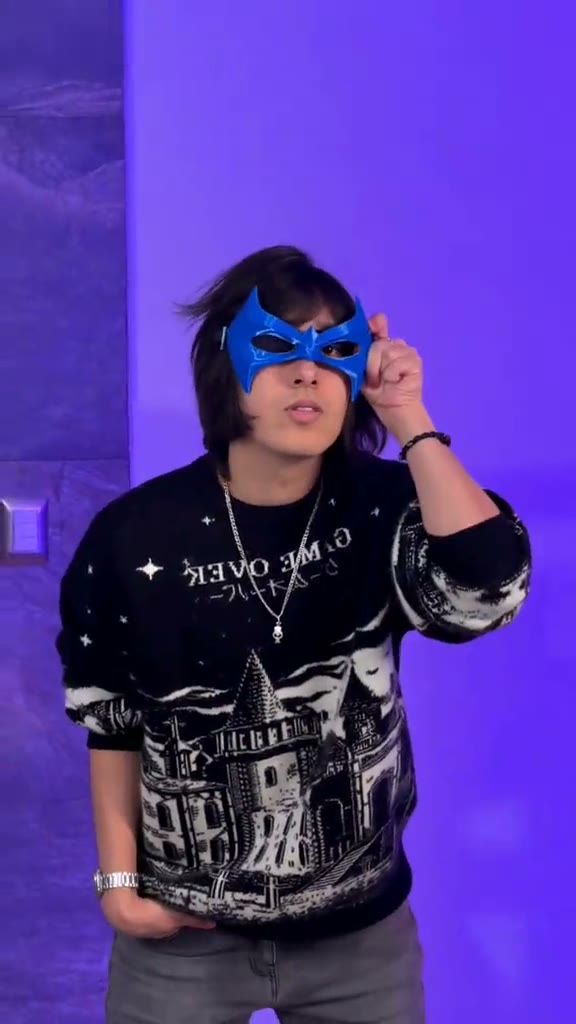
Save a Nightwing trend clip as an MP4, ideally one person, steady camera, full body in frame. Ours was a 15-second clip from @seihanstreams: sweater and blue mask against a plain wall, then a maid dress and two light sticks in a dark purple room. Video-to-video models accept up to 15 seconds. If the download has a watermark, remove it first so it doesn't carry over. Credit the creator when you post.
Step 2: Pick a full-body reference photo
This clip has an outfit change, so the model has two outfits from the clip competing with the one in your photo. A full-body photo, or at least knees up, gives it a clear outfit to hold on to. One person, facing the camera, sharp and well lit.
Step 3: Set up the Video tab
- Engine: Seedance 2.5 (Wan 3.0 also runs it, see our results below).
- Source clip: the 15-second trend clip.
- Reference image: your photo, as image 1.
- Ratio and length: Match source, so you keep the 15 seconds and the vertical frame.
- Resolution: 480P, Audio on.
Step 4: Use a prompt that bans the clip's clothes
A plain "replace the person, keep everything else" prompt was not enough here: the model kept pulling the sweater or the maid dress from the clip onto our person. What fixed it was telling the model to keep the photo's outfit through the cut, and listing each clip garment it must not use. The mask and sticks are props, so we kept them:
Replace the person in the source video with the person from image 1. Keep the face, skin tone, hairstyle and hair color from image 1 consistent for the whole video. The person wears the outfit from image 1 throughout, both before and after the cut. Do not dress the person in any clothing from the source video: no black graphic sweater, no maid dress, no headband, no white stockings. Keep the blue mask and glowing sticks from the source video as props. Keep the original motion, timing, cuts, camera movement, framing, lighting and backgrounds exactly the same. Natural hair and clothing movement, no face distortion, no flicker.
If you use a different trend clip, rewrite the "no ..." list for the clothes in that clip. Press Generate. The result appears in My Videos; failed renders refund their credits automatically.
Our 3 test runs: what went wrong and what worked
All three runs used the same 15-second clip at 480p with sound, and one reference photo each. Each image below shows the reference photo, the video at 1 second (before the toss) and at 12 seconds (after the cut).
Run 1, Wan 3.0: the clip's clothes leaked in
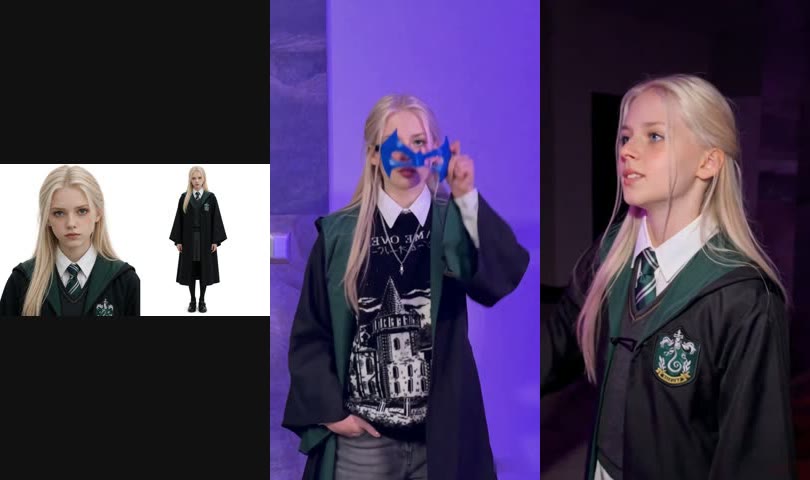
The face and hair matched the photo well. The outfit didn't: before the toss she was wearing the clip's black graphic sweater under her robe, and in the dance part a white maid apron and stockings showed up under it. 300 credits, about 12 minutes. This run is why the prompt now lists every garment from the clip.
Run 2, Wan 3.0: right outfit, wrong face
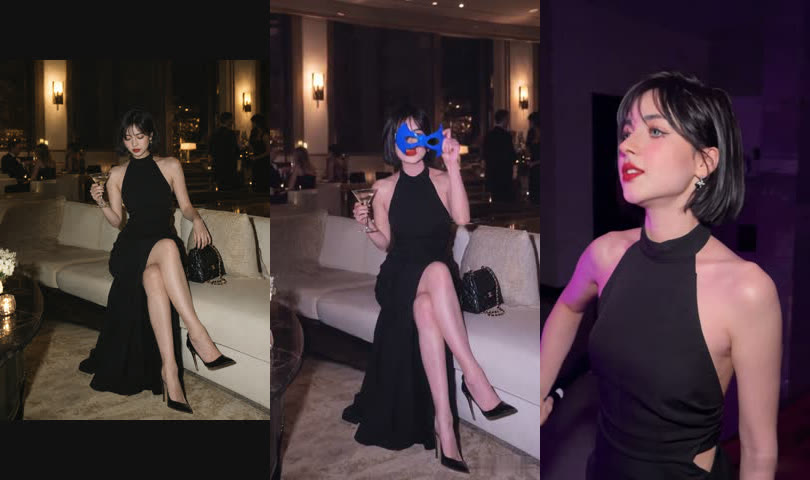
With the clothes-banning prompt, the black halter dress stayed on for all 15 seconds. But the face no longer looked like the person in the photo, especially in the close-ups after the cut. Wan also copied the photo's lounge background into the first part instead of the plain wall. 300 credits, about 12 minutes.
Run 3, Seedance 2.5: the keeper
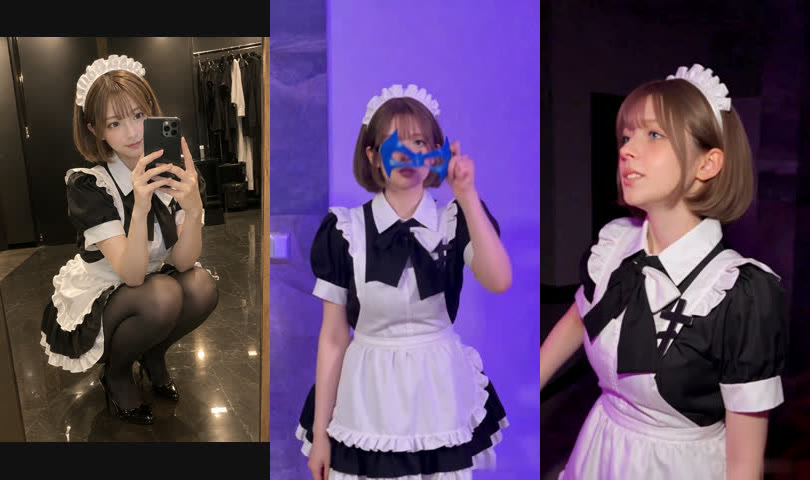
Same prompt, Seedance 2.5. The face, bob haircut and dress all matched the photo before and after the cut, and the mask toss and stick moves followed the clip. It cost more (640 credits) but finished in about 4 minutes, three times faster than Wan.
| Run 1 | Run 2 | Run 3 | |
|---|---|---|---|
| Model | Wan 3.0 | Wan 3.0 | Seedance 2.5 |
| Face matches photo | Yes | No | Yes |
| Outfit from photo only | No (sweater, apron leaked) | Yes | Yes |
| Credits | 300 | 300 | 640 |
| Time | ~12 min | ~12 min | ~4 min |
Method 2: Use the ready-made Nightwing template (one photo)
We packaged run 3 as a template: the clip, Seedance 2.5, the prompt above and the settings (15s · 480p · vertical · with sound). You only add the photo.
- Open the Nightwing AI trend generator. The template is already loaded.
- Upload one sharp photo of one person, full body or knees up.
- Press Generate. The video shows up in My Videos when it's ready, so you can close the tab.
- Download the MP4 (no watermark) and post it with #nightwingtrend.
FAQ
What is the Nightwing trend on TikTok?
Someone holds Nightwing's blue domino mask to their face, tosses it off camera, and the clip cuts on the beat to a glowing-stick dance in a purple room. #nightwingtrend passed 186 million views by October 22, 2026.
Is this the same as the Nightwing suit trend from earlier in 2026?
No. The spring wave turned a selfie into the full black-and-blue Nightwing suit. The October wave is the mask toss and stick dance, and you keep your own clothes.
Why does the AI put the clip's clothes on my person?
The clip has two outfits, and video-to-video models tend to borrow from them. List each garment in the prompt ("no black graphic sweater, no maid dress...") and say the photo's outfit stays on before and after the cut.
Which model works best for the Nightwing AI trend?
In our tests, Seedance 2.5. Wan 3.0 is cheaper (300 vs 640 credits) but either mixed in the clip's clothes or lost the face in our two runs.
Do I need a Nightwing mask or costume?
No. The mask and glowing sticks come from the clip. You only need one photo.
Is this affiliated with DC?
No. AI Photo Animator is an independent tool. Only upload photos of yourself or of people who gave you permission.