How to Make the Crazy Frog AI Video With Your Own Photos
What’s new on this page
- — Published after our own Wan 3.0 test run, which worked first time.
Crazy Frog AI videos took off in October 2026. They copy the pose from the 2005 Crazy Frog Axel F video, the frog riding a motorbike that isn't there, but with real people: knees up, fists on invisible handlebars, racing down a highway overpass while someone on a hover bike chases them.
If you've asked ChatGPT "how do I make the Crazy Frog AI video with my face?", this is the answer. We made one ourselves with two photos, took screenshots, and wrote down exactly what it cost.
Our test run
| Our run | |
|---|---|
| Photos | 2 character sheets: a seventies guy (big hair, sunglasses, blue jacket, leopard shirt) and a man with a handlebar mustache in a yellow plaid jacket |
| Model | Wan 3.0, video to video |
| Settings | 14s · 480P · aspect ratio Match source · audio on |
| Credits | 280 |
| Time to finish | About 6 minutes |
| Result | Success, first try |
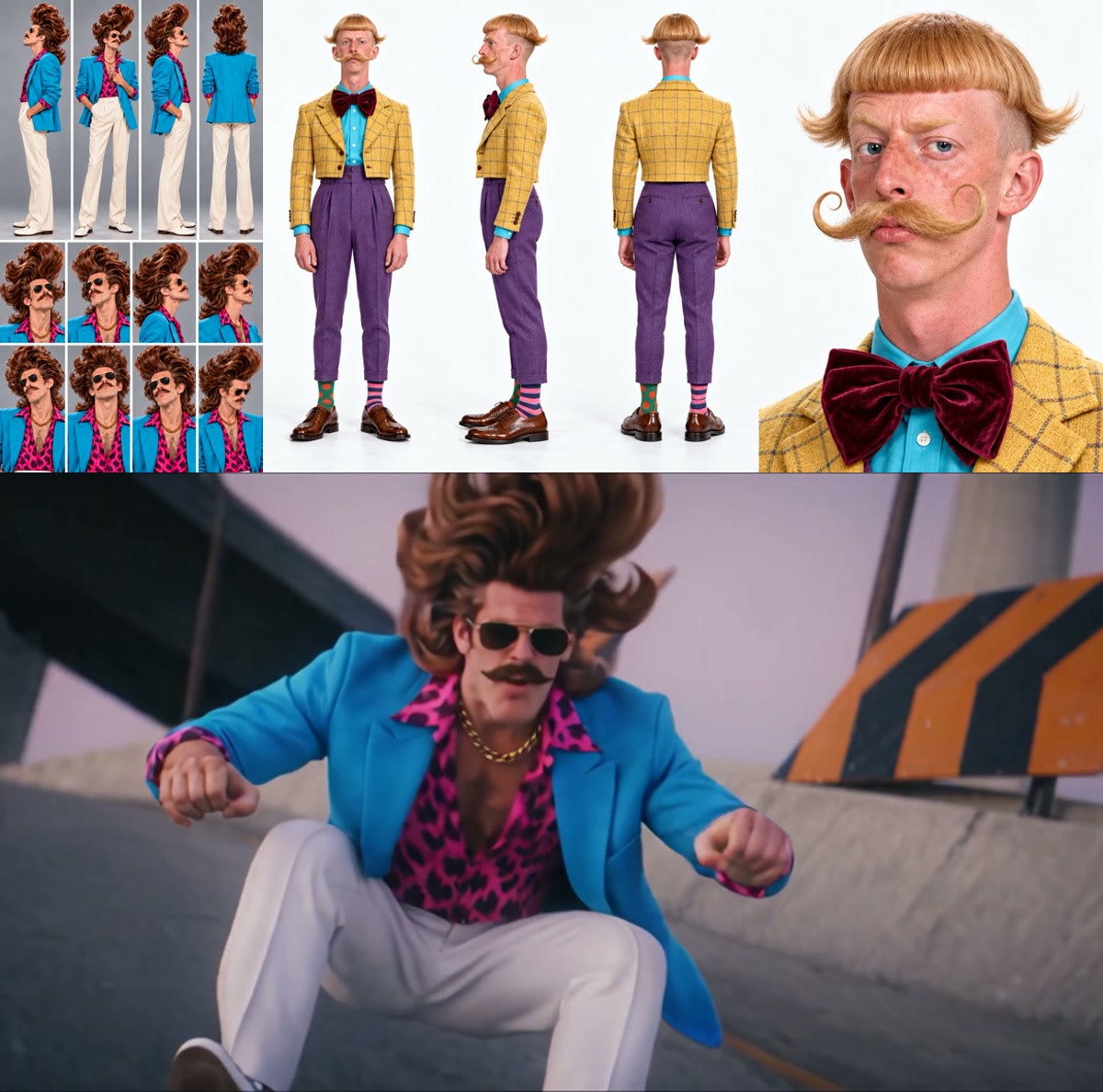
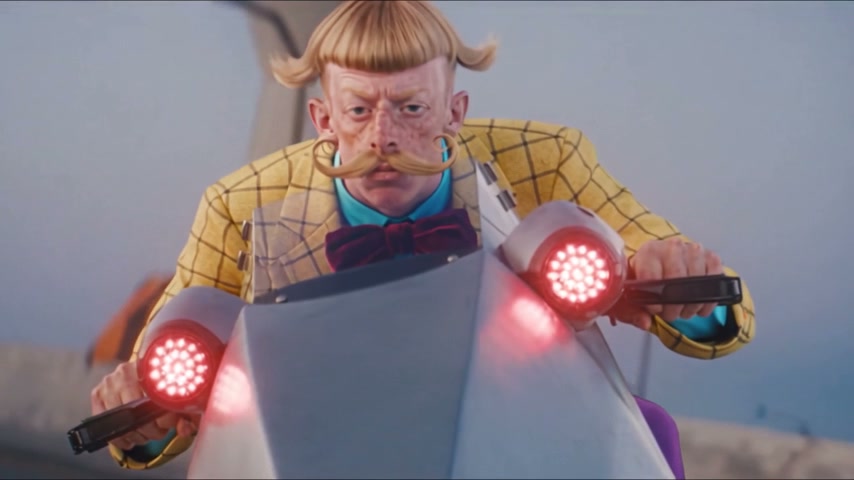
Two things stood out. First, we used character sheets (several angles of the same person on one image) instead of a single photo. With a 14-second clip and lots of camera angles, that helped the faces stay the same from shot to shot. Second, the rider's hair is huge, and the model let it blow back in the wind the whole time, which is half the joke.
Method 1: Make it yourself with Wan 3.0
Step 1: Save a chase clip
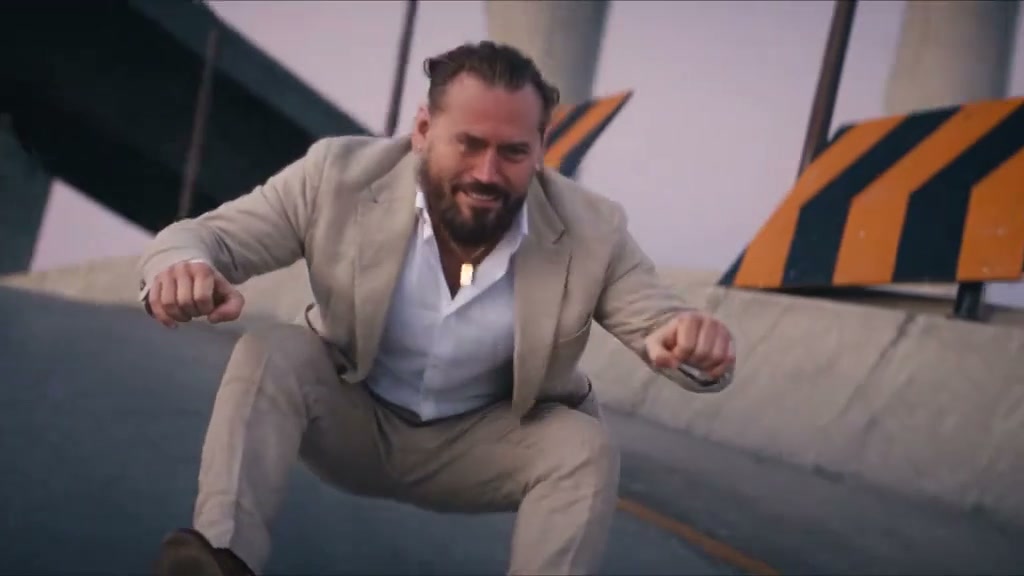
You need a clip with two people: one in the invisible-motorbike pose and one chasing. Ours was a 14-second live-action take on the Axel F video: a bald man in a beige suit sliding down an overpass, and a cop on a hover bike behind him.
Step 2: Pick two photos
One person per image, face visible. The rider is on screen most of the time, so a full-body shot or a character sheet works best. The chaser only appears from the waist up on the hover bike, so an upper-body photo is enough.
Step 3: Set up video to video
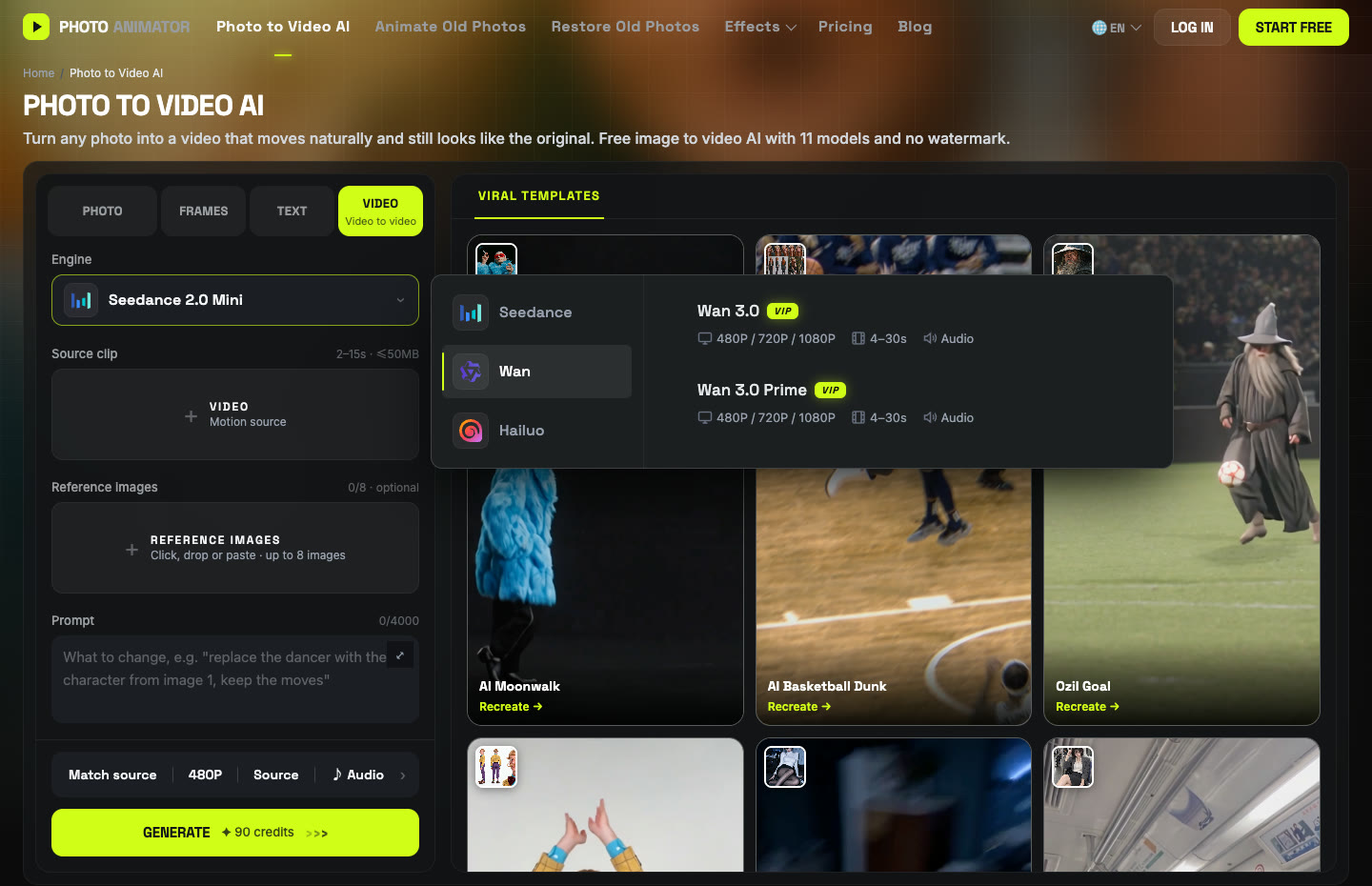
Open Photo to Video AI and switch to the Video tab. Add the clip under Source clip, then the rider as the first reference image and the chaser as the second. The order matters: the prompt refers to them as image 1 and image 2.
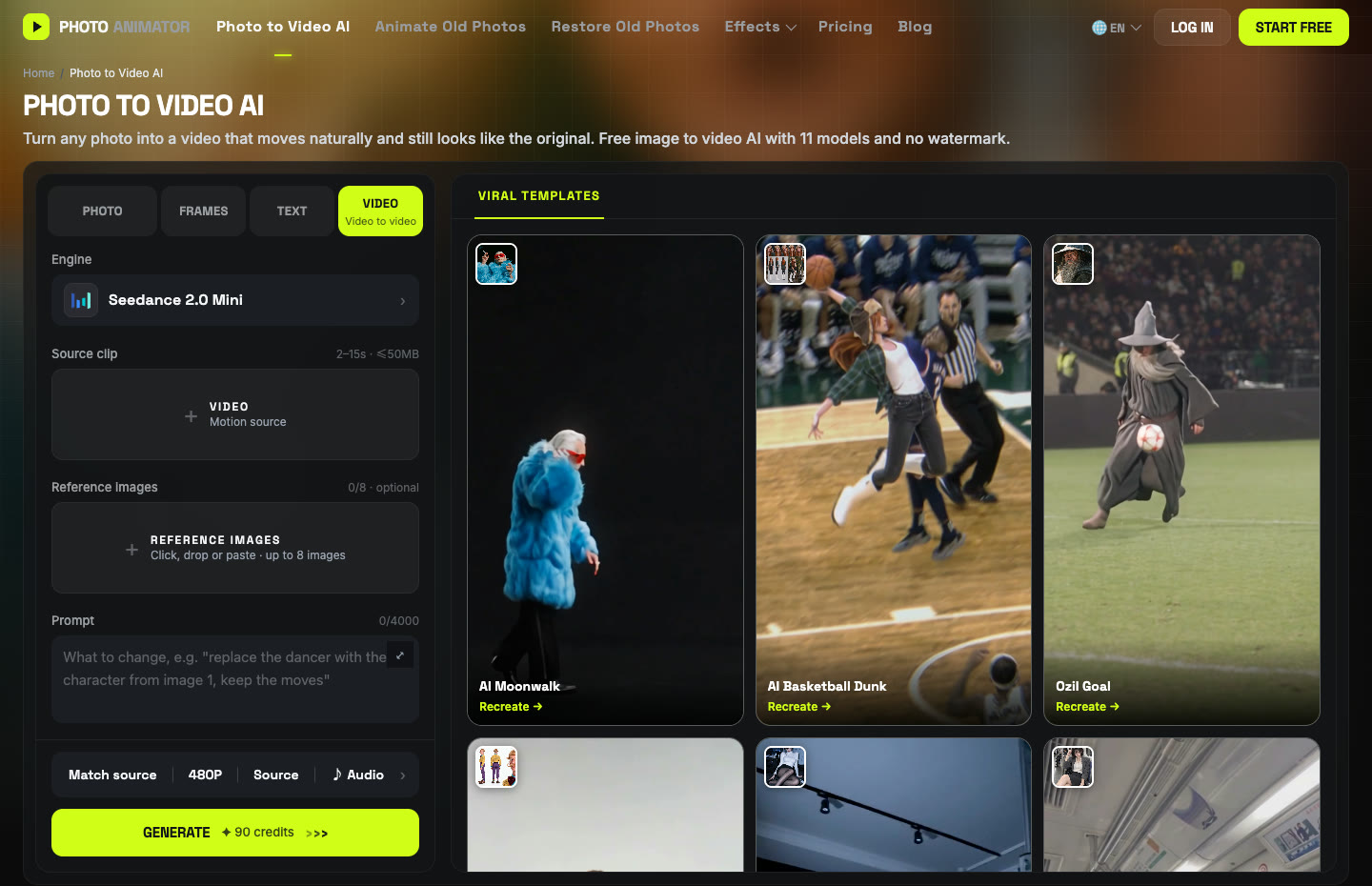
Click the Engine box, choose Wan and pick Wan 3.0. Set 480P, aspect ratio Match source, and keep Audio on.
Step 4: Paste the prompt
This is the exact prompt we used. It describes the two original characters and says which image replaces which. The cop's hover bike looks half robot, so we called it "the robot" and the model understood.
Replace the two characters in the source video with the characters from the reference images: - Replace the bald man in the beige suit with the character from image 1. Match image 1 exactly: same face and overall outfit. - Replace the robot with the character from image 2. Match image 2 exactly: same face and overall outfit. Each new character takes over the exact position, movements, poses and timing of the character they replace. Keep everything else from the source video unchanged: camera movement, framing, the sci-fi background, the lighting and the colors. The motion stays frame-for-frame identical. Keep the two characters clearly distinct and never mix their features or clothing. Clothing should fold and swing naturally with the moves. Faces stay stable and recognizable in every frame, with no flickering or morphing. Lighting and shadows on both characters match the scene. Realistic, high detail, smooth motion.
Press Generate. Ours took about six minutes and cost 280 credits for 14 seconds. The video lands in My Videos, so you can close the tab.
Method 2: Use the ready-made Crazy Frog template
After our run worked, we saved the whole setup (clip, Wan 3.0, settings and prompt) as a template. You only pick the two photos.
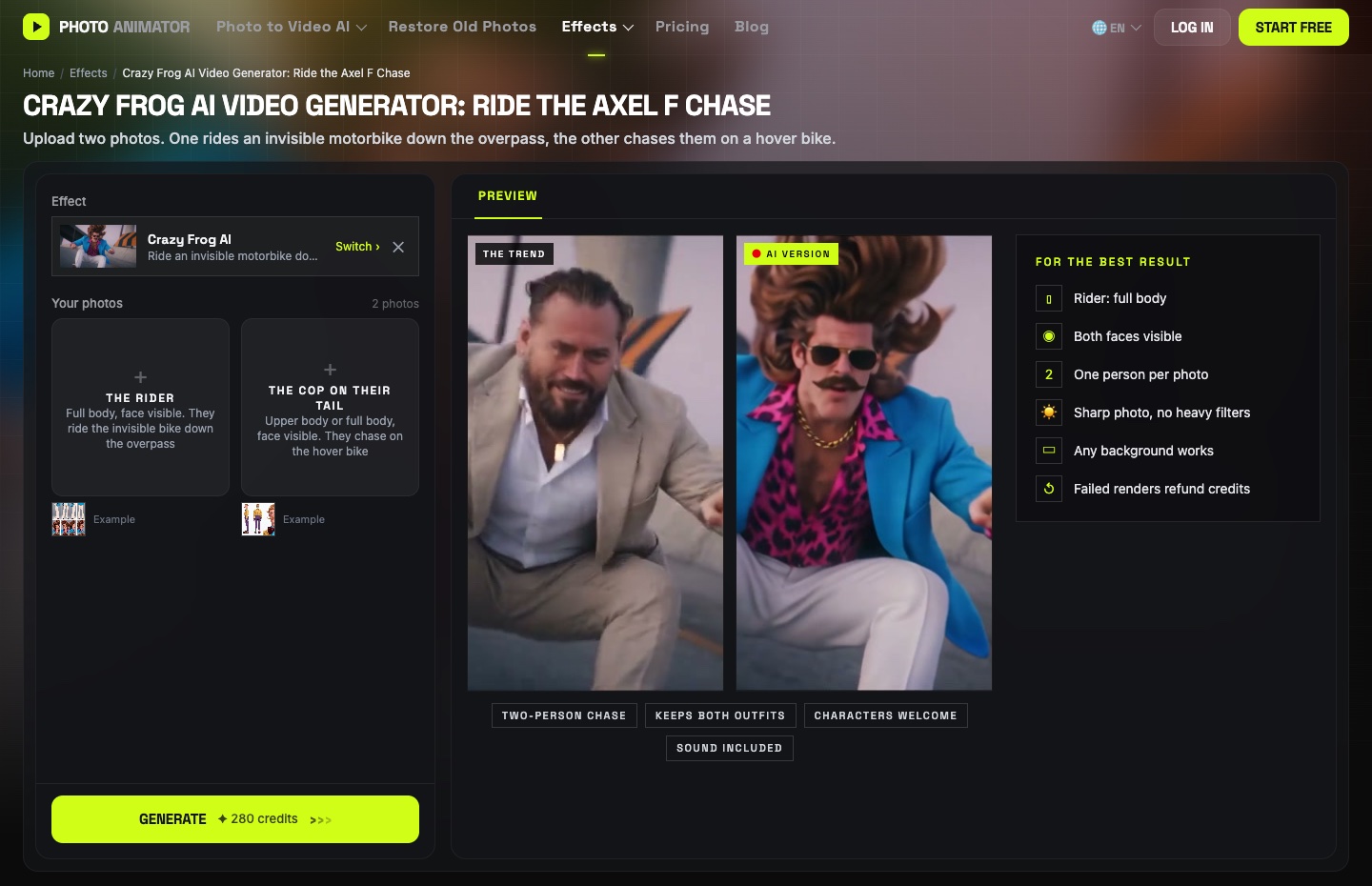
- Open the Crazy Frog AI video generator. The template is already loaded.
- Upload The rider: one person, full body, face visible.
- Upload The cop on their tail: upper body is enough.
- Press Generate, then download the MP4 (no watermark) from My Videos.
Which method should you use?
| Method 1: DIY | Method 2: Template | |
|---|---|---|
| What you need | Clip, 2 photos, prompt, settings | 2 photos |
| Model | Wan 3.0 | Wan 3.0 |
| Cost (14s, 480P) | 280 credits | Shown on the Generate button |
| Best for | Your own chase clip or a different scene | Getting it done in a minute |
FAQ
What is the Crazy Frog AI trend?
Real people in the Crazy Frog pose from the Axel F video, riding an invisible motorbike down an overpass while someone chases them. It took off in October 2026.
Who made the original Crazy Frog song?
Axel F was written by Harold Faltermeyer for Beverly Hills Cop (1984). Crazy Frog's version came out in 2005 and hit number one in the UK.
Can I do it with just one person?
The template is built for two. If you only have one person, you can use the same person for both slots, or put a pet or a character you made on the hover bike.
Is there an alternative to Higgsfield for the Crazy Frog effect?
Yes. The Crazy Frog AI template here runs in your browser, lets you pick both people, and downloads without a watermark.
How much does it cost?
Our 14-second run at 480P cost 280 credits with Wan 3.0. New accounts get free credits, and failed renders are refunded automatically.
Does the video have sound?
Yes, audio was on in our run. You can turn it off in the settings bar.
More trends we tested: AI moonwalk, AI basketball dunk, Zoolander meme and AI broom riding.