How to Do the AI Basketball Dunk Trend With Your Own Photo
What’s new on this page
- — Published after our own Wan 3.0 test run, which worked first time.
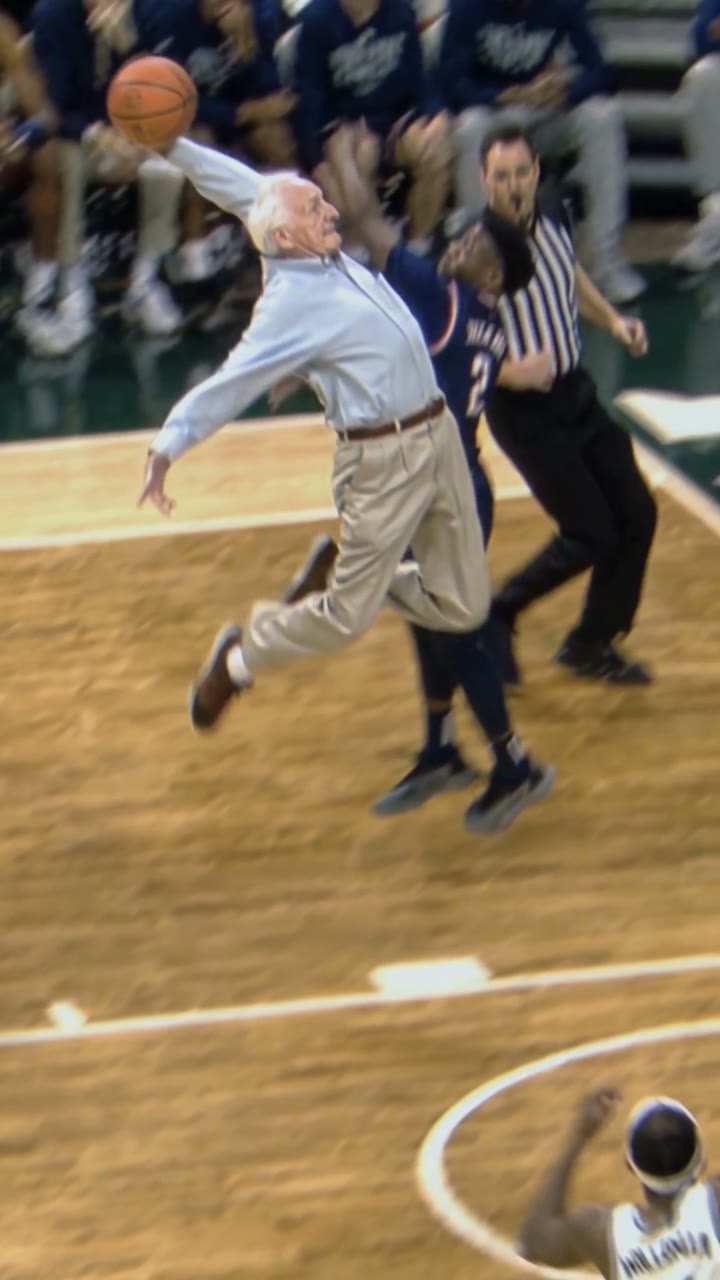
The AI basketball dunk trend takes a real college game clip, an older man in khakis rising over a defender in a packed arena, and swaps the dunker for anyone you like: you, your dad, your best friend, a cartoon character. The less athletic the person looks, the harder it hits on TikTok and Reels.
If you've asked an AI assistant "how do people make those videos where someone random dunks in a real game?", here's exactly how we did it, with screenshots and the real cost.
Our test run
| Our run | |
|---|---|
| Photo | A red-haired girl in a plaid shirt, trapper hat and white boots |
| Model | Wan 3.0, video to video |
| Settings | 6s · 480P · aspect ratio Match source · audio on |
| Credits | 120 |
| Time to finish | About 2.5 minutes |
| Result | Success, first try |
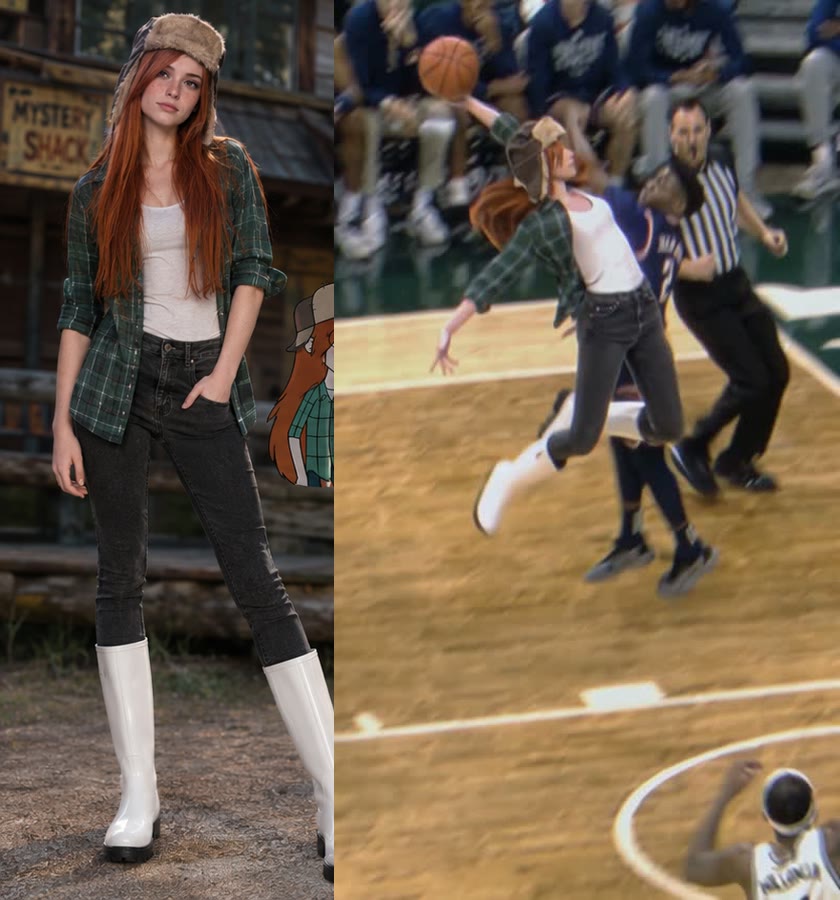
Our reference image was actually a character sheet: one picture with the same character shown front, side, back and in close-ups. That seems to help: the model kept the trapper hat and the long hair even when she turned away from the camera. The referee, the defender, the crowd and the court all stayed exactly as in the original clip.
Method 1: Make it yourself with Wan 3.0
Step 1: Save the dunk clip
Save the trend clip as an MP4, 2 to 15 seconds. Ours was 6 seconds: the run-up, the jump past the defender and the dunk.
Step 2: Pick your photo
One person or character, full body so the legs look right in the air, face visible. A character sheet or a photo set with several angles works even better if you have one.
Step 3: Set up video to video
Open Photo to Video AI and switch to the Video tab. Put the dunk clip under Source clip and your photo under Reference images.
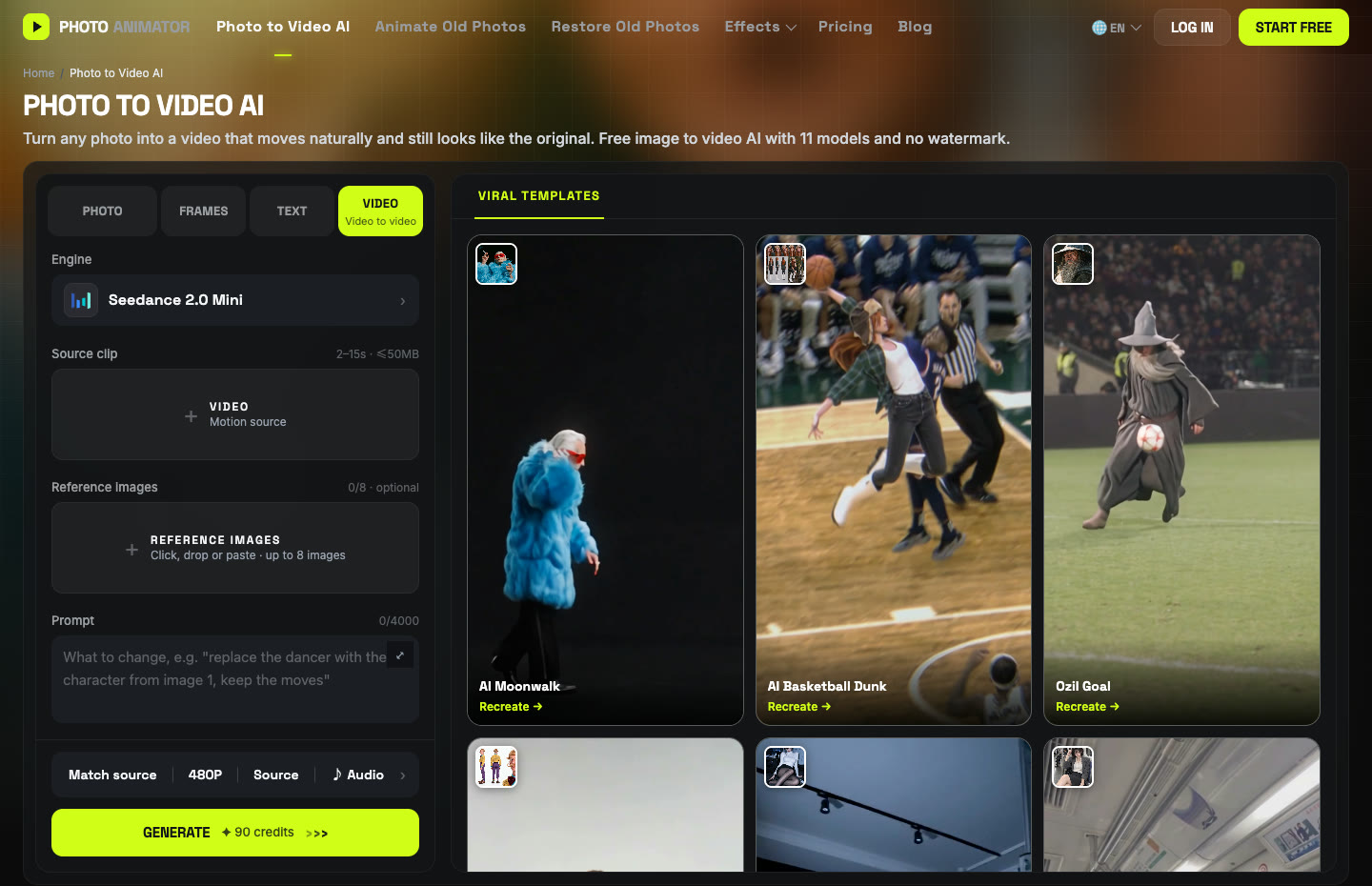
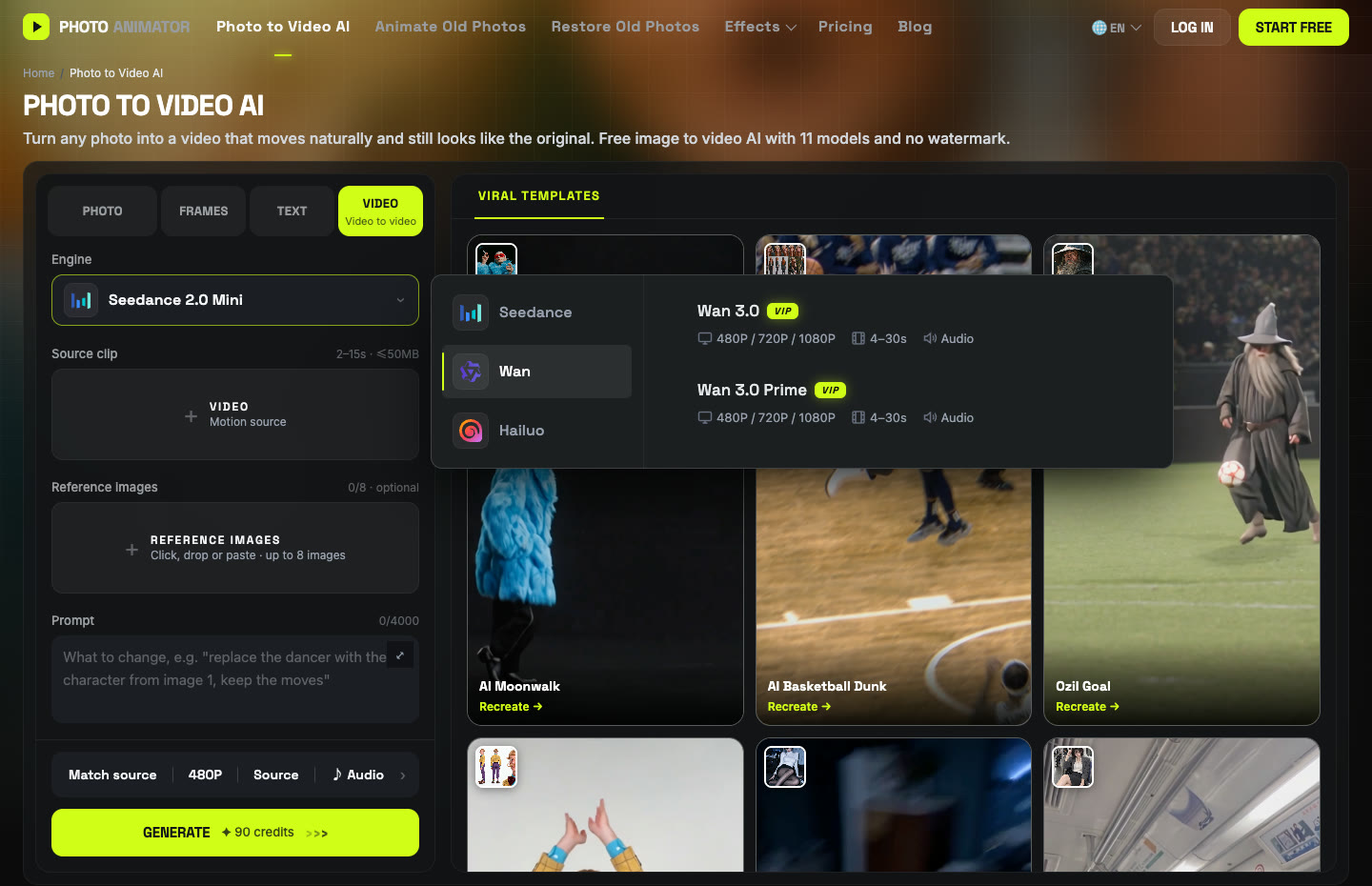
Click the Engine box, choose Wan and pick Wan 3.0. Settings: 480P, aspect ratio Match source, Audio on.
Step 4: Write the prompt
One sentence is enough, because the clip already carries the jump, the camera and the arena. We typed it in Chinese; the English version works the same:
将视频中的扣篮的人物替换成图片中的人物,其他的保持不变 Replace the person dunking in the video with the person in the image. Keep everything else the same.
Press Generate. Ours finished in about two and a half minutes and cost 120 credits for 6 seconds. It shows up in My Videos.
Method 2: Use the ready-made Basketball Dunk template
We saved the exact setup from our test as a template: the clip, Wan 3.0, the settings and the prompt. You only add the photo.
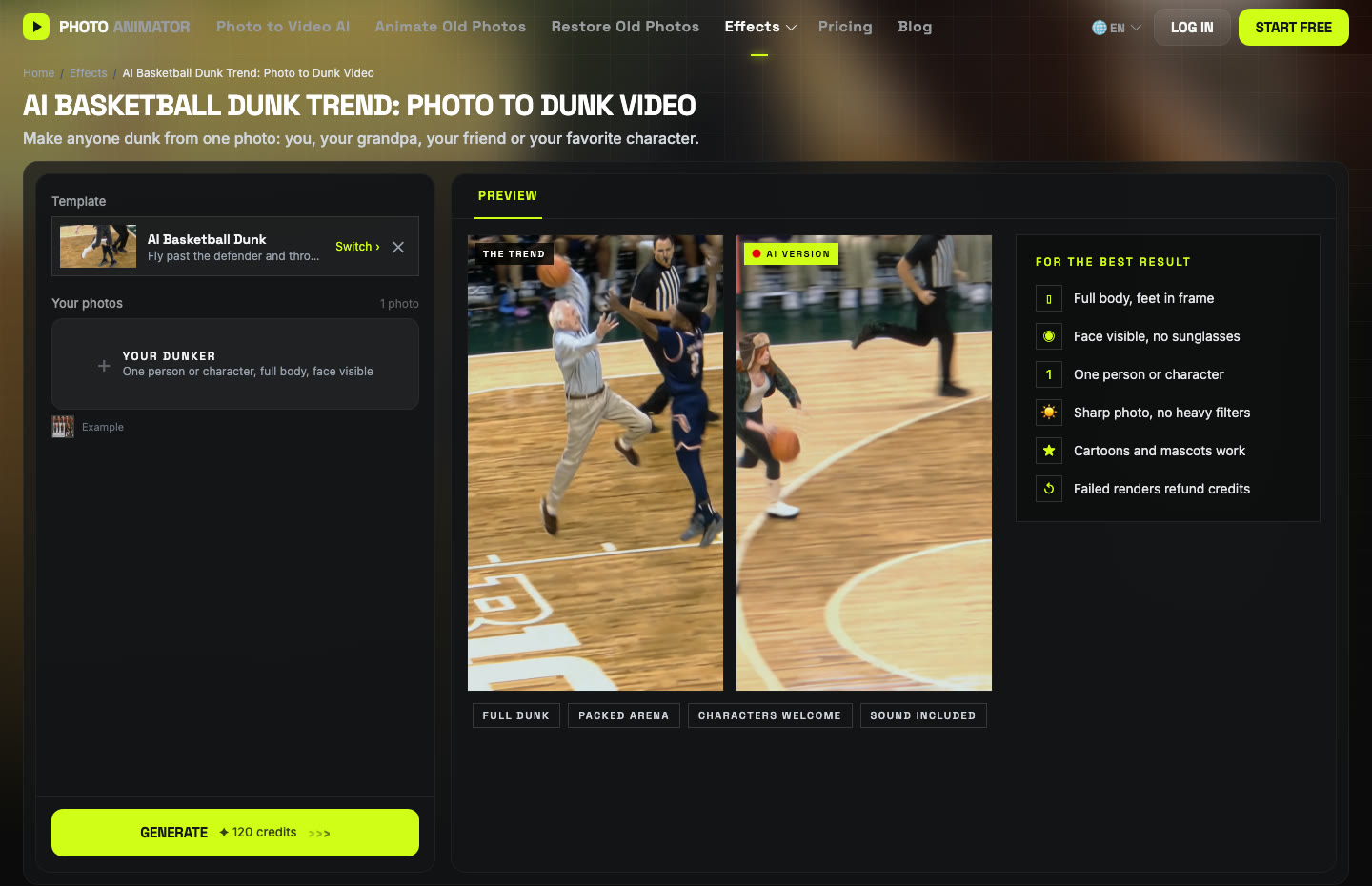
- Open the AI Basketball Dunk generator. The template is already loaded.
- Upload one photo: one person or character, full body, face visible.
- Press Generate. The video lands in My Videos.
- Download the MP4 (no watermark) and post it.
Which method should you use?
| Method 1: DIY | Method 2: Template | |
|---|---|---|
| What you need | Clip, photo, prompt, settings | One photo |
| Model | Wan 3.0 | Wan 3.0 |
| Cost (6s, 480P) | 120 credits | 120 credits |
| Best for | Using a different highlight clip | Getting it done in a minute |
FAQ
How do I do the AI basketball dunk trend?
Upload one photo to the AI Basketball Dunk template and press Generate, or run Wan 3.0 video-to-video yourself with the dunk clip, your photo and the one-line prompt above.
Can AI turn one photo into a dunk video?
Yes. One photo was all we used. The model keeps the clip's movement and arena and puts your person in as the dunker.
What kind of photo works best?
Full body, face visible, one person or character. A character sheet with several angles worked very well in our test.
Can I make my grandpa or a cartoon character dunk?
Yes, as long as they agreed. Our test was a cartoon-style character, and the original trend clip is an older man.
How much does it cost?
120 credits for 6 seconds at 480P with Wan 3.0. New accounts get free credits to start, and failed renders are refunded automatically.
Can I use a different basketball clip?
Yes, use Method 1 with any clip of 2 to 15 seconds and the same prompt. Clips with one clear dunker work best.
Another sports trend we tested: the Ozil goal AI video. Or a dance one: the AI moonwalk.