How to Make the Viral Ozil Goal AI Video From Your Own Photo (2026)
What’s new on this page
- — Published after two of our own Wan 3.0 test runs, both successful.
The Ozil goal is Mesut Özil's late winner for Arsenal away at Ludogorets in the Champions League on 1 November 2016. He took down a long ball, chipped the keeper, let two defenders slide past and walked it into an empty net. In October 2026 it came back as a TikTok and Reels trend, and the AI version puts someone else in the boots: you, a friend, a pet or a cartoon character.
If you've seen one of these and typed something like "how do people make those AI videos where someone chips the goalkeeper and scores?" into ChatGPT, this is the answer. We made it twice, with two very different photos, and both worked on the first try. Below is exactly what we did, with screenshots.
We tested it twice. Both worked first time
Before writing this we ran the whole thing ourselves on our own account, using the same 15-second Ozil goal clip both times. Same model, same prompt, same settings. The only thing we changed was the photo.
| Test 1 | Test 2 | |
|---|---|---|
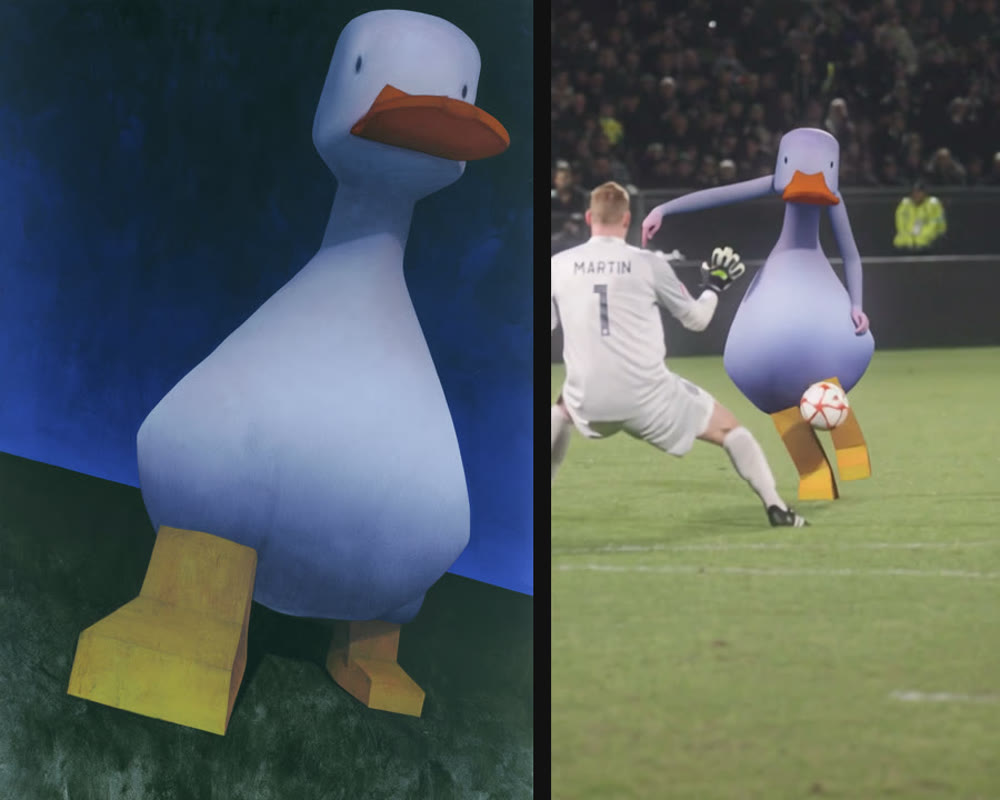
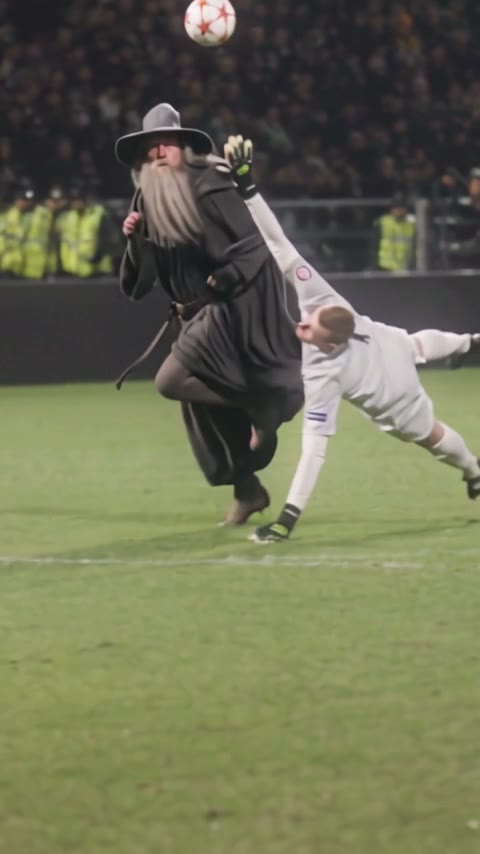
| Photo | A cartoon duck | A grey wizard in a pointed hat |
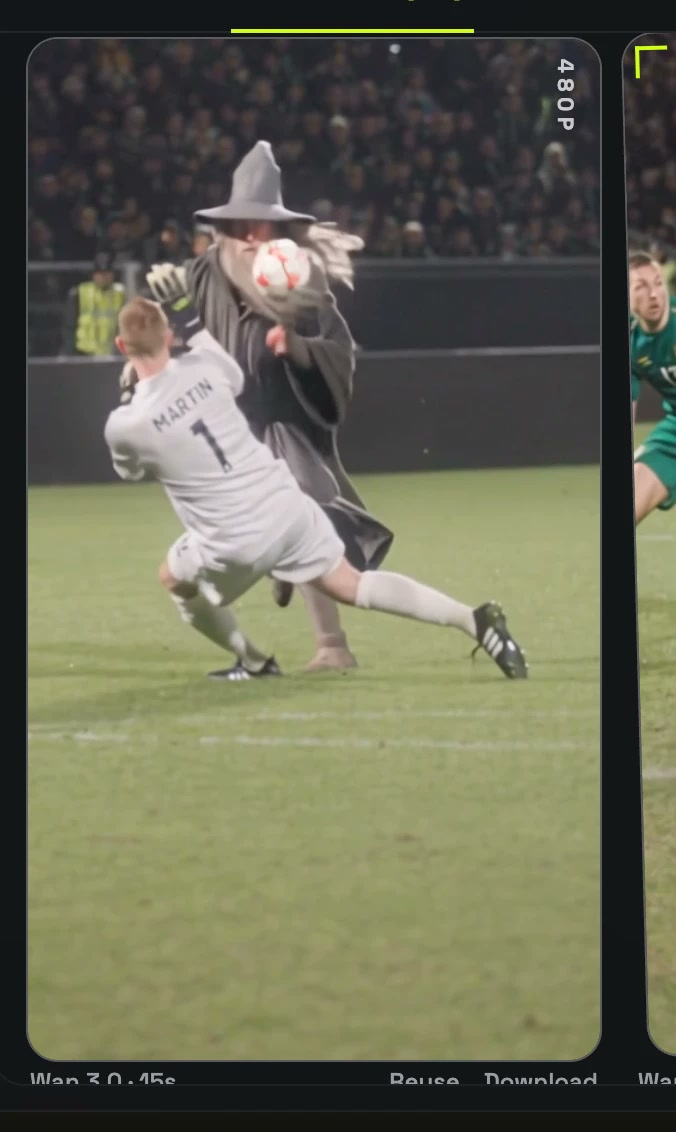
| How we ran it | By hand in Photo to Video AI | Through the Ozil Goal template |
| Model | Wan 3.0 | Wan 3.0 |
| Settings | 15s · 480P · audio on | 15s · 480P · audio on |
| Credits | 300 | 300 |
| Time to finish | About 4.5 minutes | About 4.5 minutes |
| Result | Success, first try | Success, first try |
Method 1: Make it yourself with Wan 3.0
Step 1: Save an Ozil goal clip
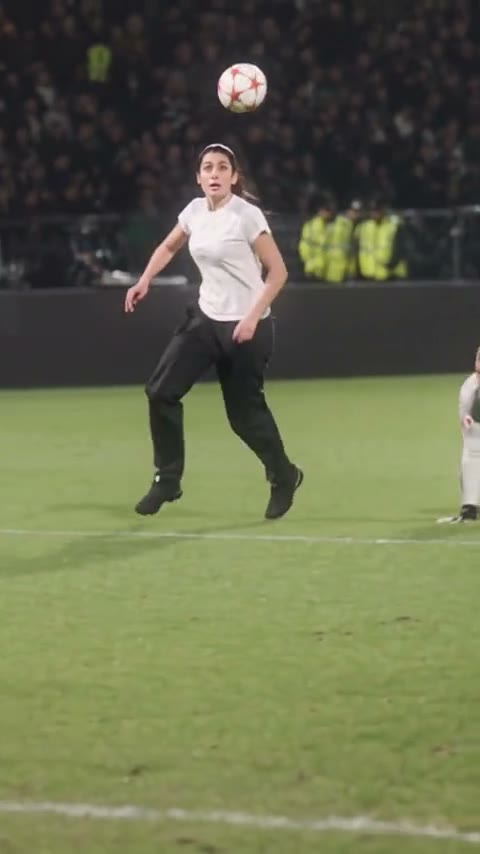
Pick a version where you can see the whole goal: the long ball, the chip over the keeper, the two sliding defenders and the finish. Save it as an MP4 and keep it to 15 seconds or less. Ours was exactly 15 seconds, shot from the stands at night.
Step 2: Pick your photo
One person or one character, full body if you can, face visible. Feet matter more here than in most trends, because the ball comes down onto them. Cartoons and mascots are fine: our first test was literally a 3D duck.
Step 3: Set up Wan 3.0
Open Photo to Video AI, switch to the Video tab, add the clip as the Source clip and your photo under Reference images, and choose Wan 3.0. Settings: 480P, aspect ratio Match source, Audio on. That came to 300 credits for 15 seconds.
Step 4: Write the prompt
We kept it to one sentence and typed it in Chinese. Here it is, plus the English version, which works the same:
将视频中踢球的人物换成参考人物中的角色,其他的保持不变。 Replace the person kicking the ball in the video with the character from the reference image. Keep everything else the same.
Press Generate. Both of our runs took about four and a half minutes, and the video shows up in My Videos, so you can close the tab and come back.
Method 2: Use the ready-made Ozil Goal template
After the first test worked, we saved the whole setup as a template: the clip, Wan 3.0, the settings and the prompt. Our second test (the wizard) went through that template, so it's tested too.
- Open the Ozil Goal AI video generator. The template is already loaded.
- Upload one photo: one person or character, full body, face visible.
- Press Generate. The video lands in My Videos.
- Download the MP4 (no watermark) and post it.
Which method should you use?
| Method 1: DIY | Method 2: Template | |
|---|---|---|
| What you need | Clip, photo, prompt, settings | One photo |
| Model | Wan 3.0 | Wan 3.0 |
| Tested by us | Yes (duck) | Yes (wizard) |
| Best for | Using a different goal clip | Getting it done in a minute |
FAQ
How do I make the viral Ozil goal AI video?
Upload one photo to the Ozil Goal AI template and press Generate, or run Wan 3.0 video-to-video yourself with an Ozil goal clip, your photo and the one-line prompt above.
Can I use my own photo?
Yes, that's the whole point. Use one person, full body, face visible, no sunglasses. Only upload photos of yourself or people who agreed to it.
Is there an AI tool that recreates the Ozil goal from a photo?
Yes. Our Ozil Goal AI video generator does it from one photo. It runs the same Wan 3.0 setup we tested twice.
Can I make my dog score the Ozil goal?
We haven't tried a dog yet, but a cartoon duck worked first time, so animals and characters are clearly fine. Use a sharp, full-body shot where the legs are visible.
What AI model and prompt do I need?
Wan 3.0 video-to-video at 480P with audio on, and a prompt like: "Replace the person kicking the ball in the video with the character from the reference image. Keep everything else the same."
Can I make an Ozil goal AI video for free?
New accounts get 75 free credits, and one 15-second Ozil goal video at 480P costs 300 credits, so you'll need a credit pack for a full run. If a render fails, the credits come back automatically.
Can I recreate a different football video with myself as the player?
Yes, with Method 1. Swap in your own clip (15 seconds or less), add your photo and keep the same prompt. Clips with one clear main player work best.
How long does it take?
Both of our test runs took about four and a half minutes.