How to Make the Bad Times AI Video (2026): Keep Your Own Background
What’s new on this page
- — Published, based on our own Wan 3.0 test run.
Bad Times is a song credited to Imael Angel, and it's been all over TikTok and Reels since late summer 2026. Half the comments are people asking whether the singer is real or AI. The trend that goes with it is a little one-person drama: you grab your head, wave the camera away, pace back and forth and lip-sync like you're mid-fight with whoever is filming. Searches for "bad times imael angel" went from almost nothing in spring to about 2,400 a month in August.
The AI version swaps in your face. The thing we didn't like about most AI versions is that they all happen in the same kitchen as the clip they copied. So we changed one line in the prompt and the background now comes from your photo too. Here's how we did it.
Method 1: Make it yourself with Wan 3.0
Step 1: Save a Bad Times clip
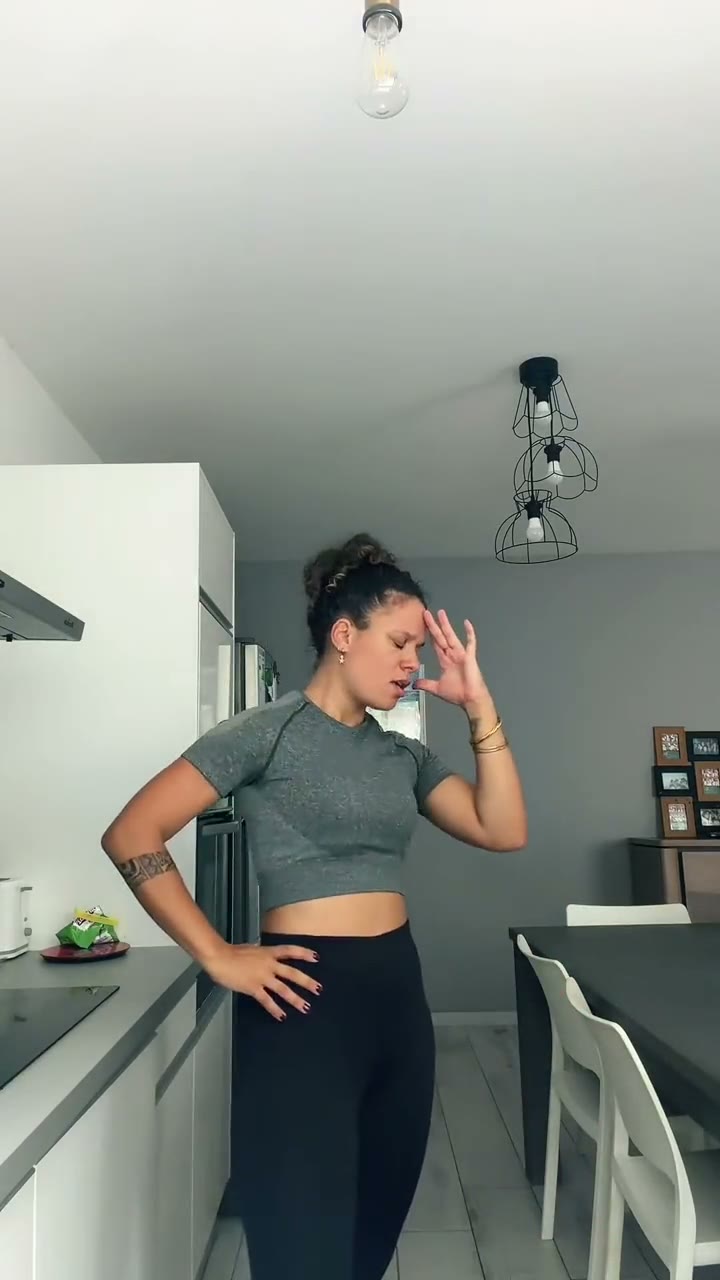
Pick a Bad Times video where one person does the whole routine and the camera stays fairly still. Save it as an MP4 and keep it at 15 seconds or less, which is the cap for video-to-video. Ours was exactly 15 seconds, shot in a kitchen.
Step 2: Pick a photo that already has the scene in it
This is the part that's different from a normal face swap. Your photo does two jobs here: it gives the AI your face and outfit, and it's the set. We used a photo of a woman in a grey blazer on a subway car. Whatever is behind you in the picture is where the video will happen, so take it somewhere you actually want to be seen losing it.
Step 3: Choose Wan 3.0
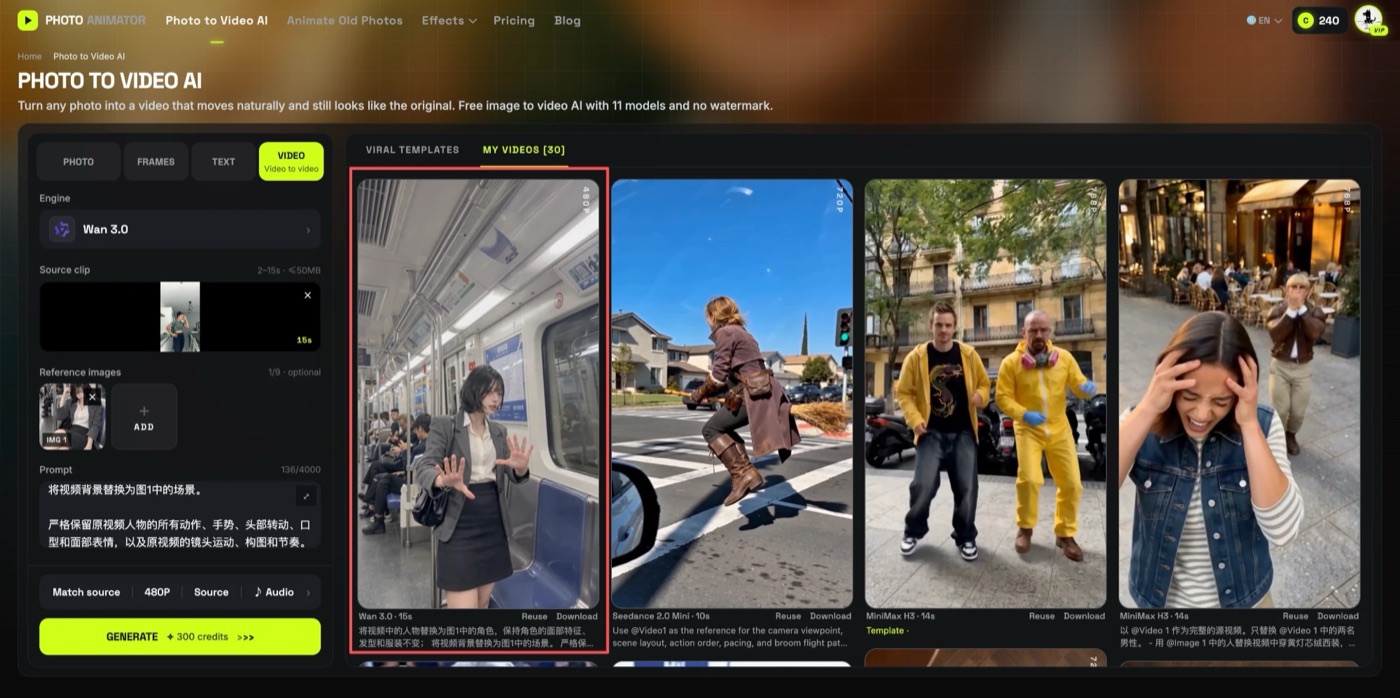
Open Photo to Video AI and switch to the Video tab, add the clip as Source clip and your photo under Reference images, then pick Wan 3.0. We've already run this kind of job through several models. On Bulin 47, Wan 3.0 kept the face closest to the photo and Seedance kept failing; on the Zoolander stare and Smalltown Boy we compared Wan with MiniMax. For a single person with lots of hand and face movement, Wan was the safe pick, so we didn't bother testing again.
Settings: 480P, aspect ratio Match source, Audio on, length 15 seconds. That cost 300 credits. 720P works too if you want it sharper and are fine paying more.
Step 4: Write the prompt (with the background line)
Our earlier prompts only swapped the person. This one has two extra sentences: one telling Wan to replace the background with the scene from image 1, and one telling it to match the lighting so you don't look pasted on. Because the scene now comes from the photo, the same prompt works for any picture, whether it's a subway, an office or a street at night.
Replace the person in the video with the character in image 1, keeping their facial features, hairstyle and outfit unchanged. Replace the video background with the scene in image 1. Strictly keep all of the original person's movements, gestures, head turns, lip movements and facial expressions, as well as the original camera movement, framing and pacing. The result should look real and natural, with lighting that matches the background in the photo, and the person blending into the background seamlessly.
(We typed it in Chinese and it works the same.) Press Generate. It took a few minutes, and the moves, lip-sync and song all came through. She was standing in the subway car from the photo, with passengers in the seats behind her.
Method 2: Use the ready-made Bad Times template
Since this worked first time, we packaged it as a template: the clip, Wan 3.0 and the full prompt are saved, so all you add is the photo.
- Open the Bad Times AI video generator. The template is already loaded.
- Upload one photo: one person, face visible, taken where you want the scene.
- Press Generate. The video shows up in My Videos, so you can close the tab.
- Download the MP4 (no watermark) and post it.
Which method should you use?
| Method 1: DIY | Method 2: Template | |
|---|---|---|
| What you need | Clip, photo, prompt, model choice | One photo |
| Model | Wan 3.0 (our pick) | Wan 3.0, tested |
| Background | From your photo, if you add the line | From your photo |
| Best for | Using a different Bad Times clip | Getting it done quickly |
FAQ
Is the Bad Times song AI?
It's credited to Imael Angel, and many listeners believe both the artist and the song are AI-generated. There's no official confirmation either way.
Why use Wan 3.0 and not Seedance or MiniMax?
In our earlier tests Wan 3.0 kept faces closest to the reference photo, and Seedance failed on trend clips like Bulin 47. For a one-person clip like Bad Times it was the obvious choice.
How do I keep my own background?
Add "Replace the video background with the scene in image 1" to the prompt, plus a line about matching the lighting. Then the background comes from your photo instead of the clip.
How long can the clip be?
Up to 15 seconds for video-to-video. Ours was 15 seconds.
How much does it cost?
Our run was 300 credits for 15 seconds at 480P with audio. The cost always shows on the Generate button first, and failed renders are refunded.
Can I use someone else's photo?
Only your own, someone who gave you permission, or a character you made. No celebrities, public figures or minors.