How to Make a Bulin 47 AI Viral Video (2026): 2 Ways We Tested
What’s new on this page
- — Published: both methods with real screenshots from our own test runs.
The Bulin 47 viral video is a street freestyle: Dominican artist Bulin 47 improvising on the mic over Kevin Wai's speaker while a crowd films around him (original on TikTok, Bulin 47's own post). The AI trend swaps the performer for yourself, a friend or a character while keeping everything else the same.
We tried to make one ourselves before building a tool for it. This guide shows both routes: the do-it-yourself workflow, including the model that kept failing and the fix that worked, and the one-photo template we built from the result.
Method 1: Make it yourself with video-to-video AI
This is the route we took first. It works, but it takes some trial and error.
Step 1: Save the original TikTok video
Save the freestyle clip from TikTok as an MP4. Use it for a personal, non-commercial remix and keep credit to the original creators when you post.
Step 2: Try Seedance 2.5 (and why it failed for us)
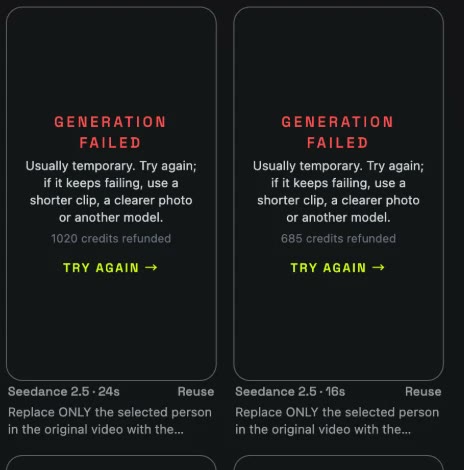
We started with Seedance 2.5 in the Video tab: source clip, one reference photo and a replacement prompt. Every attempt came back as a failed generation. As far as we can tell, the clip was blocked as copyrighted content, so changing the photo or the prompt didn't help. Credits were refunded automatically each time.
Step 3: Trim the clip to 14 seconds and switch to Wan or MiniMax
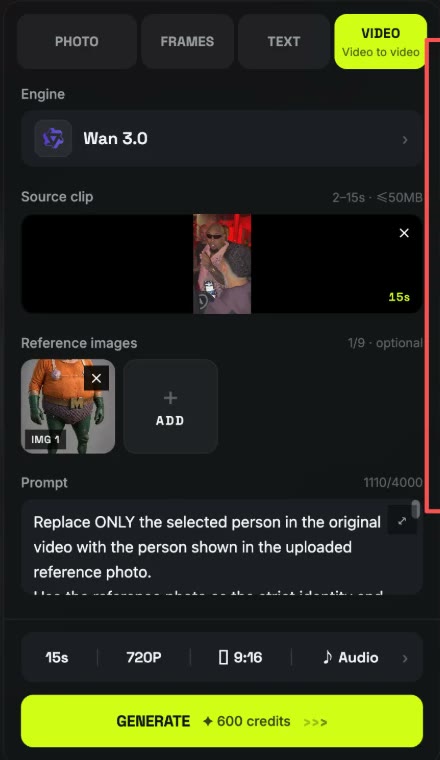
We trimmed the original to about 14 seconds (video-to-video models accept clips of up to 15 seconds) and ran it on MiniMax and on Wan 3.0 with the same reference photo and prompt. Both worked. Wan 3.0 was clearly better: the face stayed closest to the reference photo, the gestures and lip movement followed the original, and it failed less often.
What mattered in the prompt:
- Replace only the selected person. Leave the crowd, street, lighting and camera movement alone.
- Treat the reference photo as a strict identity and outfit guide. Don't blend faces or beautify.
- Copy the original performance exactly: gestures, head turns, eye direction and lip movement, with the same timing.
- Keep the original duration and audio unchanged, and don't generate a new voice.
Method 2: Use the ready-made Bulin 47 template (one photo)
Since Wan 3.0 with this prompt gave the best likeness and success rate, we packaged the whole setup as a template: the trimmed clip, the model, the prompt and the settings (15s · 720p · 9:16 · original sound). You only add the face.
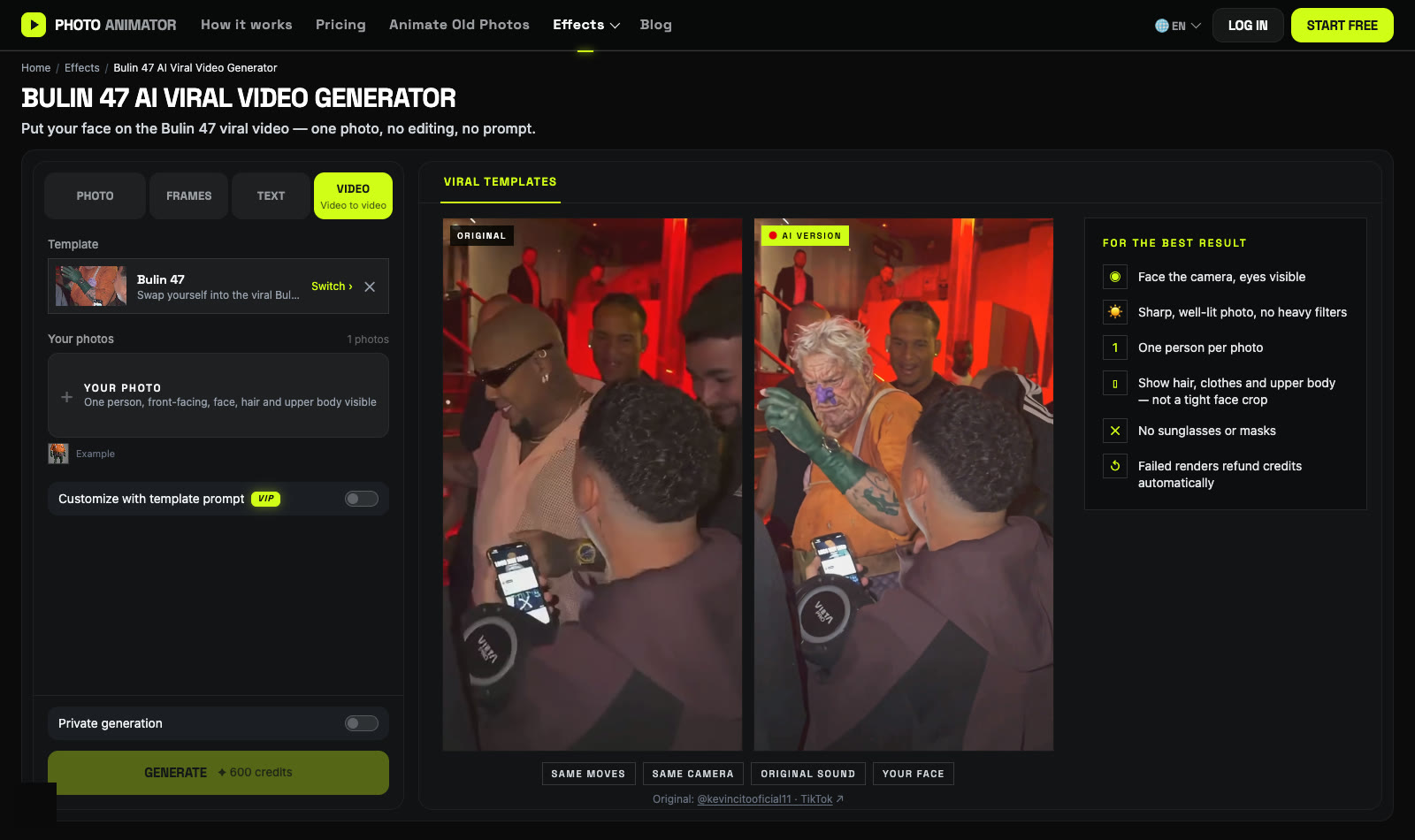
- Open the Bulin 47 AI viral video generator. The template is already loaded.
- Upload one sharp, front-facing photo that shows your face, hair and upper body.
- Press Generate. The video shows up in My Videos when it's ready, so you can close the tab.
- Download the MP4 (no watermark) and post it to TikTok, Reels or Shorts.
Which method should you use?
| Method 1: DIY | Method 2: Template | |
|---|---|---|
| What you need | Clip, photo, prompt, model choice | One photo |
| Trimming the clip | Yes, to 15s or less | Done for you |
| Model | Wan 3.0 or MiniMax (Seedance 2.5 failed) | Wan 3.0, tested |
| Best for | Customizing the scene or using another clip | Getting a good result quickly |
FAQ
Why does Seedance fail on the Bulin 47 video?
In our tests every Seedance 2.5 run on this clip failed, most likely because the clip was flagged as copyrighted. Wan 3.0 and MiniMax both worked on the trimmed clip.
How long can the source clip be?
Video-to-video models accept up to 15 seconds. We trimmed the Bulin 47 clip to about 14 seconds.
Does the AI video keep the original sound?
Yes. The prompt keeps the original audio unchanged, and the template exports with the original sound.
Can I see the template's prompt?
Members can view the full template prompt and customize it from the template panel.
Is this affiliated with Bulin 47?
No. AI Photo Animator is an independent tool. Only upload photos of yourself or of people who gave you permission.